
Customers and suppliers
Contacts holds everyone you trade with. A contact is a Customer, a Supplier, or Both — a phone shop that buys from you and sells you trade-ins, say.
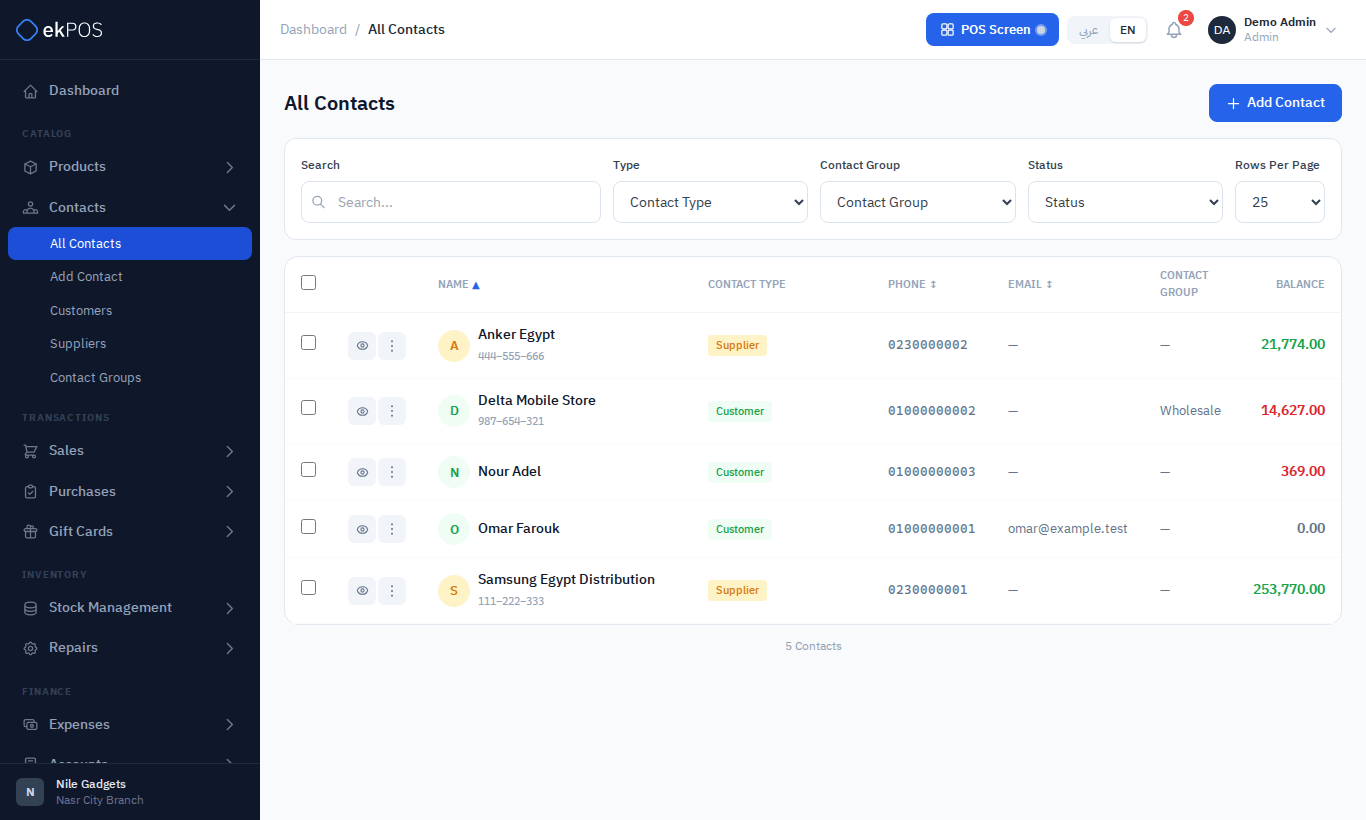
The Contacts menu has All Contacts, Customers, Suppliers and Contact Groups. A contact of type Both appears under Customers and Suppliers.
Add a contact
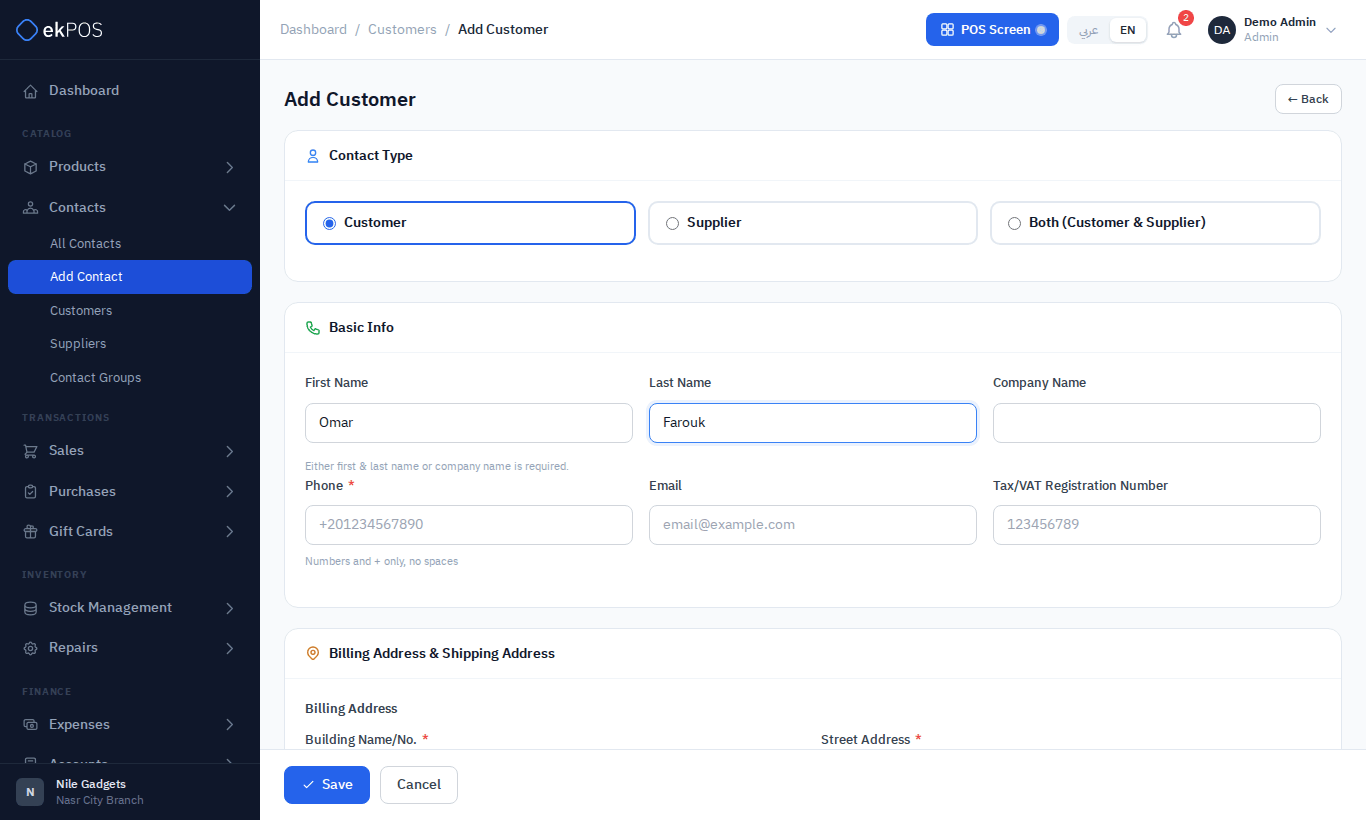
- Go to Contacts → Add Contact (or Add Customer / Add Supplier on those lists).
- Choose the Contact Type.
- Enter a First Name and Last Name, a Company Name, or both. Either the full name or the company is required.
- Enter the Phone — required, digits only with an optional leading
+, no spaces. - Add the email and Tax/VAT Registration Number if they have one.
- Fill the billing address, and the shipping address or tick Same as billing address. See Addresses below.
- Optionally set the Contact Group, Price List, Credit Limit, Opening Balance and any custom fields.
- Click Save.
Fields that change how ekPOS behaves
| Field | Effect |
|---|---|
| Tax/VAT Registration Number | A customer with one gets a Sales Invoice (and an ETA e-invoice); without one, a Sales Receipt (and an e-receipt). |
| Contact Group | Applies the group's price list and warranty policy. See Contact groups. |
| Price List | Gives this customer their own price list, overriding their group's. |
| Opening Balance | What they owed you (customer) or you owed them (supplier) when you started with ekPOS. Written to their ledger as the first entry. Only on Add Contact. |
| Credit Limit | How much the customer may owe. When you pick them on the POS, Add Sale or Edit Sale, their balance is shown against it, in red once they are over. Business Settings chooses whether an over-limit sale is refused or saved with a warning. 0 means no limit. |
Addresses
Customers, suppliers and your business profile use the same address, laid out the way the Egyptian Tax Authority's portal asks for it:
| Field | Required |
|---|---|
| Building Name/No. | ✱ |
| Street Address | ✱ |
| Neighborhood/City | ✱ |
| Governorate — pick from the list of Egypt's governorates, or type one | ✱ |
| Post Code | |
| Additional Information — for example the closest landmark | |
| Country | ✱ |
An address is optional for a customer or supplier, but once you start one, every field marked ✱ is needed to complete it. A walk-in customer with no address saves as before.
Everywhere ekPOS shows the address — the contact's details, their ledger and statement, and printed invoices, receipts, returns, purchases and repair tickets — it is written out the same way:
5W Sayed Zakaria Street,
Nozha, Cairo - 4471318
Egypt
ⓘ Building beside big Super Market
The post code and its hyphen are left out when there is no post code, and the ⓘ line when there is no additional information.
Duplicates
Two contacts cannot share a Phone, Email or Tax number. When you leave one of those fields, ekPOS checks whether another contact already uses it and shows, for example, Phone "01000000001" is already in use by another contact. Saving is then refused, and the message names the contact that has it:
- If that contact is active, search for them instead.
- If that contact is inactive, activate them (see Deactivate).
- If that contact is a customer and you are adding a supplier (or the other way round), change them to Both (Customer & Supplier).
Inactive contacts count. Deleted contacts do not. The same check applies to + New while selling or buying, to Edit Contact, and to the API.
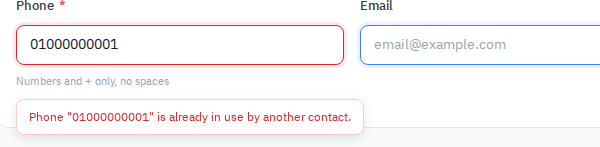
On Add Contact and Edit Contact, Contact Type contains the type selector. Basic Info contains names and company above phone, email and tax ID.
Add a customer or supplier while selling or buying
The customer search on the POS and Add Sale, the supplier search on Add Purchase, and the repairs desk each have a + New button to create the contact without leaving the form.
+ New refuses a duplicate phone, email or tax number in the same way as Add Contact (see Duplicates).
The modal has two tabs: Basic Info for names, company, phone, email and tax ID, and Billing Address & Shipping Address for the addresses and their email and phone. Shipping starts as a copy of billing; untick Shipping address is the same as billing address to enter a separate address. The same validation as Add Contact applies: leave an address empty or complete every starred field.
A customer or supplier can become Both (Customer & Supplier), but cannot switch directly to the other type. A contact that is Both stays Both. This rule applies even before transactions are recorded, and also applies to API updates.
Find, view and edit
- Search by name, company, email or phone. Filter by Contact Type, Contact Group and Status (active or inactive), and sort by name, company, email or phone.
- The Balance column shows the contact's ledger balance.
- The eye icon shows the contact's details, addresses, custom fields and balance.
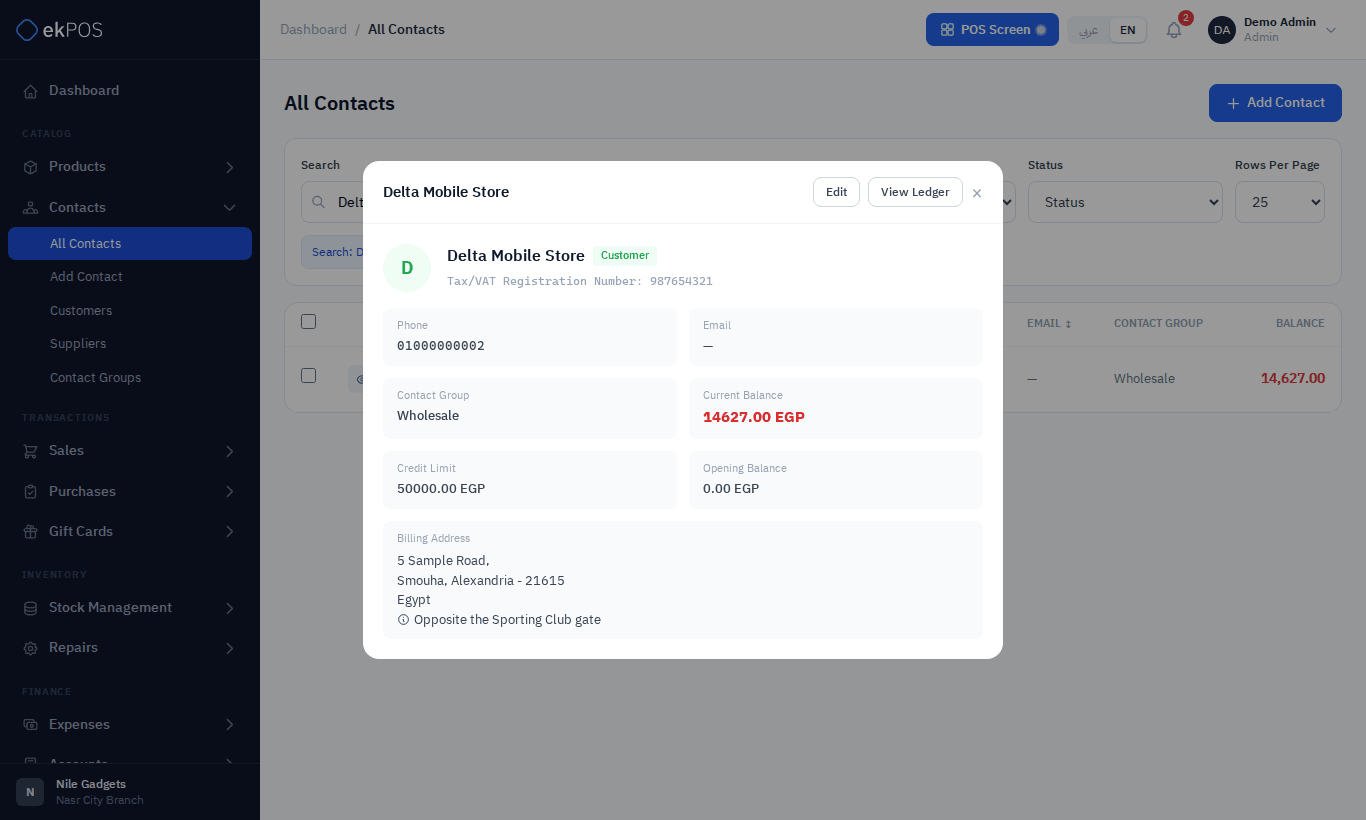
- ⋮ → Edit changes any field except the opening balance.
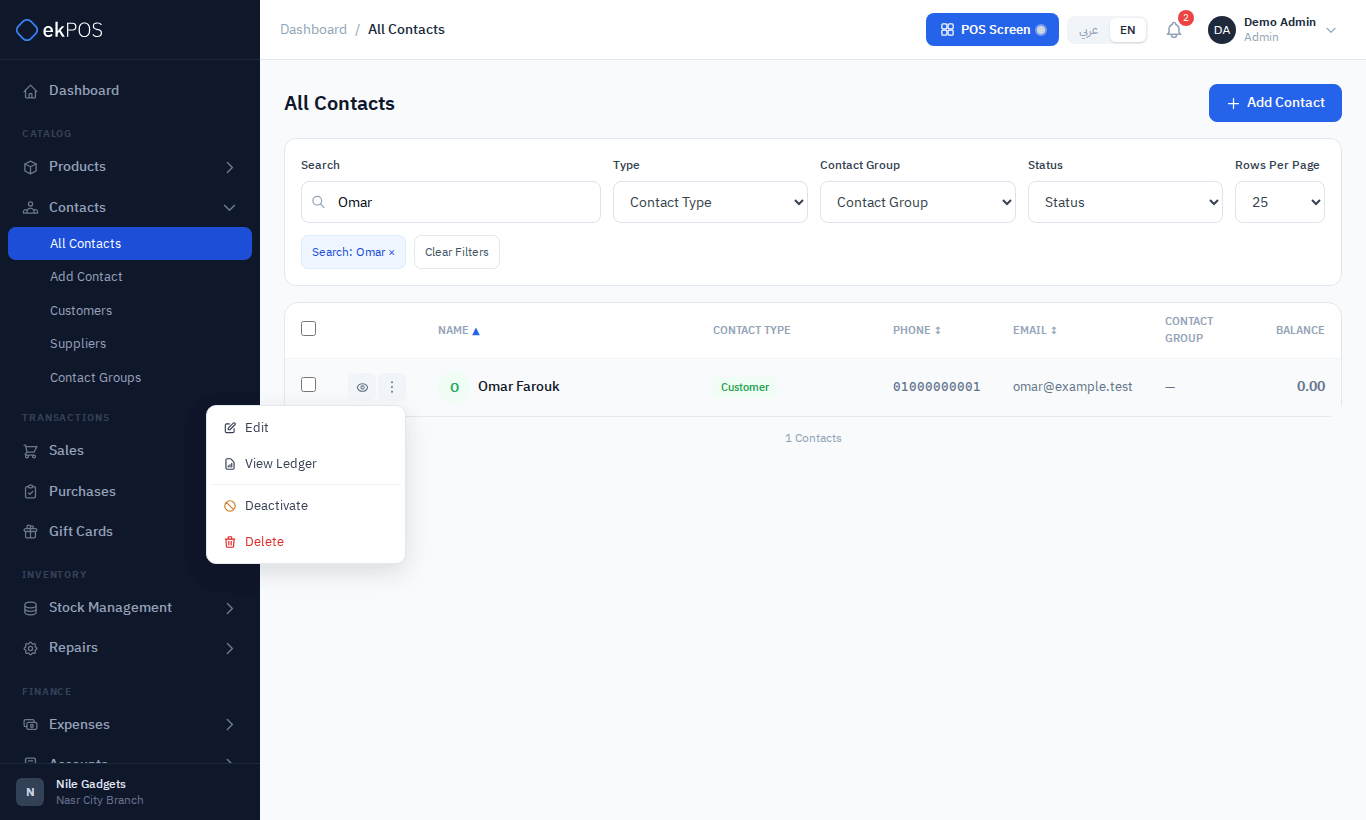
Deactivate
⋮ → Deactivate, or tick several and use Deactivate Selected. An inactive contact stays on the contact lists, marked Inactive, and keeps its documents and ledger. It no longer appears when you pick a customer or supplier for a new sale, POS sale, purchase, gift card, repair or expense. ⋮ → Activate (or Activate Selected) brings it back.
Use this for a contact you no longer deal with but cannot delete.
Delete
⋮ → Delete, or tick several and use bulk delete. Deleted contacts disappear from lists and searches.
A contact with any transaction cannot be deleted. That means a sale of any kind (drafts, quotations and proforma invoices included), a purchase, a return, a gift card, a repair, or a payment or adjustment on the contact's ledger. An opening balance on its own does not stop the delete. A bulk delete removes the rest of the selection and tells you how many it kept. Deactivate those instead.
Who can do what
| Permission | Allows |
|---|---|
| Contacts → View | Lists, details, ledger |
| Contacts → Create | Add contacts, including quick-add |
| Contacts → Edit | Edit, activate and deactivate contacts, add ledger entries |
| Contacts → Delete | Delete contacts |
| Contacts → Export | Export contacts |