
Variable products
A variable product is one item sold in several versions — sizes, colours, capacities, models. Each version is a variant with its own SKU, barcode, prices and stock.
ekPOS defines variations on each product. There is no shared list of attributes: you type the attributes (such as Color and Model) and their values on the product itself, so every product can have exactly the options it needs.
Create a variable product
- Go to Products → Add Product and choose Variable.
- Fill in the name, category, brand and unit as for any product (see Add a product). Leave the SKU blank or type a base SKU; the variants' SKUs are built from it.
- In Product Variations → Define Attributes, click + Add Attribute.
- Type the attribute name, for example
Color. - Type a value in Add value and press Enter (or click +). Repeat for every value:
Black,Blue. - Click + Add Attribute again for the next attribute, e.g.
ModelwithGalaxy A15andiPhone 15.
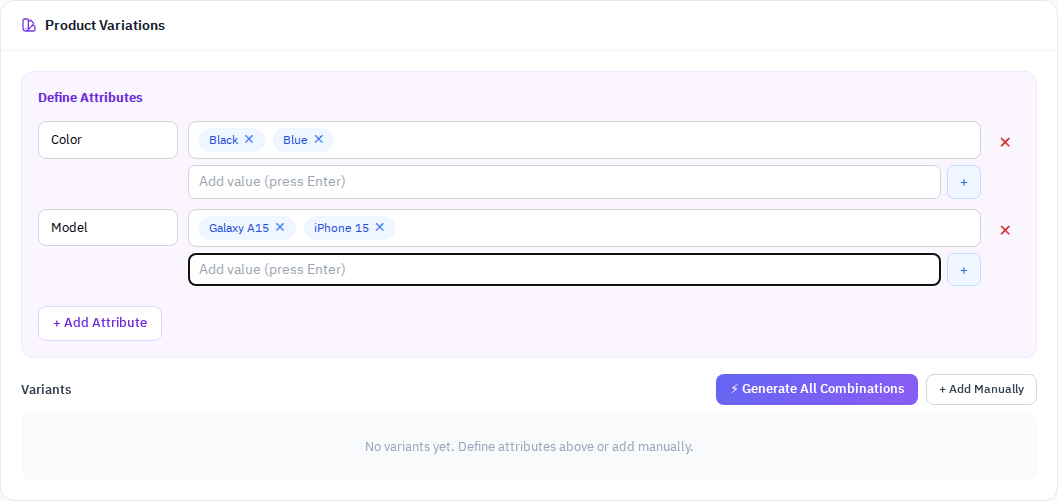
- Click ⚡ Generate All Combinations. ekPOS creates one variant for every combination. Two colours × two models gives four variants: Black / Galaxy A15, Black / iPhone 15, Blue / Galaxy A15, Blue / iPhone 15.
- To price them all at once, fill Set Price for All Variants — purchase price, selling price and their taxes — and click Apply to All Variants.
- Adjust any variant individually: its name, SKU, barcode, prices and opening stock.
- Click Save.
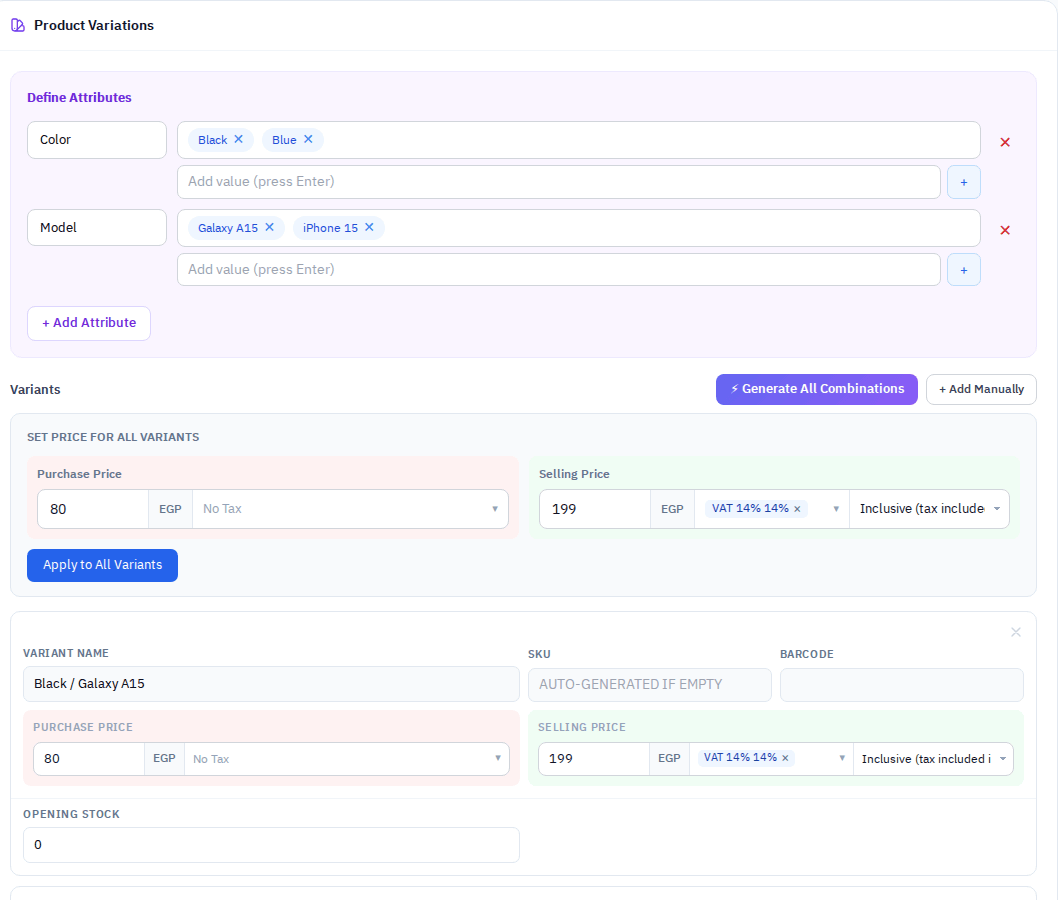
Variant fields
| Field | Description |
|---|---|
| Variant Name | Built from the attribute values; you can rename it. It is what appears on sales and receipts after the product name. |
| SKU | Blank = the product SKU plus -V01, -V02… |
| Barcode | Optional. Scanning it at the POS adds this exact variant. |
| Purchase / Selling Price | Each variant has its own prices, with tax. |
| Opening Stock | One box per active location, so you choose where each variant's stock is. With one location there is a single box. |
To add a single variant without generating combinations, click + Add Manually. To drop a combination you don't sell, click the × in the corner of its card.
Changing variants later
On Edit, every variant is listed with its current values:
- Change prices, SKUs, barcodes, names and taxes, then Save.
- Add variants with + Add Manually or by generating combinations again.
- Removing a variant card and saving deletes that variant.
Selling a variable product
At the POS and on Add Sale, searching a variable product lists each variant separately, and scanning a variant's barcode adds that variant directly. Stock is tracked per variant per location. The product list's Current Stock shows the total of all variants, and the quick view breaks it down.
Related
- Pricing and tax
- Price lists — a trade price can cover every variant, or one
- Combo products