
Signing in and your profile
Sign in
- Open your ekPOS address in a browser — Chrome, Edge, Firefox or Safari.
- Enter the Username or Email and Password your administrator gave you.
- Tick Remember me on a computer only you use, to stay signed in.
- Click Sign In.
A username includes your business’s unique suffix, for example cashier@hijabhouse. You can use your email instead if one is attached to your account.
If you have two-factor authentication switched on, ekPOS then asks for the 6-digit code from your authenticator app.
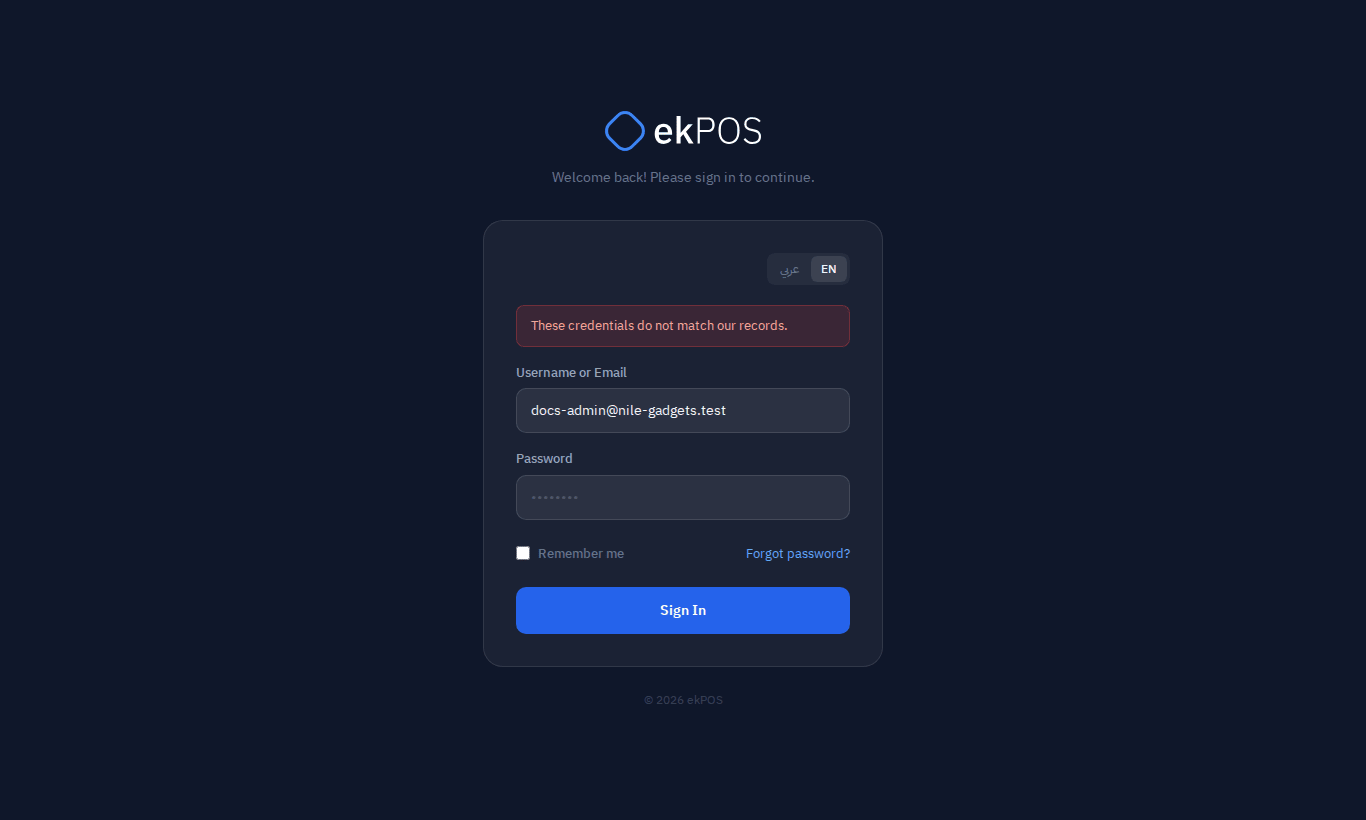
Use the عربي / EN switch above the form to change the language before you sign in.
If you can't sign in
| Message | Meaning |
|---|---|
| These credentials do not match our records. | The username, email or password is wrong, or the account has been deactivated. ekPOS gives the same message for both, so it doesn't reveal whether an account exists. Try Forgot password?, or ask your administrator to check. |
| Too many login attempts. Please try again in … seconds. | Five failed tries from the same place lock the account out for a minute. Wait and try again. |
| Your sign-in has expired. Enter your username or email and password again. | You took longer than 10 minutes to enter your two-factor code, or entered too many wrong codes. Start again from your username or email and password. |
Forgot your password?
If your account has no email address, ask your administrator to set a new password for you.
- On the sign-in page, click Forgot password?.
- Enter the email address you sign in with and click Send Recovery Link.
- Open the email from ekPOS and click Reset Password.
- Type a new password (at least 8 characters) twice and click Reset Password.
- Sign in with the new password.
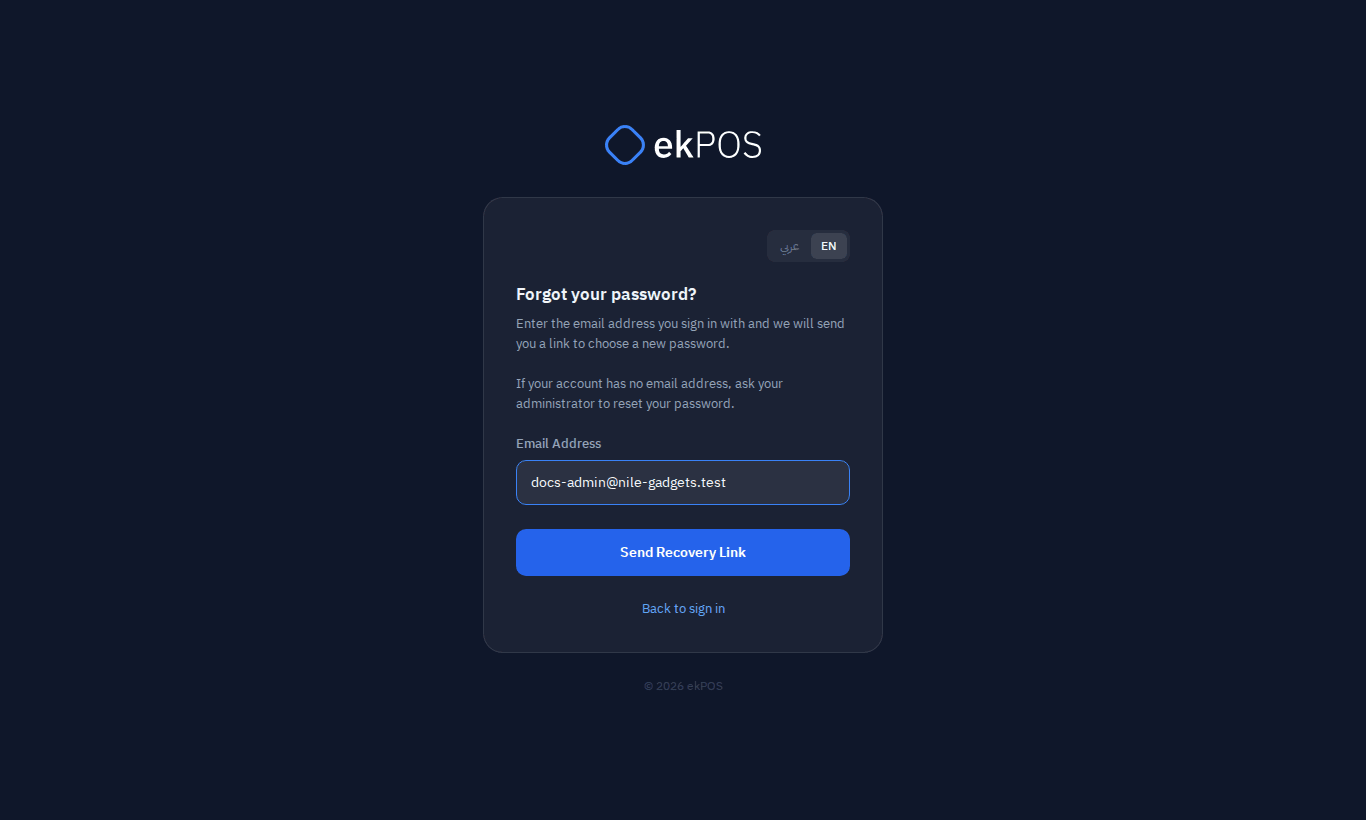
- ekPOS always answers "If an account exists for this email address, a password recovery link has been sent." — even when no account uses that address. That way nobody can use the form to find out who has an account.
- The link works once and expires after 60 minutes. If it has expired, ask for a new one.
- No email? Check your spam folder, wait a minute and ask again, or ask your administrator. A deactivated account is never sent a link.
- If you didn't ask for a reset, ignore the email — your password does not change until someone uses the link.
After a reset, every other browser signed in to your account is signed out, and ekPOS emails you to say the password changed if your account has an email address.
Your profile
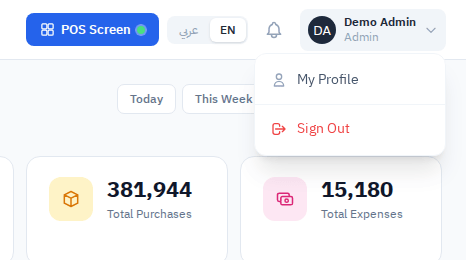
Open the menu under your name at the top right and choose My Profile.
On the profile you can change your name, email, phone, language and password (at least 8 characters, typed twice). Leave the password empty to keep your current one. Click Save.
To change your password or your email address, also type your Current password. This stops someone who finds your computer signed in from taking over your account.
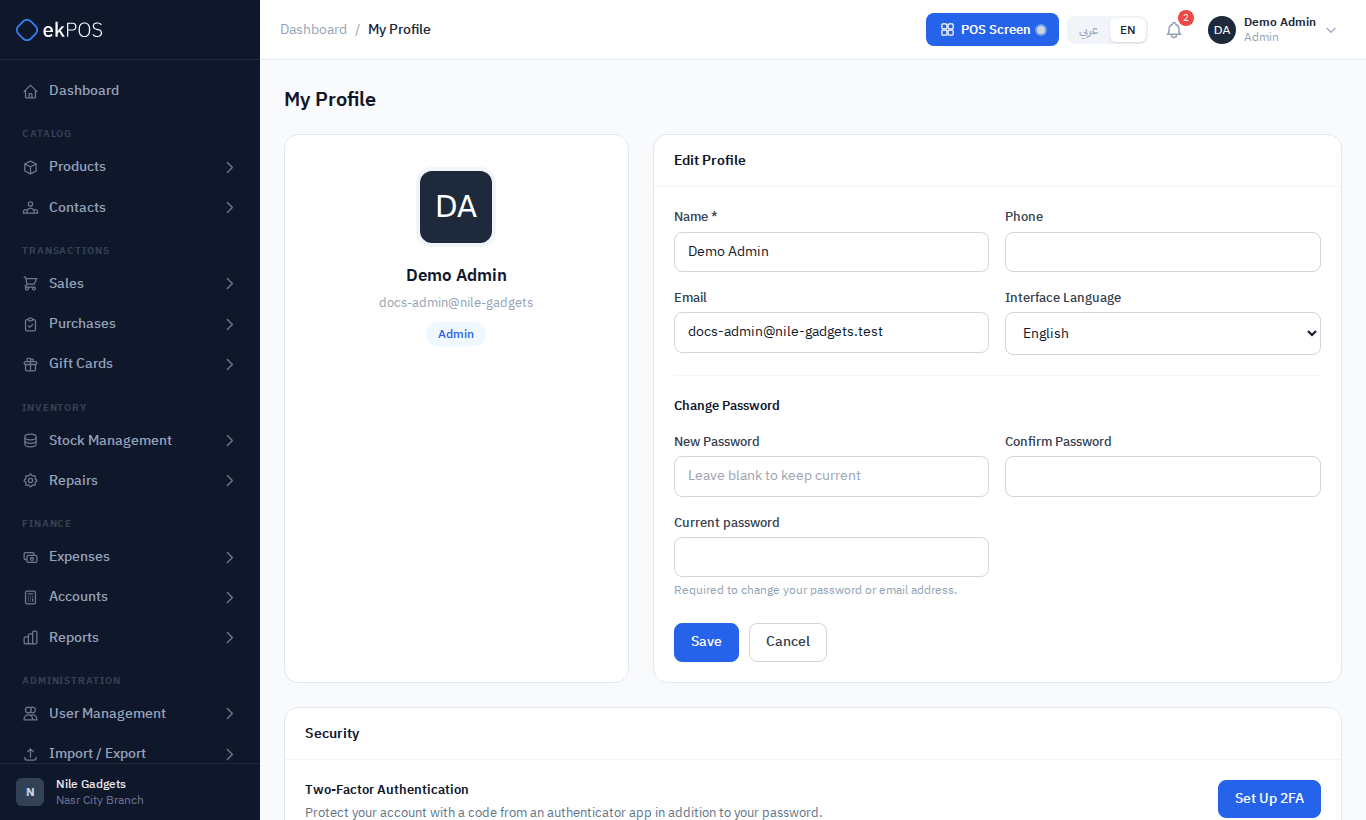
When you change your password, other browsers signed in as you are signed out, and you get an email saying so if your account has an email address. The browser you changed it in stays signed in.
The Security section below it is where you set up two-factor authentication.
Language
Switch between Arabic and English at any time with عربي / EN at the top of every page. The whole interface — including right-to-left layout for Arabic — changes, and your choice is remembered for next time.
Sign out
Choose Sign Out from the menu under your name. Always sign out on a shared computer.