
Price lists
A price list is a set of agreed prices for particular customers — trade prices for wholesale buyers, for example. It sets the price of a product for those customers, instead of discounting it. Discounts still apply on top.
Price lists are an optional module; if Sales → Price Lists is missing, your plan doesn't include it.
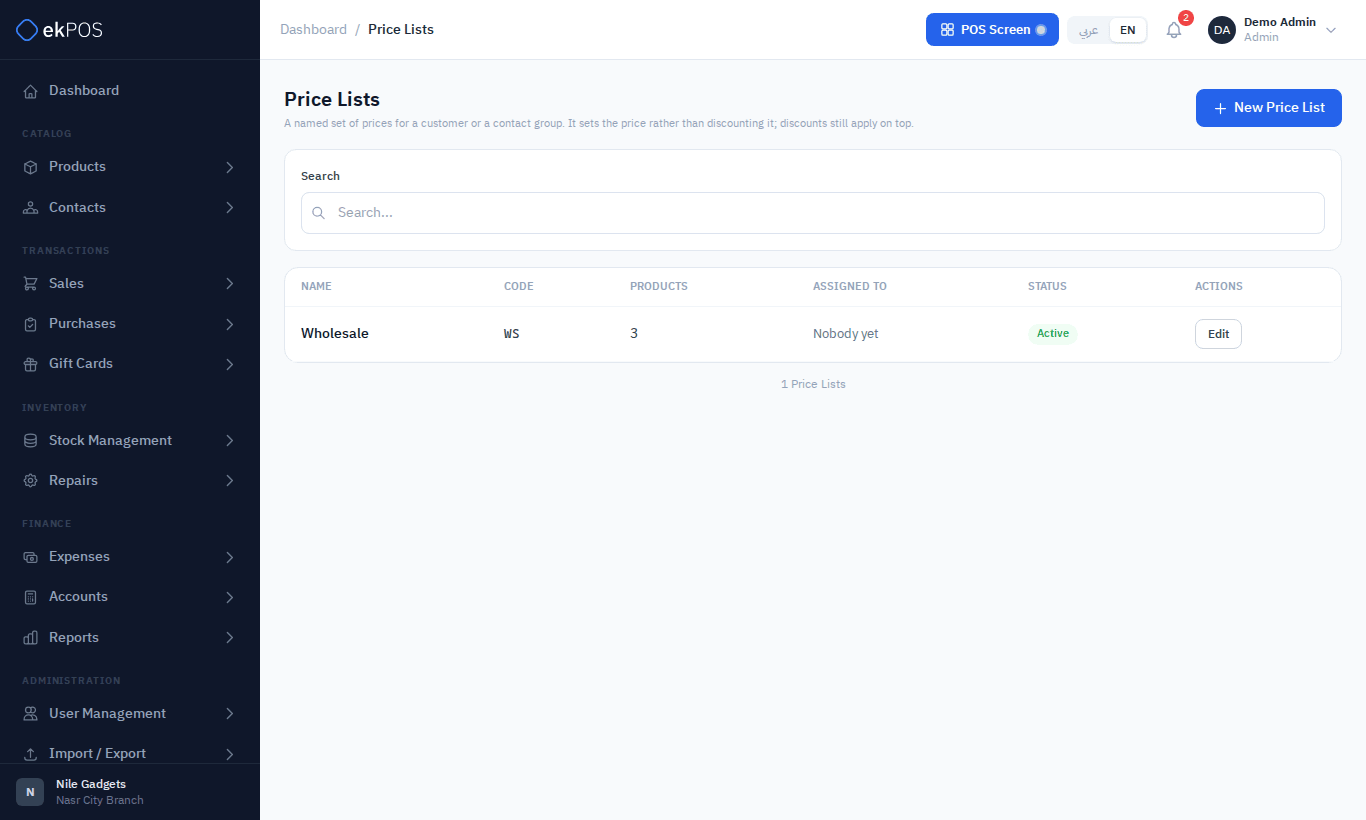
Create a price list
- Go to Sales → Price Lists and click New Price List.
- Enter a Name, an optional Code and notes, and keep Active ticked.
- Search a product and click it to add a row. For a variable product, choose all variations or one variant.
- Enter the From qty and Price for each row.
- Click Save.
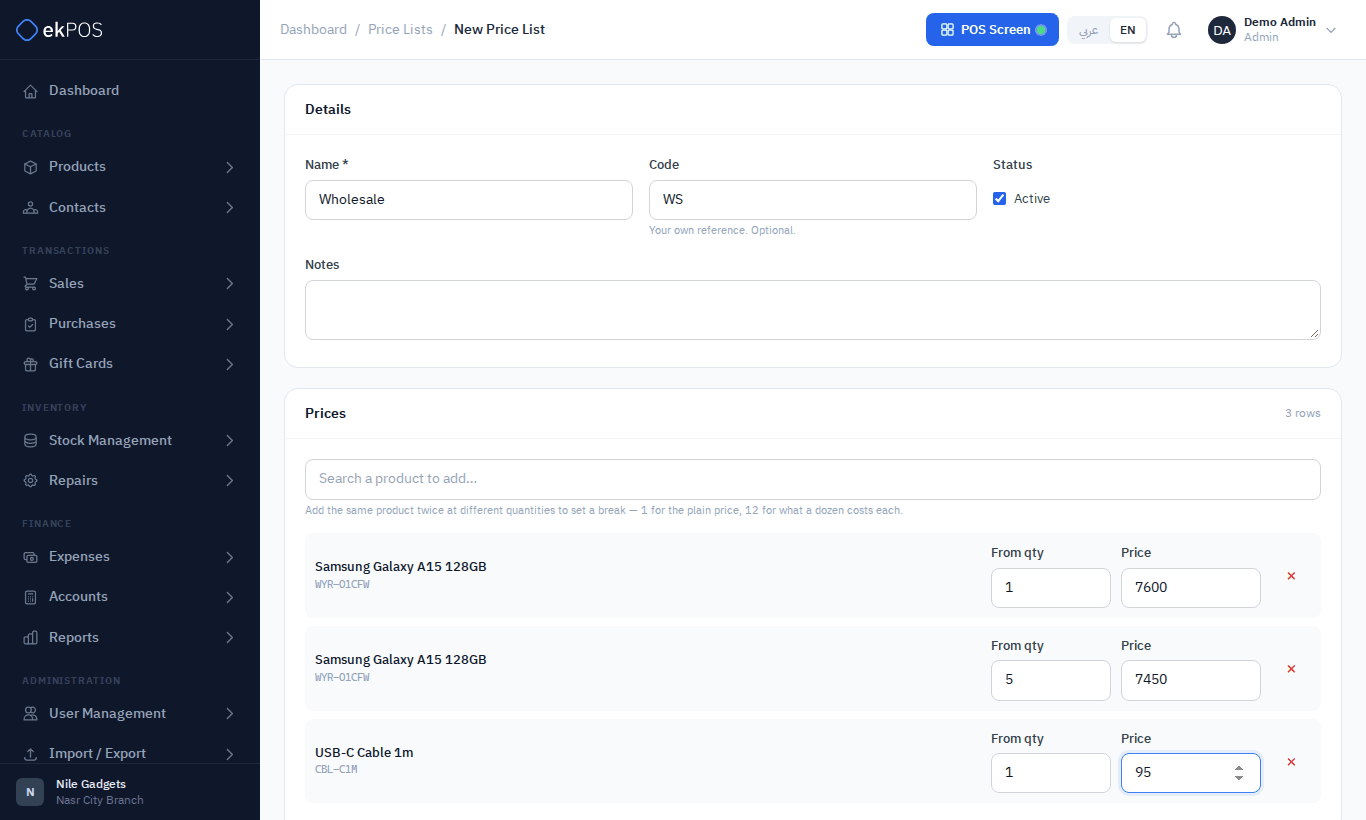
Quantity breaks
Add the same product more than once with different From qty values. The customer gets the price of the highest break their quantity reaches. In the example above, one Galaxy A15 costs 7,600 and five or more cost 7,450 each.
Many prices at once
To load or change a long list from a spreadsheet, use Import / Export → Import/Export Price Lists. See Other imports.
Give customers a price list
A price list does nothing until it is assigned:
- To a customer — the Price List field on the customer's form.
- To a contact group — the Price List field on the group. Everyone in the group gets it.
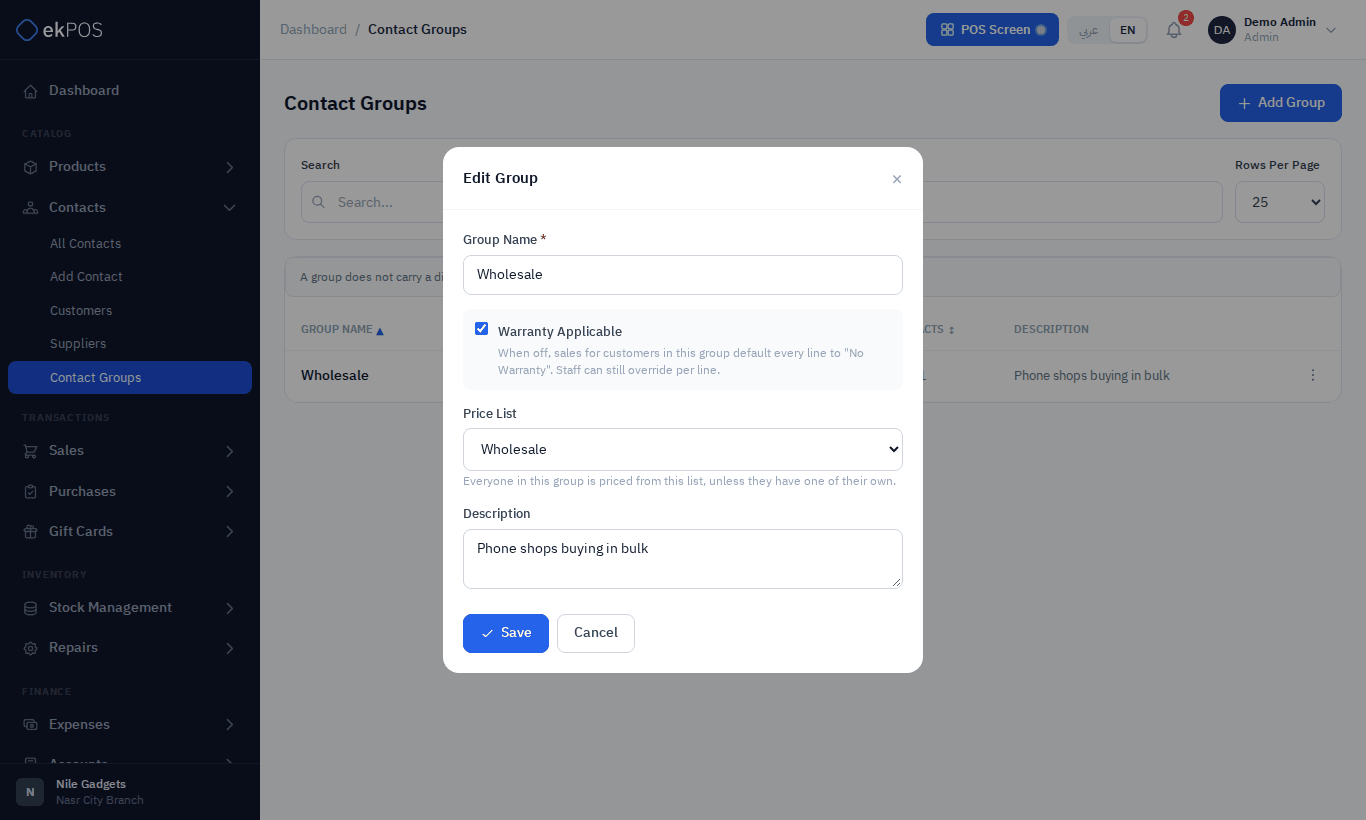
A customer's own price list wins over their group's.
At the till
When you choose a customer on the POS or Add Sale, the lines are re-priced from their price list and Priced from Wholesale appears. Products not on the list keep their normal selling price. Changing a quantity across a break re-prices the line.
On Add Sale, a price you typed by hand is never overwritten. Clearing the customer does not put prices back up.
Editing and deleting
Editing a price list changes prices for sales made from then on; saved sales keep their prices. Deleting a price list returns everyone who used it to normal prices.
Who can do this
Pricing a sale from a list needs Price Lists → View; creating and editing lists needs Price Lists → Manage.