
Document settings
Document settings control what your printed documents look like and how they are numbered: invoices, receipts, purchase orders, returns, expense receipts, transfers, adjustments, audits, repair tickets and printed reports.
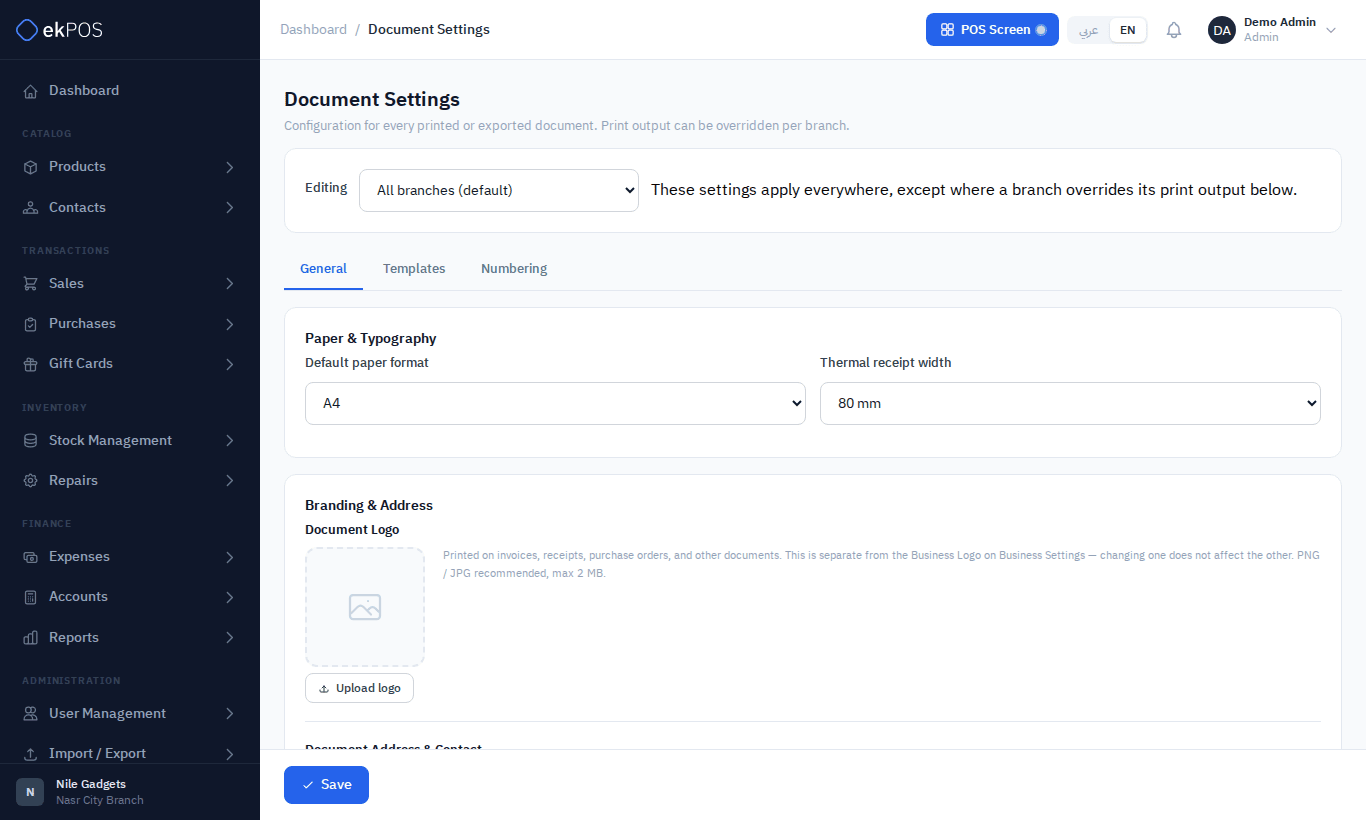
Open Settings → Document Settings. The page has three tabs: General, Templates and Numbering. Click Save at the bottom when you are done, whichever tab you changed.
Invoice or receipt?
A sale prints as one of two documents, and ekPOS picks which one for you:
- Sales Invoice when the customer has a tax registration number (a business customer).
- Sales Receipt for walk-in and individual customers.
This is the same business/consumer split ETA uses for e-invoices and e-receipts. Each of the two has its own template, so you can style them differently.
General tab
- Default paper format — A4 or A5, for documents printed on paper.
- Thermal receipt width — 80 mm or 58 mm, for documents printed on a receipt printer.
- Document Logo — the logo printed on documents. It is separate from the logo in Business profile; changing one does not change the other. PNG or JPG, up to 2 MB.
- Document address and contact — by default documents print your business details. You can override the name, address, phone, email and website that appear on documents here.
Templates tab
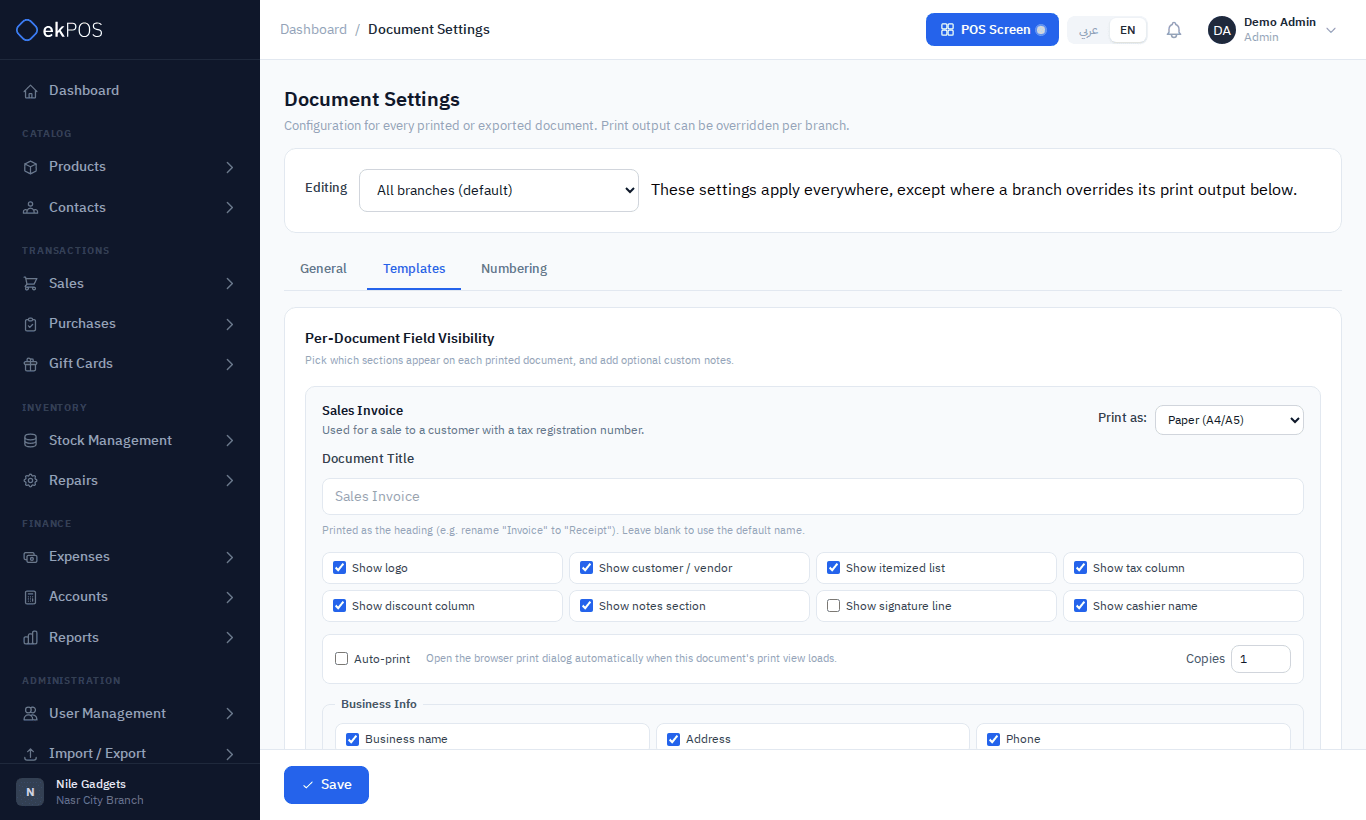
Each document type has its own card:
| Setting | What it does |
|---|---|
| Print as | Paper (A4/A5) or Thermal (58/80 mm). Decides which layout the document's single Print button opens. |
| Document Title | Replaces the printed heading, e.g. rename Invoice to Tax Invoice. Blank uses the default name. |
| Show logo, customer/vendor, itemized list, tax column, discount column, notes, signature line | Tick the parts you want printed. |
| Show cashier name | Thermal layouts only. |
| Auto-print | Opens the print dialog as soon as the document's print view loads. |
| Copies | How many copies to print (1–5). |
| Business Info | Tick which of your business name, address, phone, email, website, tax number and branch name to print. |
| Address source | Print your business address, or the address of the branch the document was created at. |
| Header, Footer, Thank You Note | Formatted text printed at the top, at the bottom, and as a closing note. |
Document numbers
The Numbering tab sets the reference each new document gets.
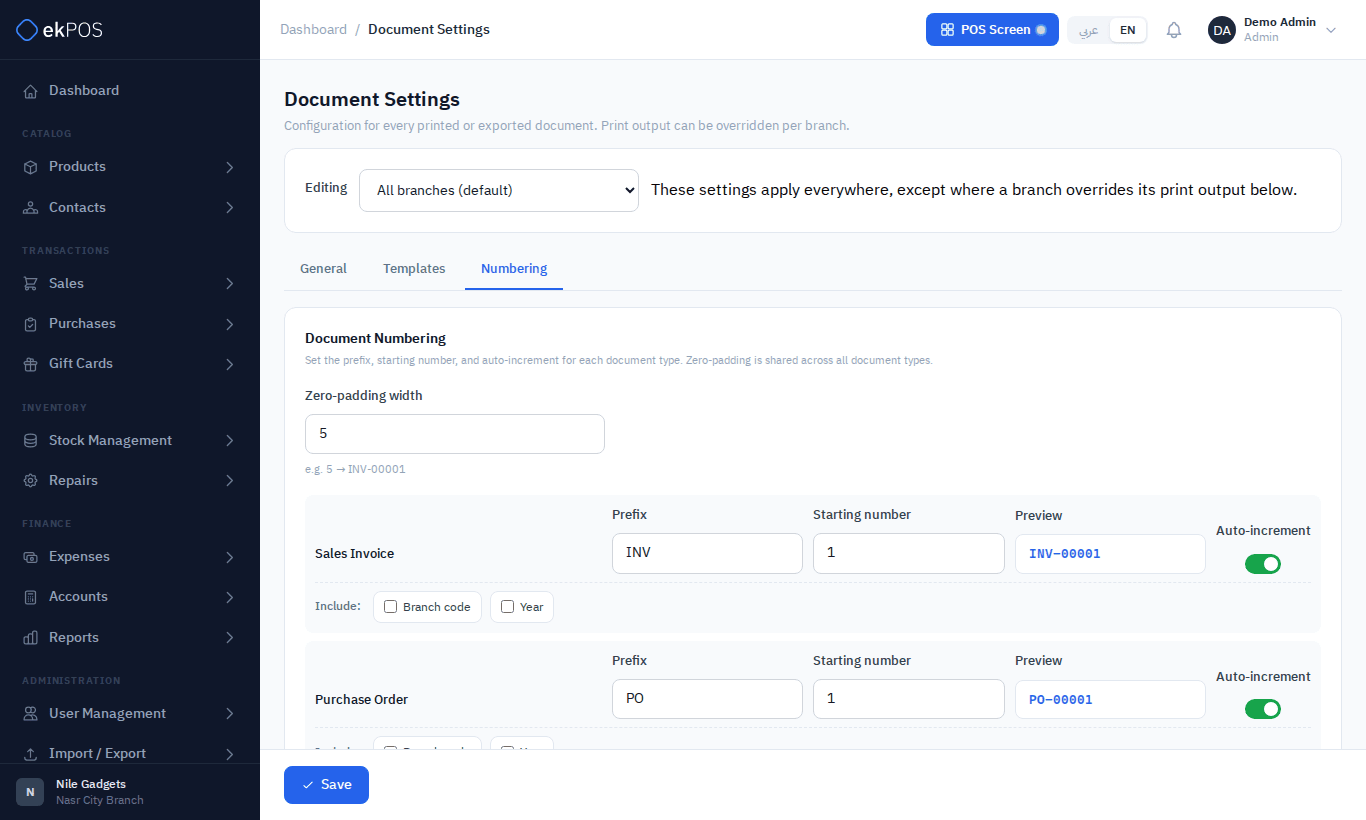
A reference is built as:
PREFIX - BRANCH CODE - YEAR - COUNTER
For example INV-HQ-2026-00038. The branch code and year are optional:
| Setting | Description |
|---|---|
| Zero-padding width | How many digits the counter has (1–12). Shared by all document types. 5 gives 00001. |
| Prefix | Per document type. Defaults: INV, PO, SR, PR, EXP, ST, ADJ, AUD, REP, RPT. |
| Starting number | The next counter value to use. |
| Include: Branch code | Inserts the Location Code of the branch the document belongs to (see Branches). A branch with no code adds nothing. |
| Include: Year | Inserts the current four-digit year. |
The Preview beside each type shows the next reference.
ekPOS never issues the same reference twice. If the number you set is already taken, for example because you lowered the starting number, ekPOS moves on to the next free number.
Per-branch print output
Branches often have different printers. To change how one branch prints without affecting the others:
- Choose the branch in the Editing selector at the top of the page.
- Set its Default paper format, Thermal receipt width, and Print Mode per Document. Leave a setting on Follow default to keep using the account-wide value.
- Click Save.
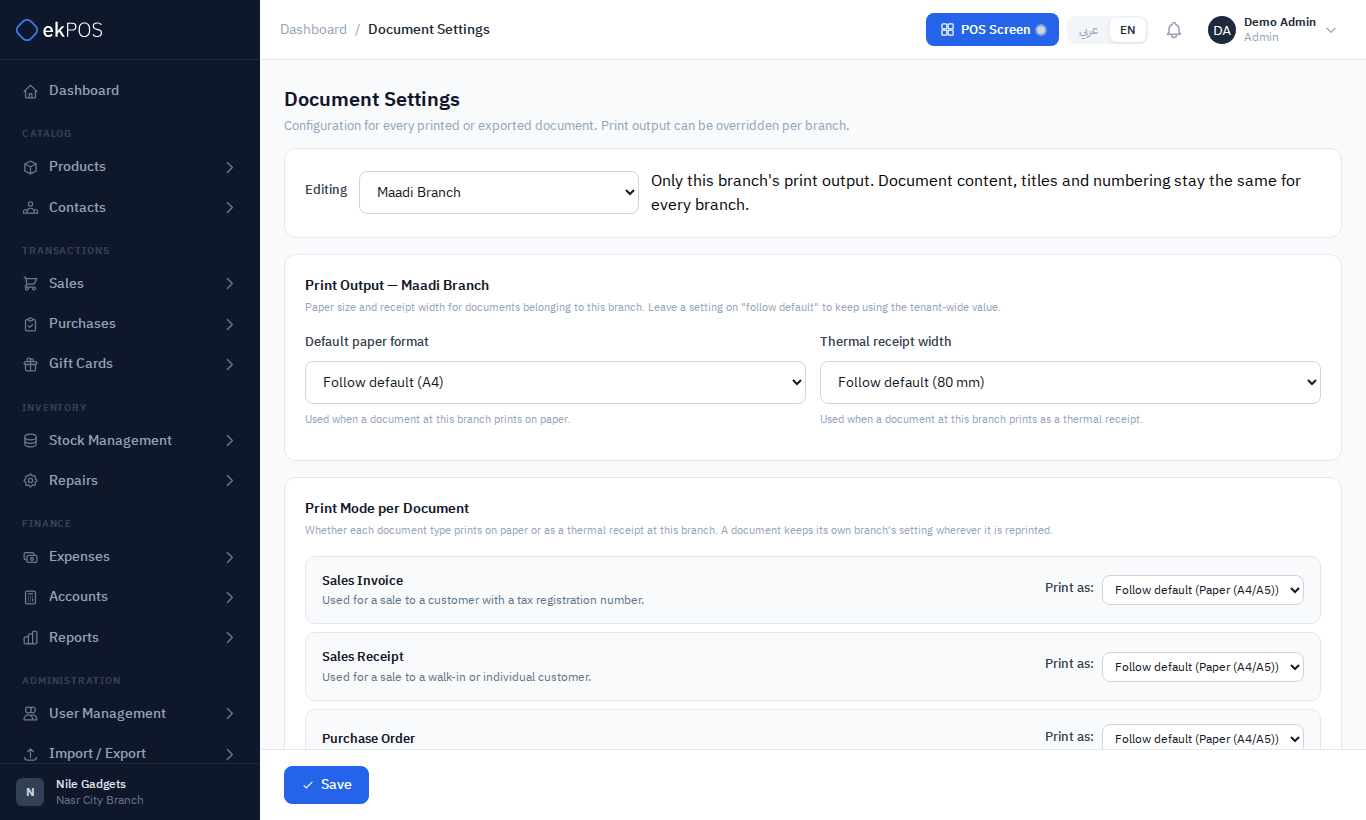
Only print output can differ per branch. Titles, headers, footers, visible fields and numbering are the same for every branch. A document always prints with its own branch's settings, wherever it is reprinted from.
Who can do this
Viewing needs Settings → View; saving needs Settings → Manage.