
Add Sale (back office)
Sales → Add Sale is the full sales form. Use it for invoices to business customers, sales on credit terms, quotations and proforma invoices, and any sale that needs more detail than the POS offers: warranty per line, attachments, shipping details, invoice-level taxes or several dated payments.
Sale status
| Status | What it is | Stock | Payments |
|---|---|---|---|
| Final | A completed sale. | Taken out | Recorded |
| Draft | Work in progress. | No change | — |
| Quotation | A price quote for the customer. | No change | — |
| Proforma | A proforma invoice, usually sent before payment. | Reserved: stays on the shelf but is set aside | — |
Draft and quotation appear on Drafts / Quotations, proforma on Proforma Invoices, and final sales on All Sales. A draft or quotation does not use up an invoice number: it is saved as DRAFT-00001 or QUOTE-00001, and takes the next invoice number when you make it Final. Deleting one leaves no gap in your invoice numbers. You can move a sale to Final later by editing it; see Drafts, quotations and proforma invoices.
Create a sale
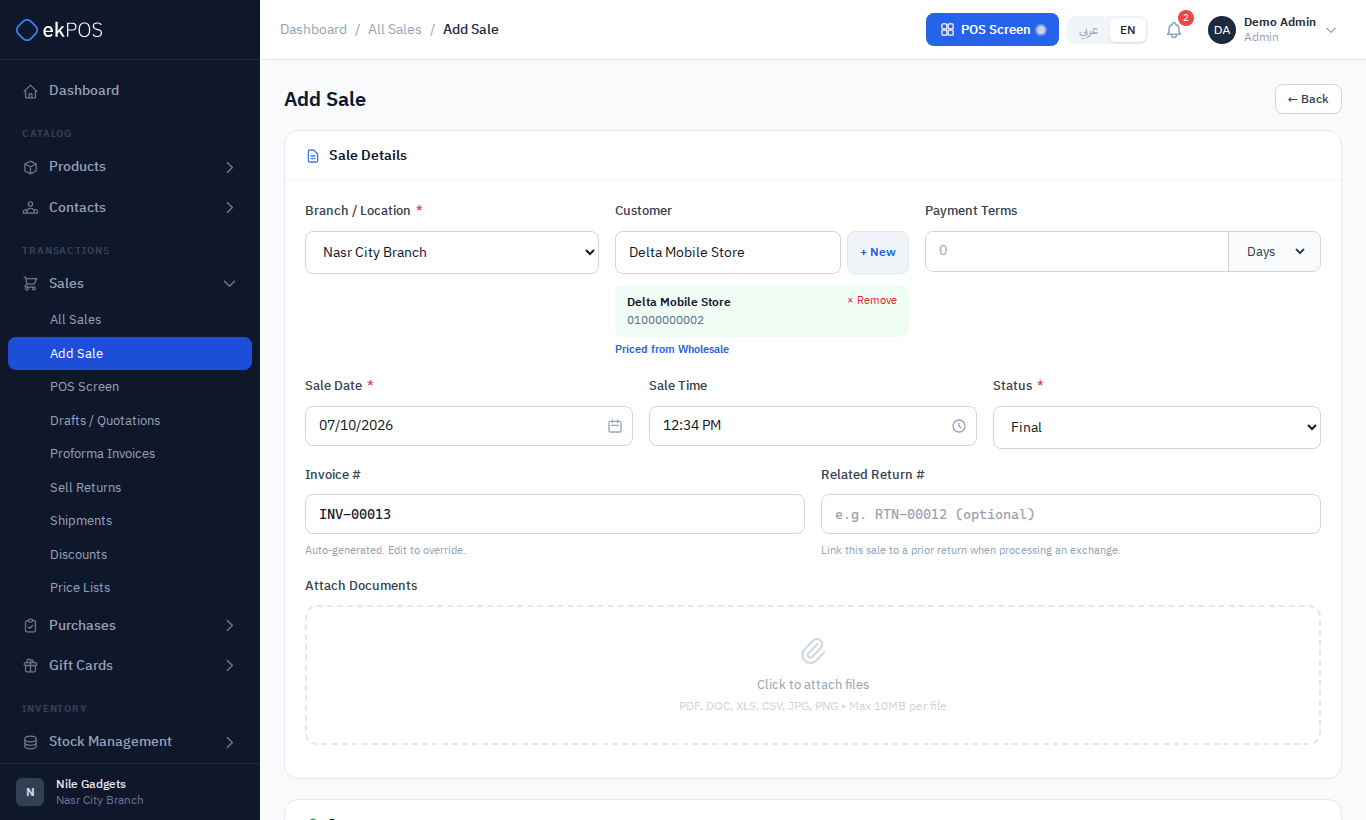
The Sale Details layout places Sale Date, Sale Time and Status in three equal columns, followed by Invoice # and Related Return # in two equal columns. The Edit Sale form uses the same layout.
- Branch / Location — where the goods leave from. It starts on your own branch.
- Customer — beside Branch / Location and Payment Terms, search by name, company or phone, or click + New to add one without leaving the form. Leave it empty for a walk-in sale. Their balance appears under the payments, with their credit limit if they have one; Business Settings chooses whether a sale over the limit is refused or saved with a warning.
- Payment Terms — for credit customers, e.g. 30 Days. Enter the number and choose the unit in the joined control, as with a product’s Warranty Period.
- Sale Date and Sale Time — you can back-date a sale, but not date it later than now on your business's clock.
- Status — see above.
- Invoice # — generated for you, for the branch chosen in Branch / Location, and it changes when you change the branch. If you leave it as generated, the number is taken for the sale's branch again when you save, so two people saving at once don't collide. Type your own to override; ekPOS refuses a number that is already used. Saved as a draft or quotation, the generated number is not used (see above).
- Related Return # — for an exchange, the reference of the return this sale replaces. An unknown reference gives a warning, not an error.
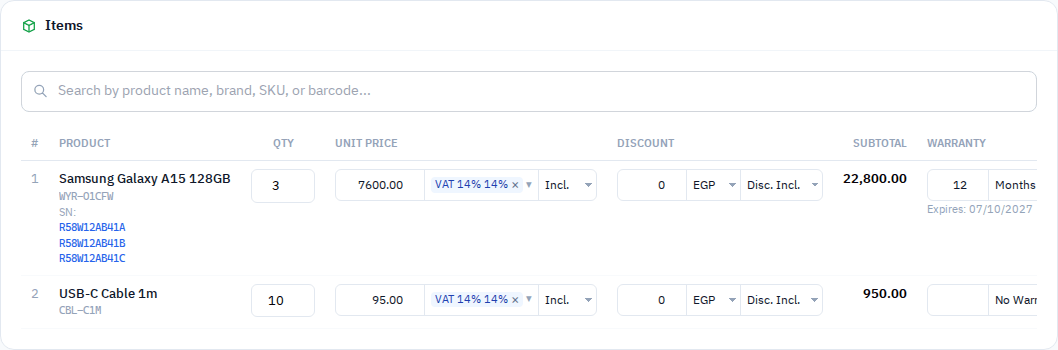
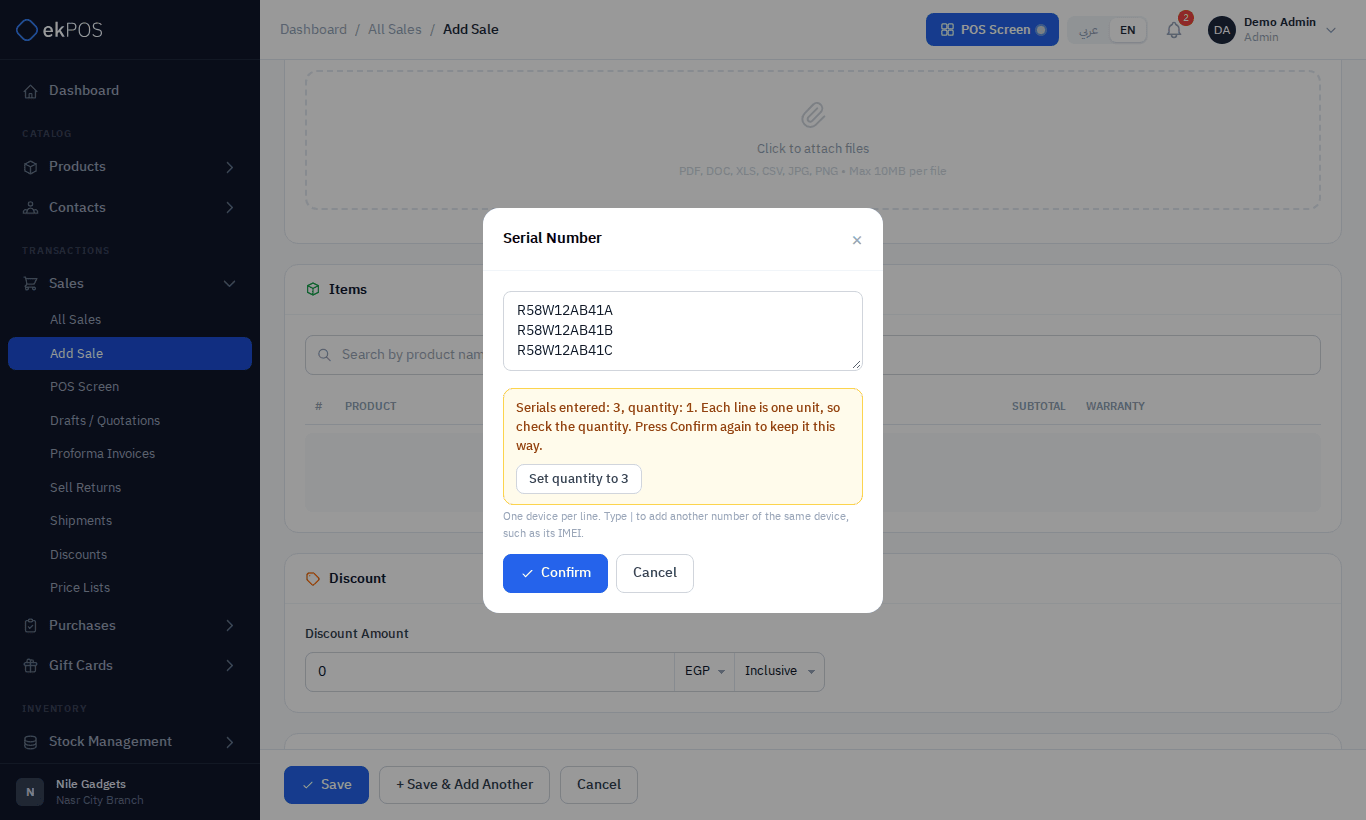
- Add products with the product search (name, brand, SKU or barcode). Products with serial numbers ask for them — enter one device per line, one for each unit. A phone's IMEIs go on its line after a
|; see Phones: serial and IMEIs. - For each line, set the Qty, Unit Price and Discount, and check the Warranty.
- Fill the discount, shipping, charges, sales person, taxes and notes sections as needed.
- Record the payment (below), and click Save, + Save & Add Another, or Save & Submit to ETA.
On Add Sale and Edit Sale, scanning a barcode or pressing Enter in a field does not save the sale. Enter in the product search still looks up the product; use the Save buttons to save your changes.
Products with Manage Stock enabled use the selected location’s available quantity, excluding stock reserved by proforma invoices. Out-of-stock search results are greyed out and cannot be selected; scanning their barcode or SKU shows an out-of-stock alert. Repeated scans and quantity changes cannot exceed the available quantity. Completing the sale checks stock again, so another cashier selling the last unit cannot make your sale oversell. Products without Manage Stock enabled can still be sold without stock.
Lines
| Column | Notes |
|---|---|
| Qty | Whole numbers only for units that don't allow decimals. For a serial-tracked product, the serial box warns when the number of serials differs from the quantity and offers to set the quantity to match. |
| Unit Price | Starts at the product's selling price, or the customer's price list price. A price you type yourself is kept — changing the customer won't overwrite it. |
| Discount | Fixed or %, before or after tax. New manual discounts default to tax inclusive. Automatic discounts fill this in for matching products. |
| Warranty | Starts at the product's warranty period. Change it per line, or choose No Warranty. If the customer's group has warranty turned off, lines default to No Warranty. |
The rest of the form
| Section | What it does |
|---|---|
| Discount | A fixed or percentage discount on the whole invoice, tax-exclusive or inclusive; tax inclusive is the default. |
| Shipping Details | Shipment status, a delivery address (see below), shipping cost with its own tax, and whether shipping is taxed. A sale with a shipment status appears on Shipments. |
| Additional Charges | Extra lines such as installation or handling, each with an optional tax. |
| Sales Person | Who made the sale, for the Salesperson and Commission reports. Left empty, the sale is credited to you. |
| Invoice Level Taxes | Taxes on the invoice total, such as withholding tax. Only tax rates with Show on product creation/editing unticked appear here. |
| Notes | Sale Notes print on the document; Staff Notes do not. |
| Custom fields | Any custom fields for sales. |
NoteThe Attach Documents and Shipping Documents upload boxes accept files, but the files are not saved with the sale at the moment.
Delivery address
The delivery address under Shipping Details takes the same fields as a customer's address: building, street, neighborhood/city, governorate, post code, additional information such as the closest landmark, and country.
- It is optional. Leave it empty for a sale that is handed over at the counter.
- Once you start one, every field marked ✱ is needed to complete it, and the sale is not saved until it is.
- Tick Same as customer shipping information to copy the chosen customer's shipping address into the fields, one field each. A customer with no separate shipping address gives their billing address. You can still change any field afterwards; the sale keeps its own copy, so editing the customer later does not move a delivery that has already gone out.
Changing or removing the customer unticks Same as customer shipping information and clears the delivery address, shipping email and shipping phone. Tick the box again to copy the new customer’s details, or enter a new delivery address.
The address prints on the invoice or receipt under Delivery Address, written out the same way as every other address in ekPOS.
Payment
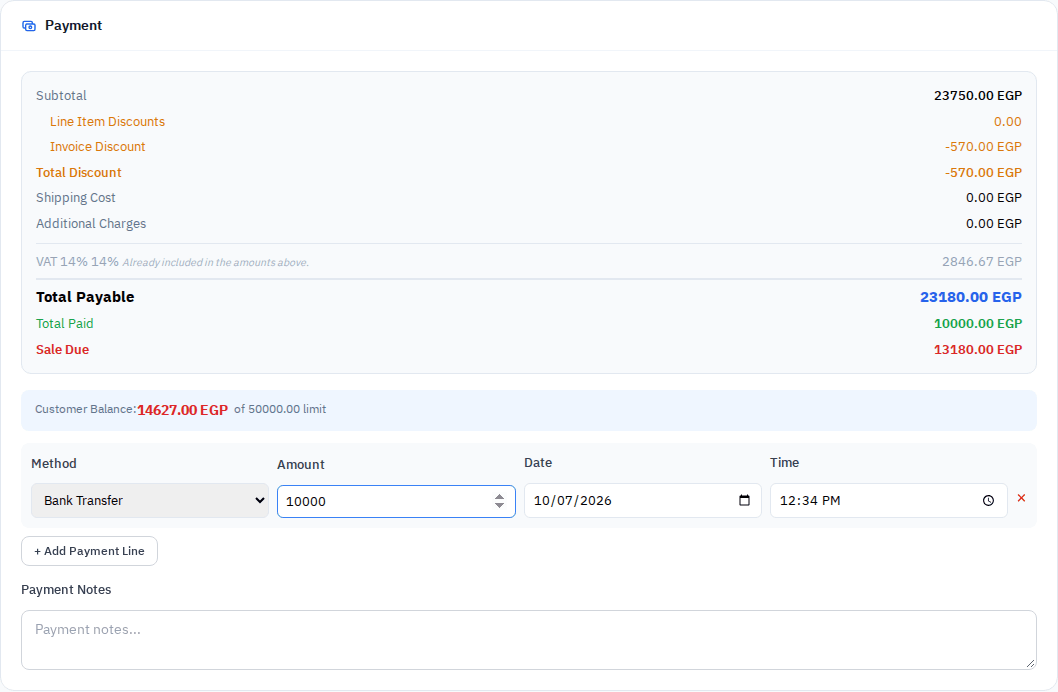
The right-hand Payment panel shows the subtotal, line and invoice discounts, shipping, charges, taxes, Total Payable, Total Paid and Sale Due.
- Click + Add Payment Line for each payment. Choose the method, and adjust the amount, date and time. A new line starts with the amount still due. A payment can't be dated later than now.
- Leave no payment lines to sell entirely on credit.
- Payment Notes apply to the payments.
- A payment line on the Gift Card method needs the card's code, and is taken off that card when you save.
- Paying more than the total is allowed. The sale is saved with a notice: with a customer the extra is kept on their ledger as credit, without one you are asked to choose a customer or give it back.
- A final sale with no customer and an amount still due is saved with a warning: nobody is recorded as owing it. Choose a customer, or take the payment.
What happens when you save a final sale
- Stock is taken out at the sale's location.
- Payments are recorded, and the sale is Paid, Partial or Unpaid.
- For a customer, the sale and each payment are written to their ledger.
- Serial numbers are recorded for warranty and serial look-ups; ekPOS warns you if a serial has been sold before.
- Commission is recorded for the sales person, if they are on a commission plan.
- On plans with accounting, revenue, tax, cost of goods sold and payments are posted to your accounts.
- If e-invoicing is set to submit automatically, the sale is sent to ETA. Save & Submit to ETA sends it straight away instead; this button appears only when ETA is set up and you have permission to submit.
Validation and errors
| Message | Meaning |
|---|---|
| Invoice number "…" already exists. | Choose another number, or clear the field to use the generated one. |
| Related return reference '…' was not found. | Shown as a warning; the sale is still saved without the link. |
| The date and time cannot be later than now. | The sale date and time, or a payment's date, is ahead of your business's clock. |
| Only … of … is available at this location. | A product with Manage Stock on doesn't have enough available stock at the sale's location. See How stock works. |
| … is still due on this sale and it has no customer … | A warning after saving a final walk-in sale that isn't fully paid. The sale is saved. |
| A serial warning after saving | The serial was sold on an earlier sale. The sale is saved; check the serial. |