
ETA: submitting documents
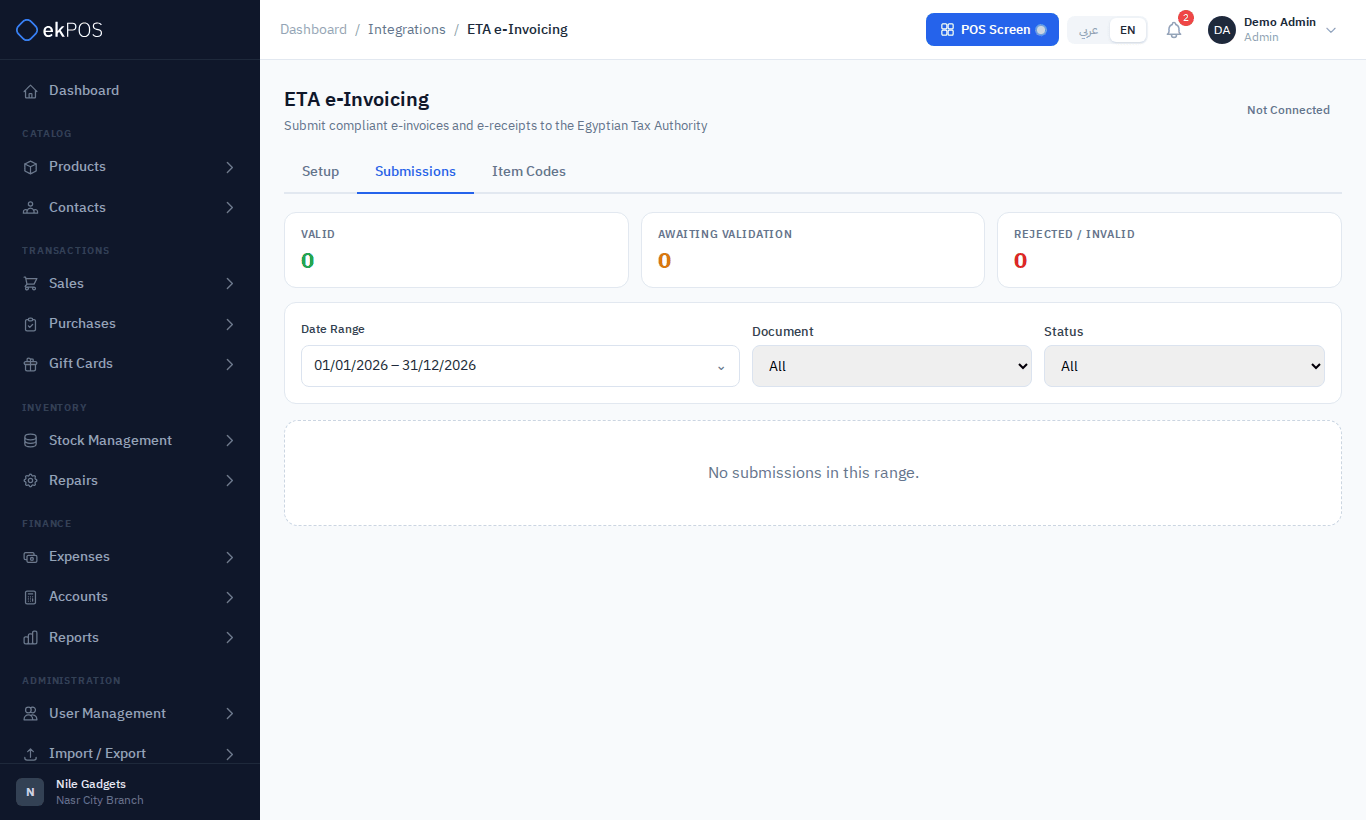
Once ETA is set up, each sale and return can be sent to the Tax Authority, and Integrations → ETA → Submissions tracks every document.
NoteThis page was written from the ekPOS screens and code. The demo account used for the screenshots is not connected to ETA, so the statuses and messages you see come from your own ETA registration.
Sending a sale
- Automatically — if document preparation is on, sales saved on Add Sale are prepared when saved.
- From the sale — All Sales → ⋮ → Submit to ETA.
- When saving — Save & Submit to ETA on Add Sale.
Only final sales can be submitted (Only completed sales can be submitted to ETA.). A sale already sent says This document has already been submitted to ETA.
What happens next
| Document | Path |
|---|---|
| e-Invoice / credit note | Waits under Submissions for your e-seal. With ekSigner running, click Sign & submit, or select several and sign them in one run. Signed documents are queued and sent to ETA together as a batch. |
| e-Receipt | Queued and sent automatically in batches by the server, with no signature needed at present. |
Send queued to ETA now sends waiting batches straight away instead of waiting for the batch to fill.
Statuses
A sale that has not been sent to ETA has no row here; its own page says Not submitted to ETA yet.
| Status | Meaning |
|---|---|
| Pending | Prepared, not yet signed or queued. |
| Queued for batch | Signed (or a receipt) and waiting for the next batch. |
| In a batch | Part of a batch being built. |
| Awaiting seal | A receipt batch waiting for your token, if ETA starts requiring receipt signatures. |
| Submitting / Submitted | Sent; ETA is validating it. |
| Valid | Accepted by ETA. |
| Invalid / Rejected | ETA refused it; the reason is shown. |
| Signing Failed | ekSigner could not seal it. |
| Cancelled | Withdrawn at ETA. |
The cards at the top count Valid, Awaiting Validation and Rejected / Invalid. Filter by date, document type and status. Click a document to see what was sent, ETA's response, every attempt, and the public ETA link once it is valid. The sales list shows each sale's ETA status too.
Checking and correcting
- Refresh status asks ETA for the latest result. ekPOS also checks automatically every hour.
- Rejected or invalid: read the reason in the document's details, fix the cause (a missing item code, a wrong tax mapping, a missing address or building number on the customer), then press Sign & Submit on that row. A document that ekPOS refused before sending (shown Invalid) is rebuilt from the sale or return as a fresh attempt, and the earlier one stays in the list as history.
- Cancel at ETA withdraws a valid document; you give a reason. ETA may refuse (ETA refused the cancellation: …).
Returns and credit notes
A return of an e-invoiced sale becomes a credit note: automatically if Prepare a credit note when a return is finalized is on, or from Sell Returns → ⋮ → Submit credit note to ETA. A credit note can only refer to an invoice ETA has validated; if it is still being validated you see try again in a few minutes.
Once a credit note is filed, the return can no longer be deleted.
Common problems
| Message or symptom | What to do |
|---|---|
| This does not look like an ETA Client ID | Use the GUID from the ERP registration, not your login email. |
| Sign & submit greyed out | Start ekSigner, pair, Load certificates and choose one. |
| CF317 on receipts | Enter the device serial ETA issued for the branch. |
| Item code error | The product's code is missing or still pending; check Item Codes. |