
Business Settings
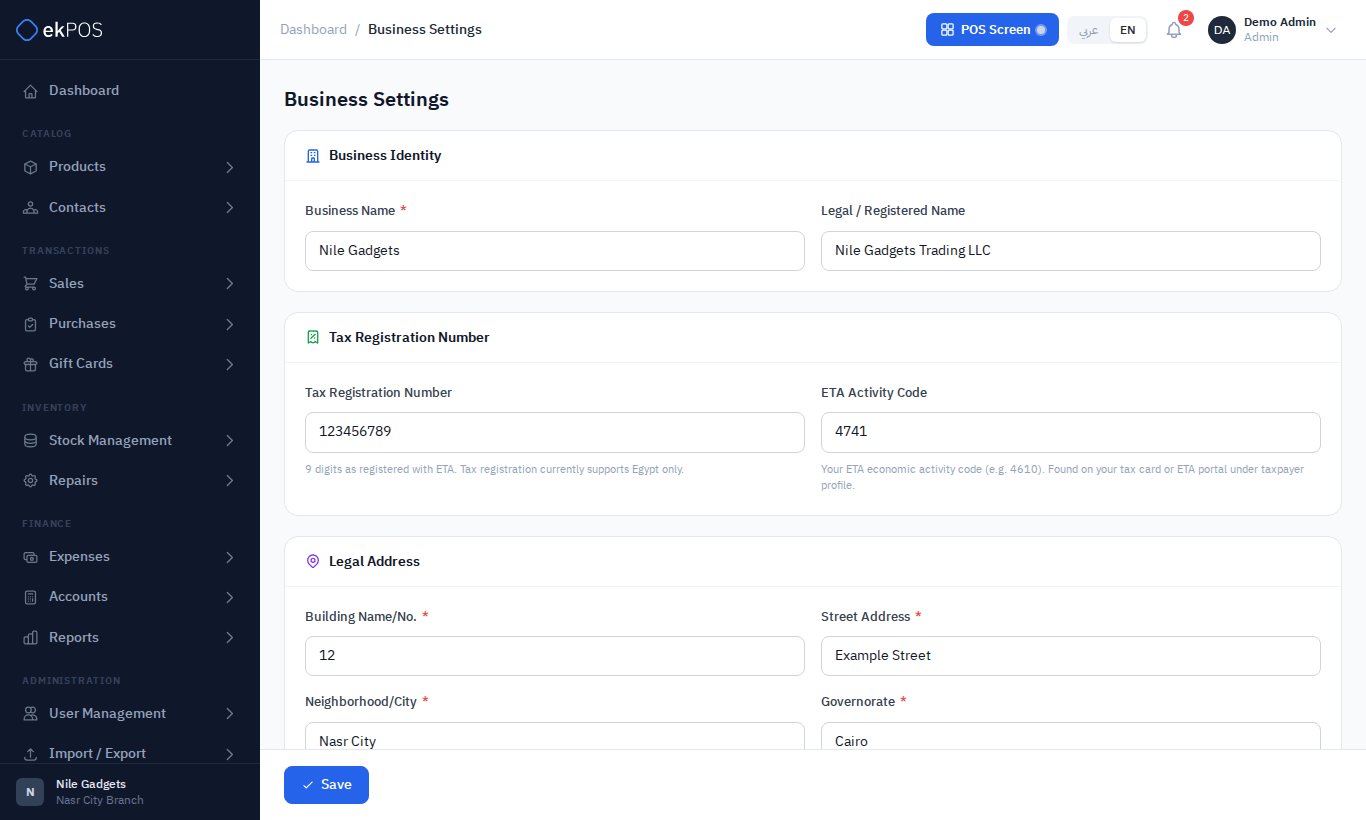
Business Settings contains the name, tax identity, address and regional preferences ekPOS uses across the whole account — on screen, on printed documents, and in anything sent to the Egyptian Tax Authority (ETA).
Open it from Settings → Business Settings.
When to use it
- Once, when you first set up ekPOS.
- Whenever your trading name, address, contact details or tax registration change.
Fields
Business identity
| Field | What it is for | Required |
|---|---|---|
| Business Name | The name you trade under. Shown in the app and used as the default name on printed documents. | Yes |
| Legal / Registered Name | Your registered company name. When you issue e-invoices, ETA matches this against the taxpayer profile for your tax number, so enter it exactly as registered. If you leave it blank, the Business Name is used instead. | No |
Tax registration
| Field | What it is for | Required |
|---|---|---|
| Tax Registration Number | Your 9-digit ETA registration number. Printed documents show it as XXX-XXX-XXX. |
No |
| ETA Activity Code | Your economic activity code from your tax card (for example 4741). Needed for e-invoicing. |
No |
Legal address
Building Name/No., Street Address, Neighborhood/City, Governorate and Country are required; Post Code and Additional Information (for example the closest landmark) are optional. The country is Egypt. This is the address printed on documents when a document template uses the business address, and the issuer address sent to ETA.
It is written out in the same format as customer and supplier addresses — see Addresses.
Branding and contact
- Logo — shown in the app sidebar. It is cropped to a square. This is not the logo printed on invoices; that one is set separately in Document settings.
- Phone, Email, Website.
Preferences
| Field | What it controls |
|---|---|
| Currency | EGP, USD, EUR or GBP. Egyptian pounds display EGP in English and ج.م in Arabic, on screens and printouts. |
| Timezone | Used for dates and times on transactions and reports. |
| Summer time | Auto follows the timezone’s DST rules. Summer fixes the clock at standard time plus one hour; Winter fixes it at standard time. Applies to transactions, POS, APIs and background jobs. Unsupported manual offsets require Auto. |
| Date format / Time format | How dates and times are displayed on screens, printouts and report exports. POS uses the business clock even when the device is in another timezone. API payloads, import/export templates and native date/time inputs retain their standard data formats. |
| Financial Year Start | The first day of any month. This Financial Year filters use this boundary on dashboards and reports. Accounting reports can also set this from Accounting settings. |
Steps
- Go to Settings → Business Settings.
- Fill in the sections above. Only Business Name is required.
- Click Save at the bottom of the page.
You see Business settings updated successfully.
Validation and errors
- Tax Registration Number must be exactly 9 digits. Anything else is rejected.
- Website must be a full address, including
https://. - Email must be a valid email address.
What happens next
- The business name in the sidebar and page titles updates straight away.
- Documents printed from now on use the new details. Documents printed earlier are not changed.
Who can do this
Viewing the page needs Business Settings → View; saving needs Business Settings → Edit.
Related
- Document settings: the printed logo, titles, headers and footers.
- Branches and warehouses: addresses per branch.
- ETA e-invoicing setup.
Sales and returns
Sale return period sets how long an invoice can be returned from its sale date. Choose Days or Months; 0 means no deadline. The final day is included. Months are calendar months: one month from 31 January ends on the last day of February. The rule applies to Add Return and POS returns, and changing the return date cannot bypass it.
Customer credit limits selects Show a warning only (default) or Enforce limit. Enforcement refuses Add Sale, Edit Sale and POS sales that leave the customer owing more than their configured limit, and rolls back the sale. Fully paid sales remain allowed. A customer limit of 0 means unlimited credit.
Transaction Edit Period limits changes and deletion of existing sales, purchases and returns using each document's own date. Choose days or calendar months; 0 means unlimited editing, and the final day is included. The saved date is checked, so moving it forward cannot bypass an expired window. A sale, purchase or return can't be dated later than now (on the business's clock), when it is added, edited or imported, so neither window can be stretched by dating a document ahead. Returns currently have no edit form; the period restricts deleting them to make a correction. Shipping changes and receiving a purchase backorder also follow the edit deadline. Payments, refunds and viewing remain available. The v1 API exposes these transactions as read-only and continues to reject update/delete requests.
POS Out-of-Stock Items chooses whether the POS product sidebar shows or hides products without available stock at the selected branch. The default is Show. Reserved stock is excluded from availability; products without stock management remain visible.
Default table size
Default Rows Per Page in Preferences controls the initial number of rows on paginated business tables, including reports. Choose 25, 50, 100, 250 or 500. A page’s Rows Per Page control can override this value; reports also offer Show All for the filtered results. This preference does not change the REST API’s pagination contract.
Date-range filters start at This Financial Year on lists and This Month on reports. Both This Financial Year and Last Financial Year follow your configured Financial Year Start.