
Stock transfers
A stock transfer moves goods from one location to another — from the warehouse to a shop, or between shops.
Transfer statuses
| Status | From location | To location |
|---|---|---|
| Pending | No change | No change |
| In Transit | Stock removed | Not yet added |
| Completed | Stock removed | Stock added |
Use In Transit while goods are on the road: they are no longer counted at the sending location, and not yet available at the receiving one. When they arrive, change the transfer to Completed.
An In Transit or Completed transfer can only send what the From location holds. If a product is short, the transfer is not saved and a message names the product and how many are on hand. A Pending transfer moves nothing, so it is not checked until you change its status.
Create a transfer
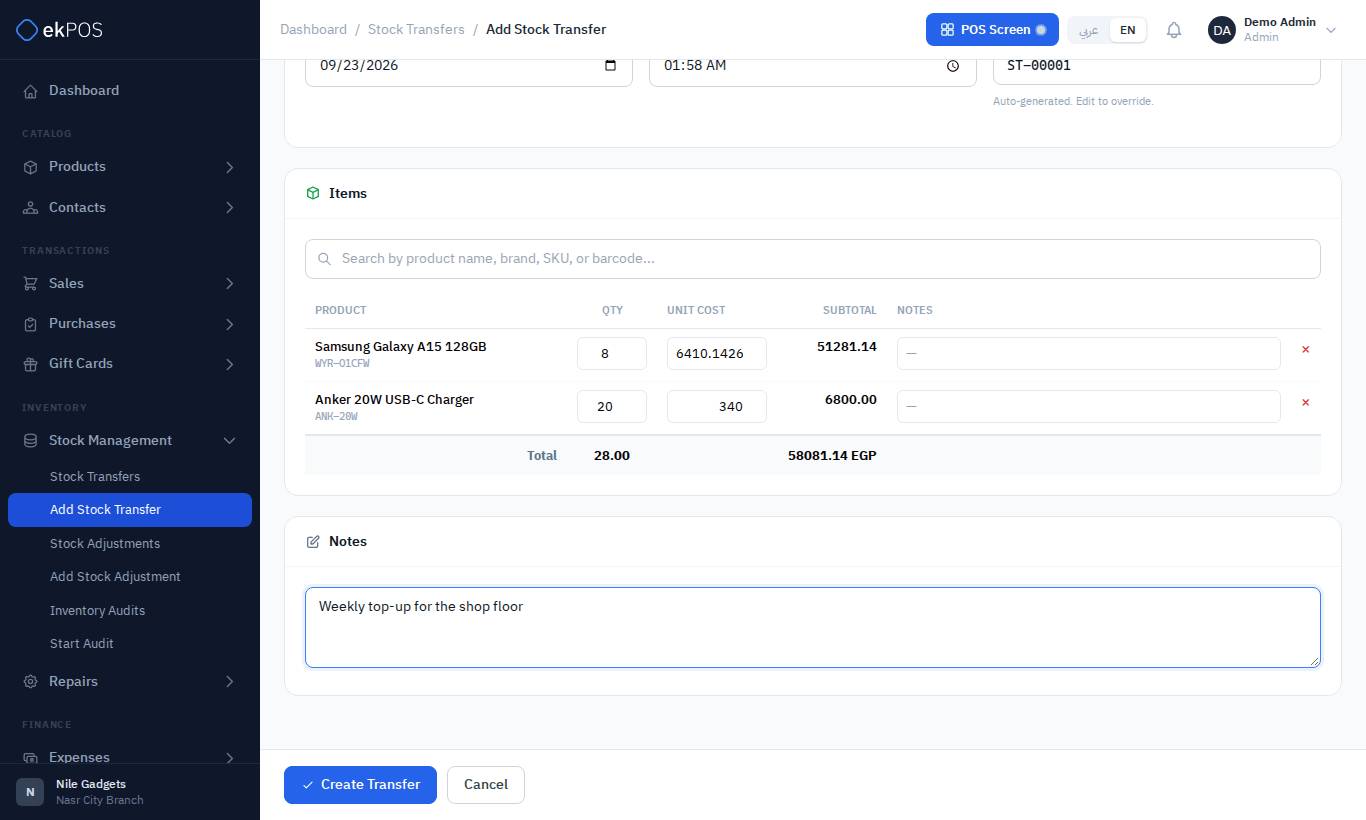
- Go to Stock Management → Add Stock Transfer.
- Choose the From and To locations. They must be different.
- Choose the Status, and check the date and time. The reference (ST-00001…) is generated for you; you can type your own.
- Search for products by name, brand, SKU or barcode and add them. Each result shows the stock at the From location.
- Enter the Qty for each line. The Unit Cost is filled with the product's current cost and gives the transfer its value; it does not change the product's cost. Add a note per line if needed.
- Add notes for the whole transfer, and click Create Transfer.
Receive an in-transit transfer
- On Stock Management → Stock Transfers, open ⋮ → Edit on the transfer.
- Change Status to Completed.
- Save.
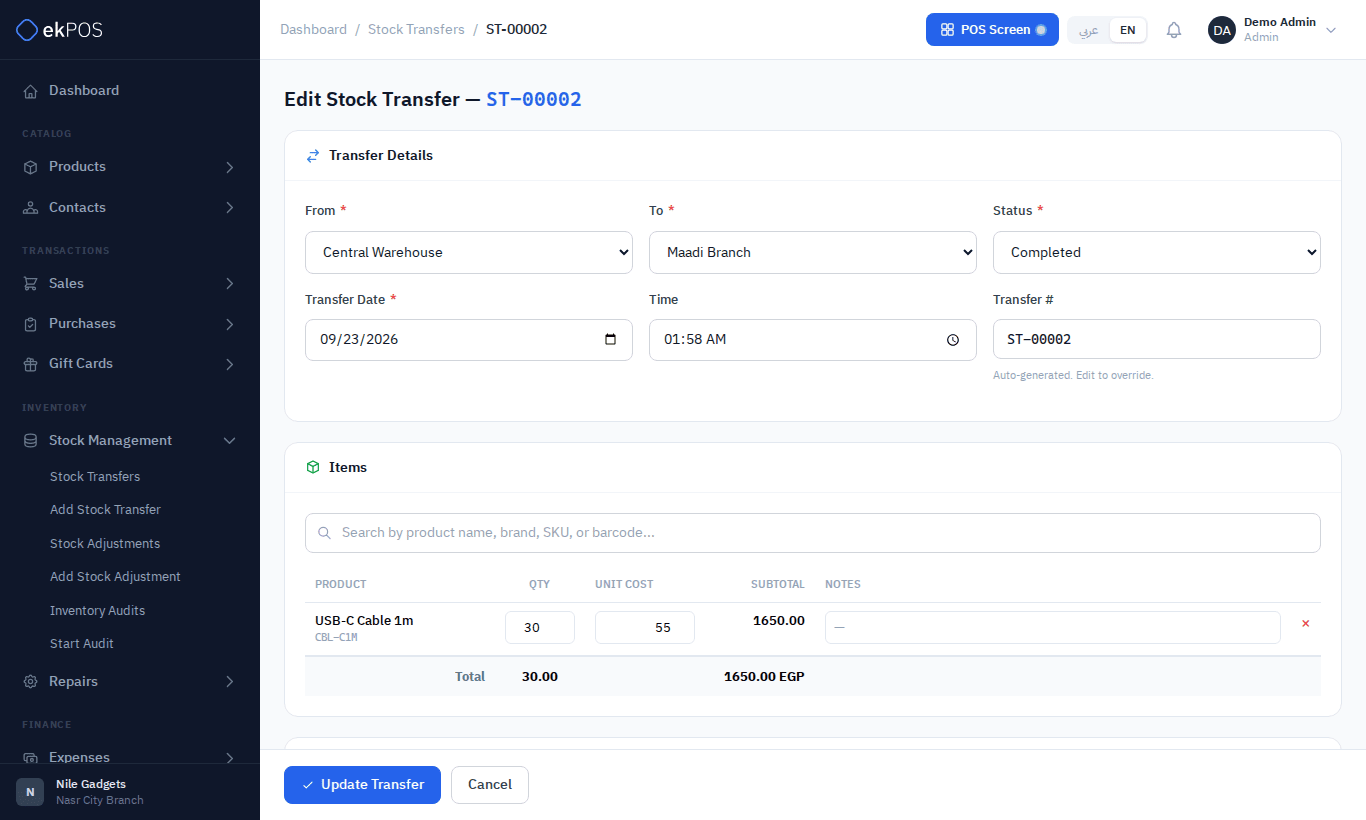
The goods are now added at the receiving location.
The transfers list
Stock Management → Stock Transfers lists every transfer with its date, reference, locations, status, total quantity and who created it. Filter by search, status, From and To location, and date.
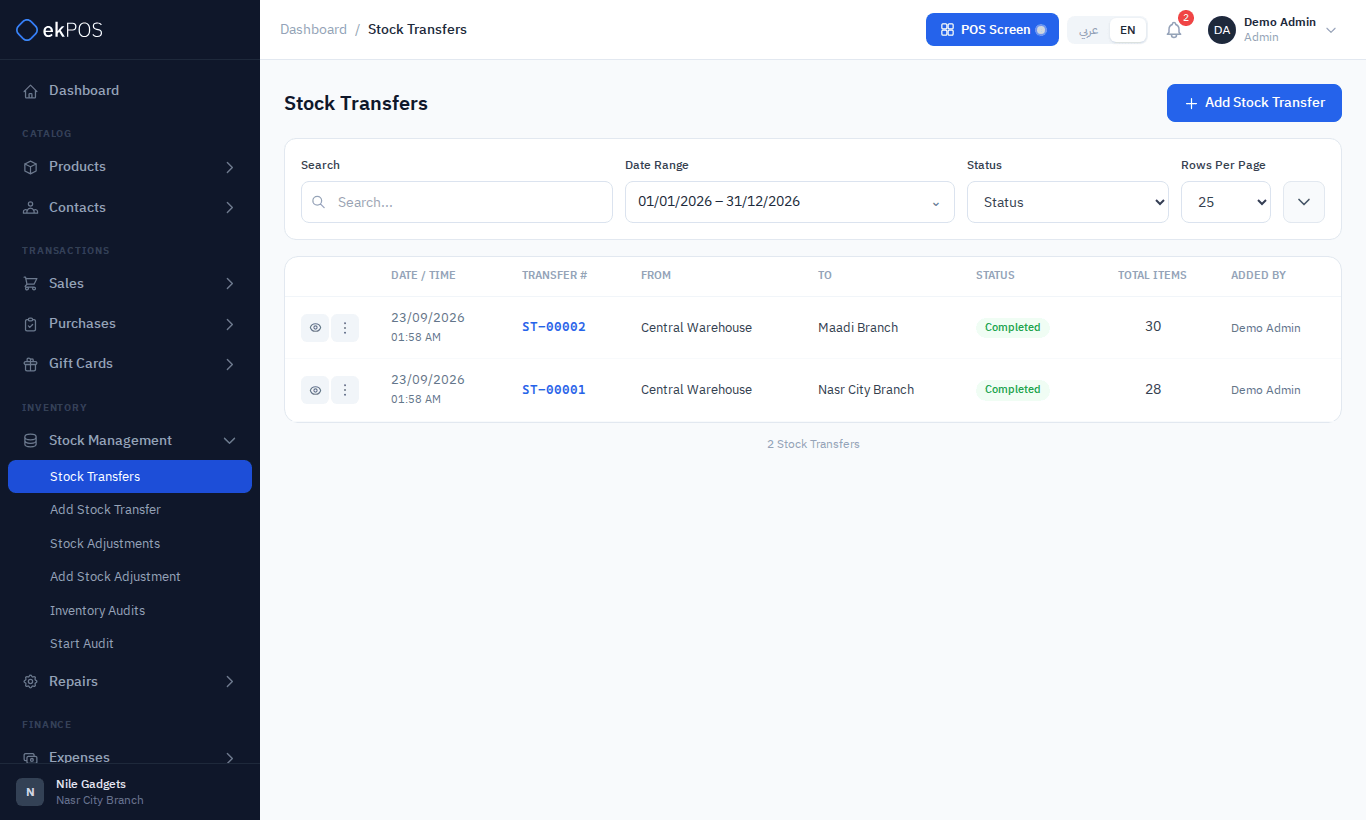
From each row you can view the lines, print the transfer note (paper or receipt, per Document settings), edit it, or delete it.
Editing and deleting
Editing a transfer undoes its stock effect and applies it again from the new figures, so you can change quantities, products, locations or status safely. Deleting a transfer undoes its stock effect completely.
Who can do this
Viewing transfers needs Stock → View; creating, editing and deleting them needs Stock → Transfer.
Related
- How stock works
- Restock report — can create a transfer for you