
Opening and closing the register
The POS works in register sessions. Each cashier opens a register at the start of a shift with the cash in the drawer, sells, and closes it at the end with the cash counted. The session's figures tell you what the drawer should hold.
Open the POS
Click POS Screen at the top of any page (it opens in a new tab), or Sales → POS Screen. The dot on the button is green while your register is open.
Open the register
If you have no open register, the POS asks for your Opening Cash — the float in the drawer — and, if you have more than one location, the Location the register is at.
- Choose the location, if asked.
- Count the cash in the drawer and enter it.
- Click Open Register.
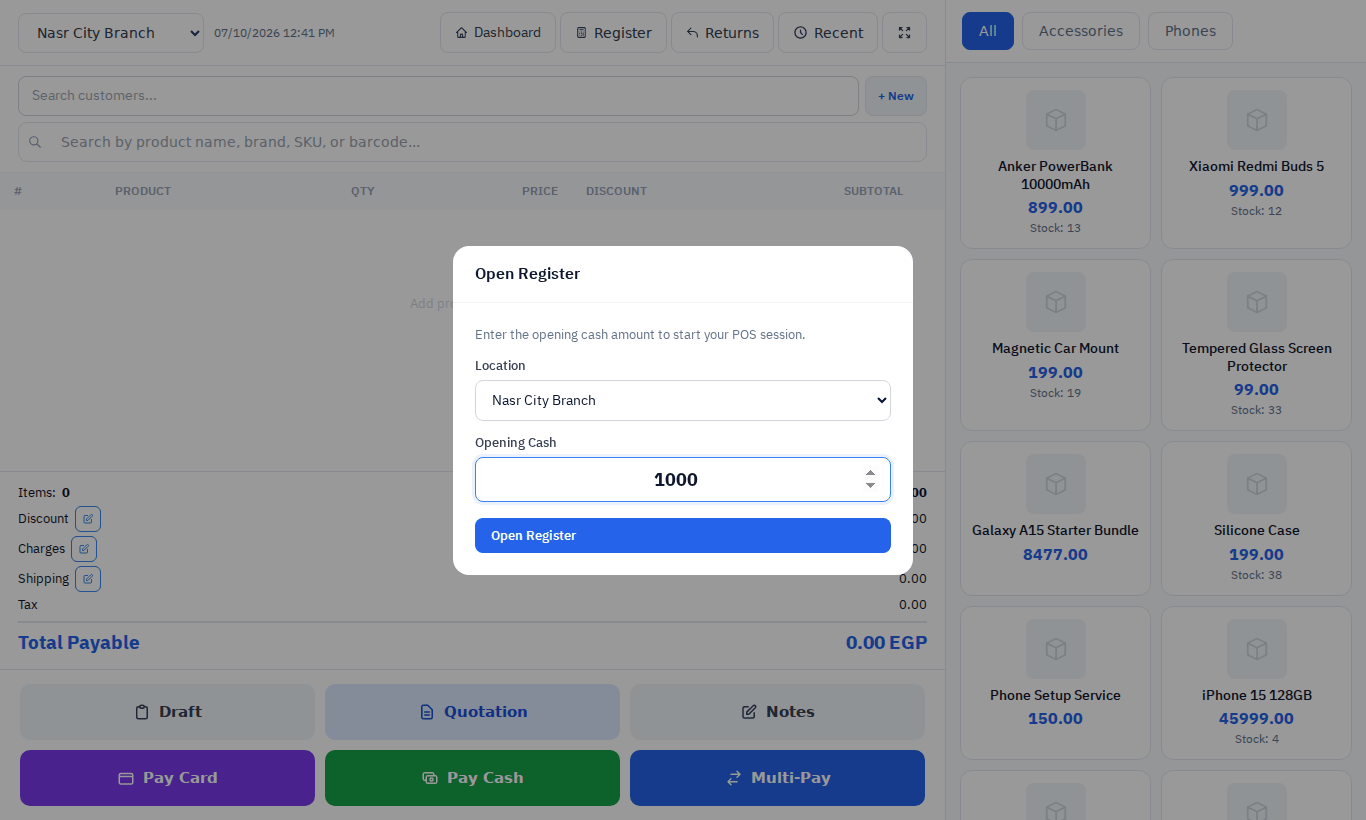
Each user has their own register session; you cannot open a second one while yours is open.
The POS will not save a sale — or a draft or quotation — without an open register, and only at the location the register is open at. Sales made outside a register, such as wholesale by a sales team, belong on Add Sale.
While the register is open, the POS sells from its location: the location list at the top left is locked. Close the register to sell from another location. With no register open, the POS remembers the last location chosen on that computer.
During the shift
Click Register in the POS header to see the session so far:
| Figure | Meaning |
|---|---|
| Opening Cash | The float you started with. |
| Opened | When the session started. |
| Total Sales | The value of POS documents saved in this session, except cancelled ones. |
| Transactions | How many POS documents you saved. |
| Cash / Card / Bank / Other | Money taken by each kind of payment. Mobile wallets and other methods appear under Other. |
| Returns | The value of returns you processed against POS sales during the session. |
| Cash refunds | Cash handed back for those returns. |
| Expected cash in drawer | Opening Cash + Cash − Cash refunds: what the drawer should hold now. |
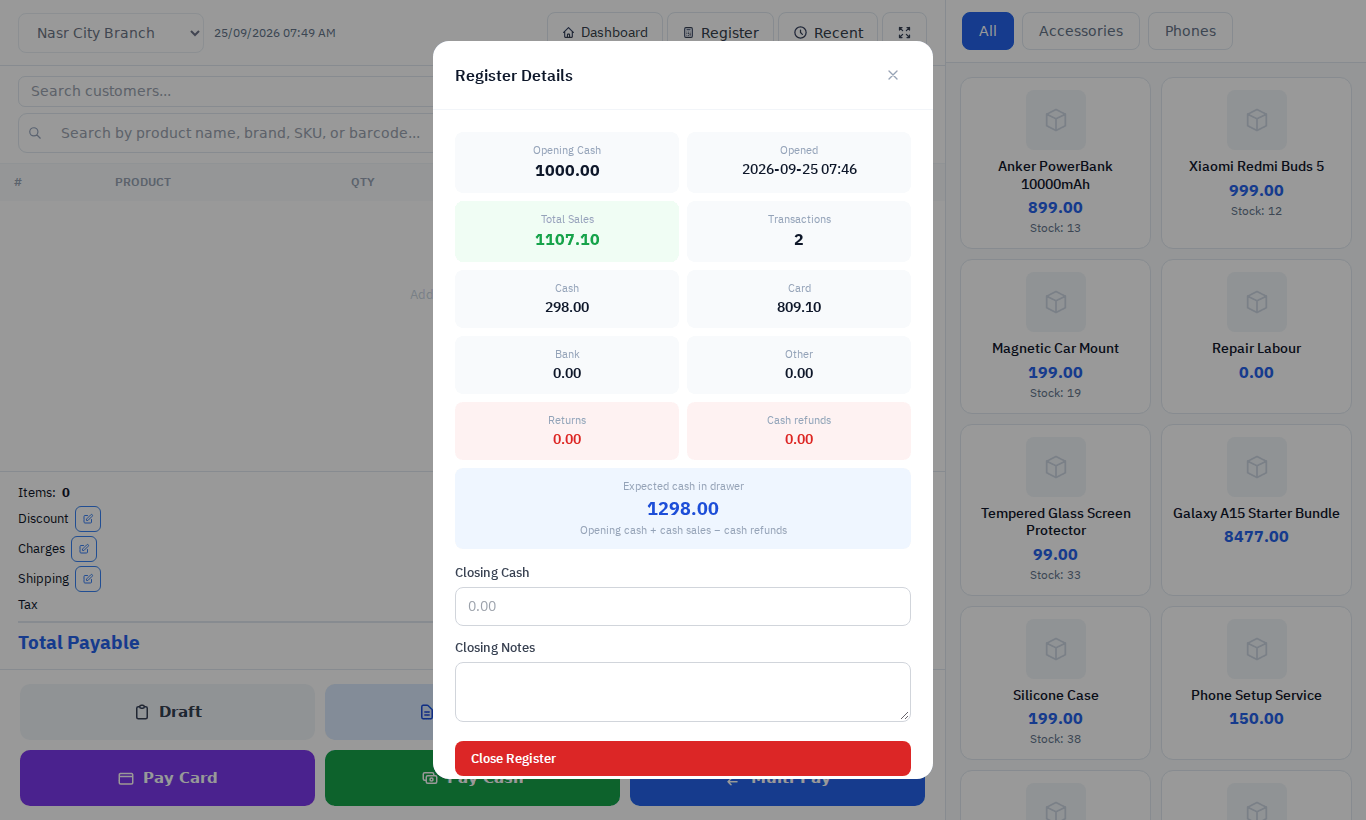
NoteDrafts and quotations saved from the POS are counted in Total Sales and Transactions, although they take no money. Use the Cash, Card, Bank and Other figures to reconcile the drawer.
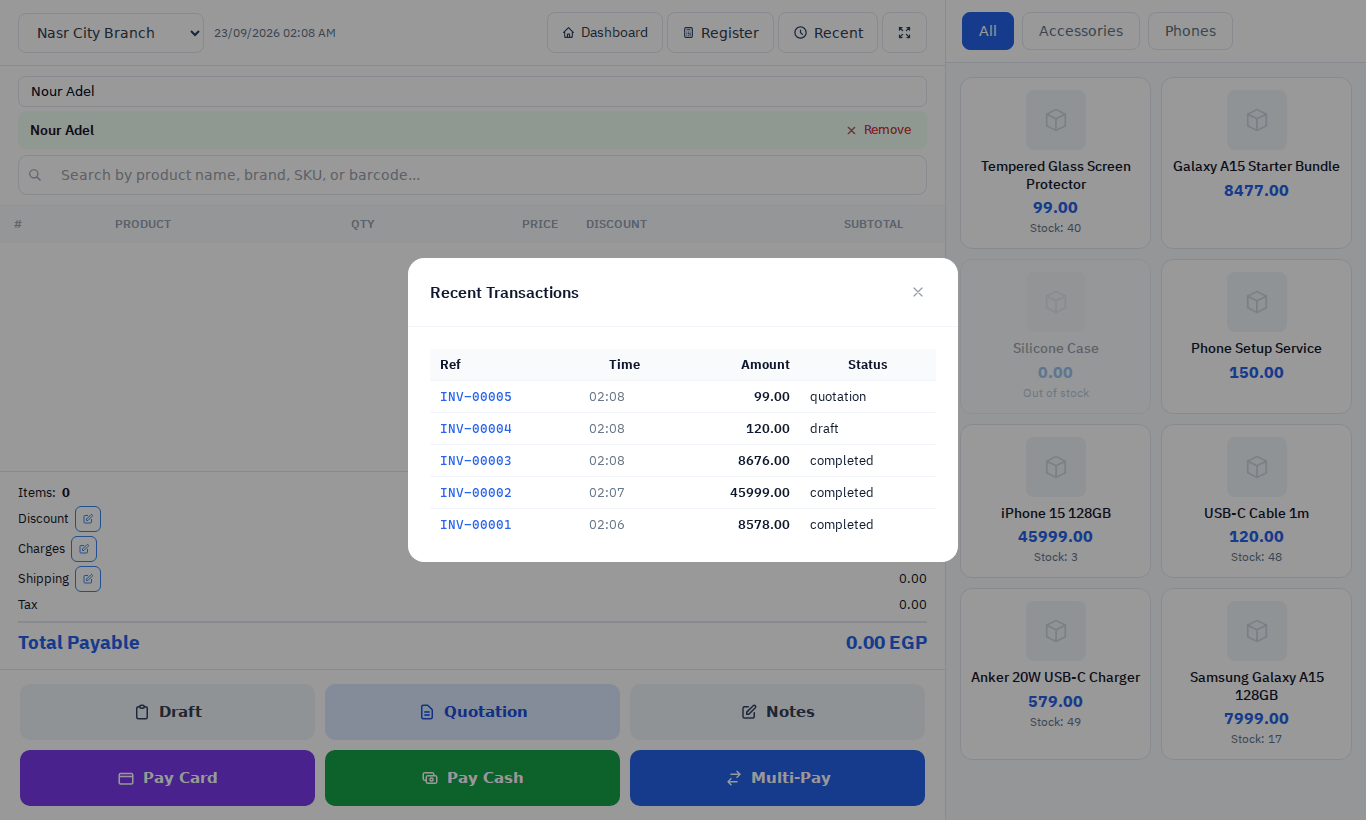
Recent in the POS header lists the most recent transactions of the session with their reference, status, amount paid and customer.
Close the register
- Click Register.
- Count the drawer and enter the Closing Cash. Add Closing Notes if anything needs explaining.
- Click Close Register.
The session is closed with its figures frozen. The drawer should hold the Expected cash in drawer shown before you closed. The difference appears in the Register History report.
Permissions
| Permission | Allows |
|---|---|
| POS → View | Use the POS screen and ring up sales |
| POS → Open Register | Open a register session |
| POS → Close Register | Close it |
| POS → Return | Find an invoice and record its return and refund inside POS |
| POS → Apply Discount | Save a POS sale that carries any discount |