
Supplier payments
Each purchase tracks what you owe the supplier: the total, the amount paid, and the amount due. Its payment status is Paid, Partial or Due, and a purchase that is unpaid past its Due Date counts as Overdue.
Pay when you record the purchase
At the bottom of Add Purchase, fill Initial payment: the amount, the payment type (Cash, Bank, Card, Mobile Wallet, Cheque, Other), the payment method and the date.
Pay later
- On Purchases → All Purchases, open ⋮ → Add Payment on the purchase.
- Enter the Amount, choose the payment type and Payment Method, and set the Payment Date, which can't be later than now. Add a reference (a transfer number or cheque number) and notes if useful.
- Save.
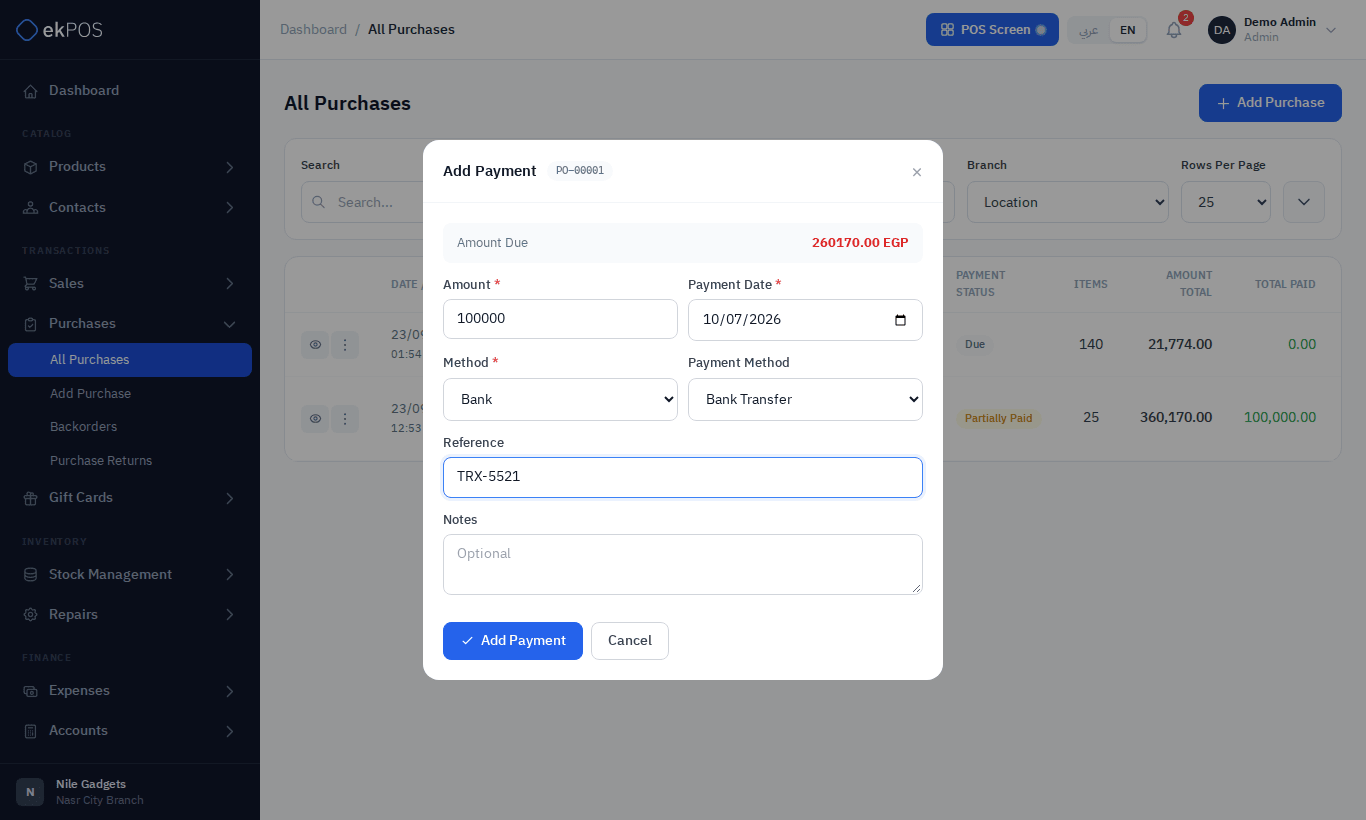
The purchase's paid and due amounts and its payment status update straight away, and the payment is added to its Transaction Log. ⋮ → View Payments lists every payment made against the purchase.
To pay part of the balance, enter less than the amount due; add more payments later until it is paid. A payment cannot be more than the amount still due.
To remove a payment recorded by mistake, open ⋮ → View Payments and click Delete on it. The purchase's balance and the supplier's ledger are updated and its accounting posting is reversed.
Finding what you owe
- All Purchases, filtered by Payment Status Due, Partial or Overdue.
- The Supplier report lists each supplier's purchases and payments, and what is outstanding.
- The supplier's contact ledger shows every purchase, payment and return with them, and the running balance.
Who can do this
Adding payments needs Purchases → Edit.