
Managing sales
Sales → All Sales lists every final sale — from the POS, Add Sale, repairs, imports and WooCommerce. From here you view, print, collect payment, change and correct sales.
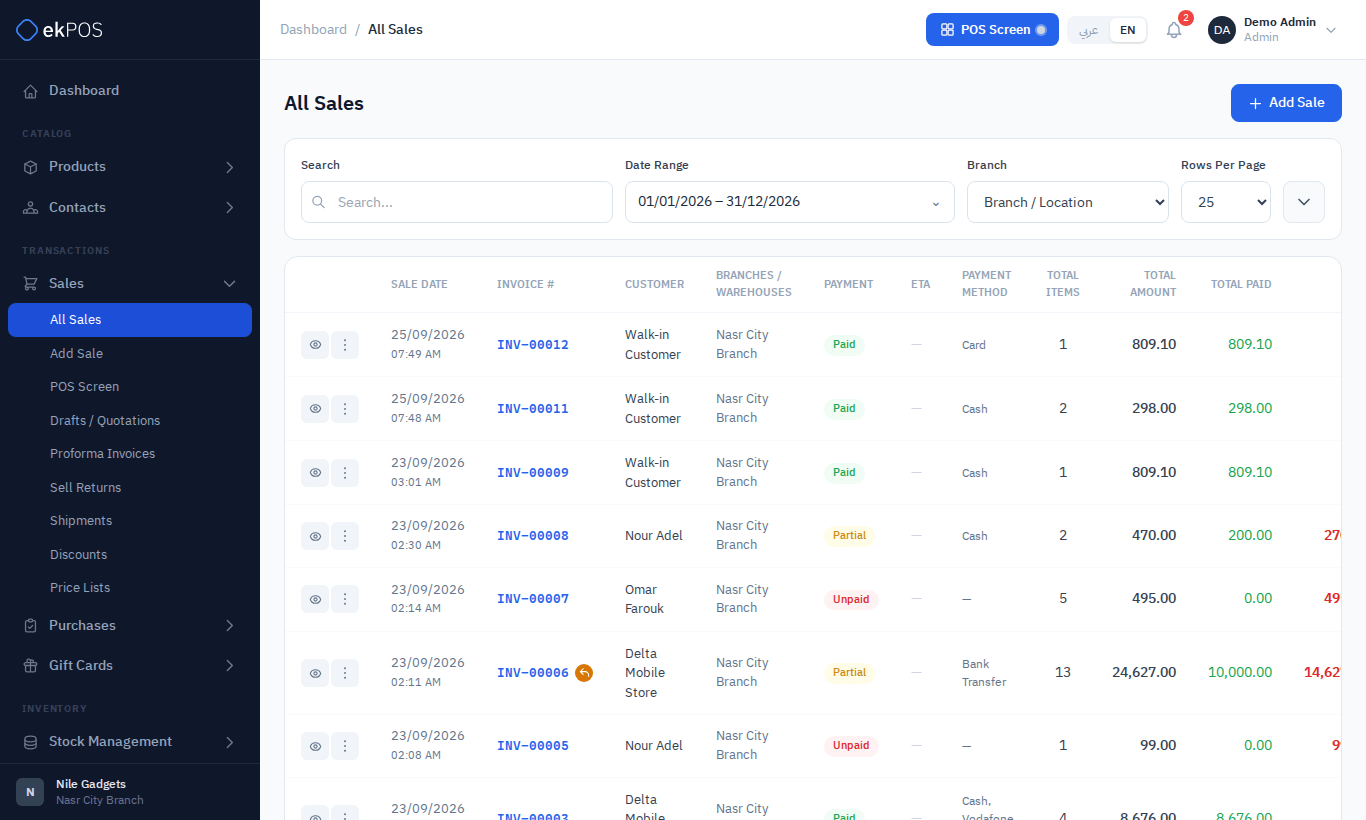
Find a sale
- Search by invoice number, or by the customer's name, company or phone.
- Filter by Payment status (Paid, Partial, Unpaid), Branch / Location, Shipment Status, and a date range.
- The list shows the date, invoice number, customer, location, payment status, ETA status, payment methods used, item count, total, paid and due.
- A circle beside the invoice number shows the sale has been returned: red in full, amber in part. Click it to open its returns.
Drafts and quotations are not on this list; see below.
View a sale
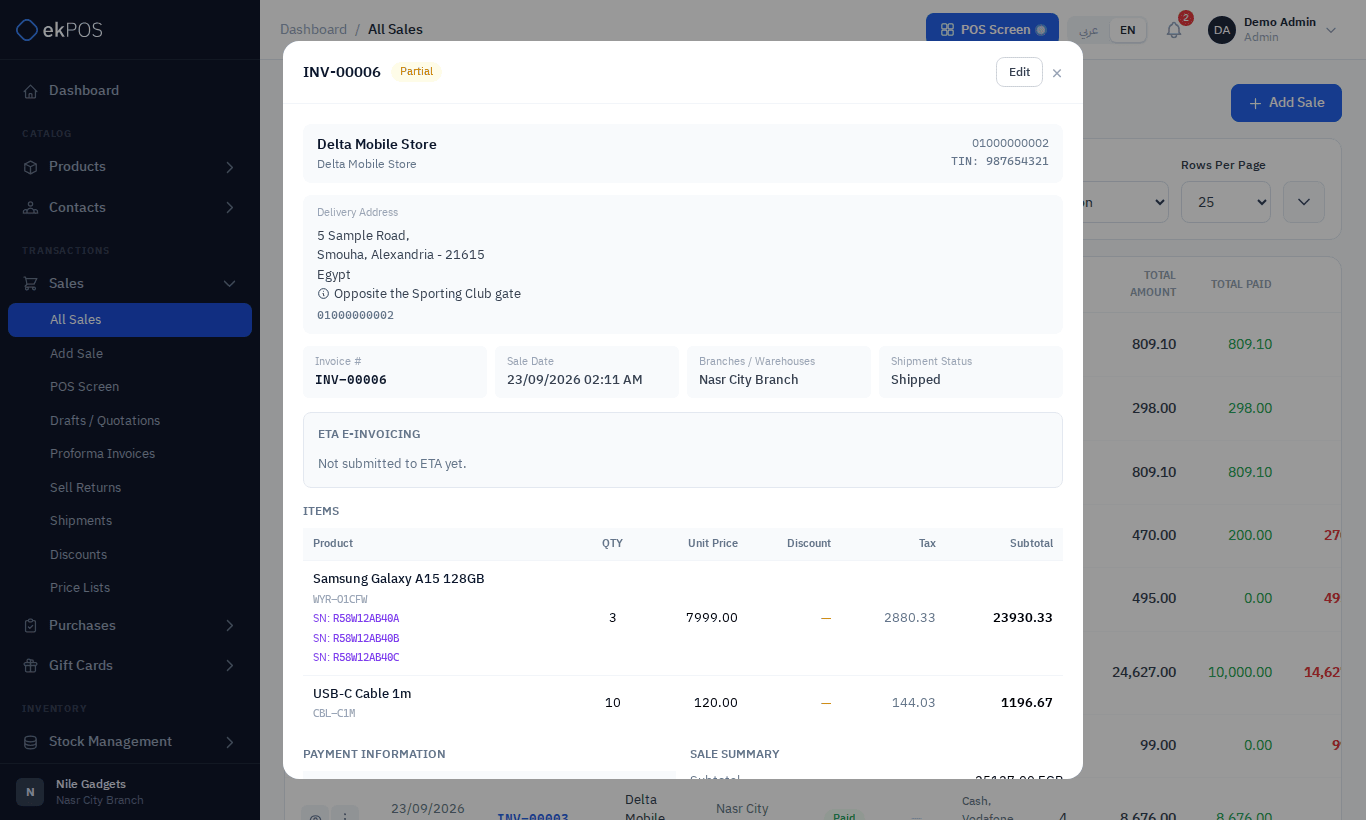
Click the eye icon. The sale opens with the customer and their tax number, the delivery address if it has one, location, shipment status, ETA status (Not submitted to ETA yet until it is sent), every line with serial numbers, discount and tax, the payments, the totals, the sales person, any returns, and a log of every change with who made it.
Actions
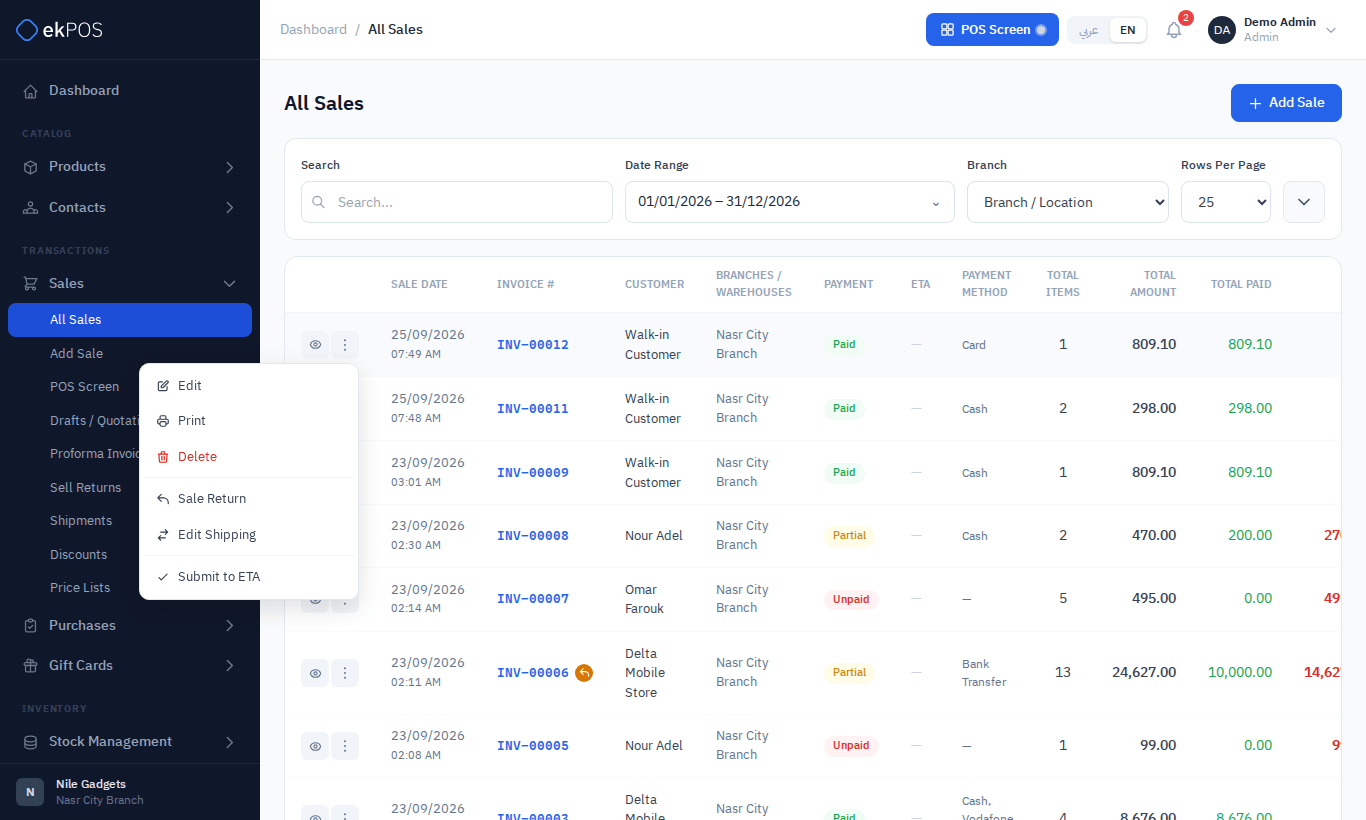
The ⋮ menu on each sale:
| Action | What it does |
|---|---|
| Edit | Opens the sale in the Add Sale form. See Edit a sale. |
| Prints the invoice or receipt. | |
| Delete | Deletes the sale after you confirm. |
| Add Payment | Records money received against the balance. |
| Sale Return | Starts a return for this sale. |
| Edit Shipping | Changes the shipment status, delivery address and shipping cost. |
| View Customer | Opens the customer's ledger. |
| Submit to ETA | Sends the sale to the Egyptian Tax Authority. See Submitting documents. |
Print a sale
⋮ → Print opens the document for printing:
- A customer with a tax registration number gets a Sales Invoice; walk-in and individual customers get a Sales Receipt.
- Whether it prints on A4/A5 paper or as a narrow thermal receipt, and what it shows, is set per document type — and optionally per branch — in Document settings.
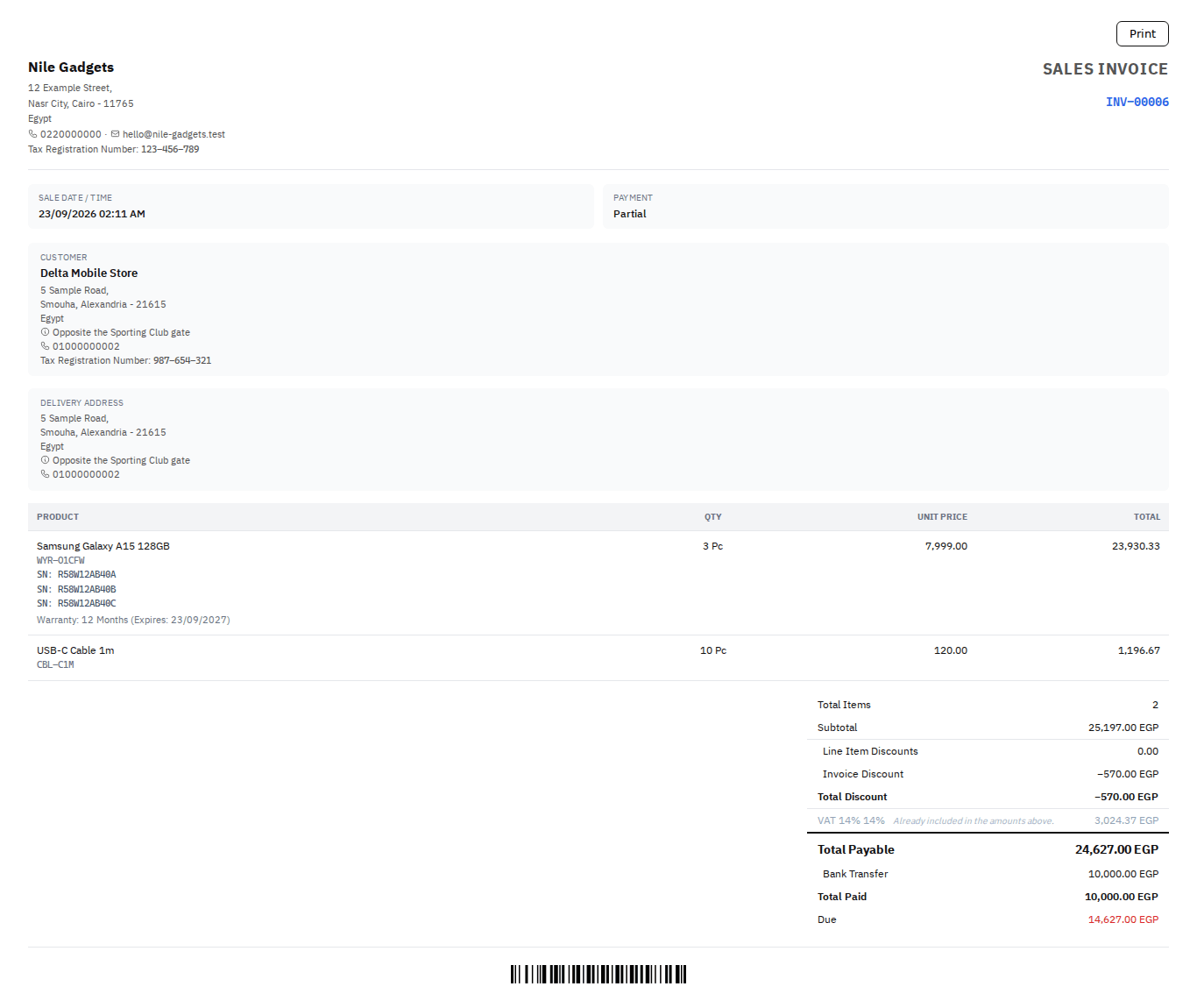
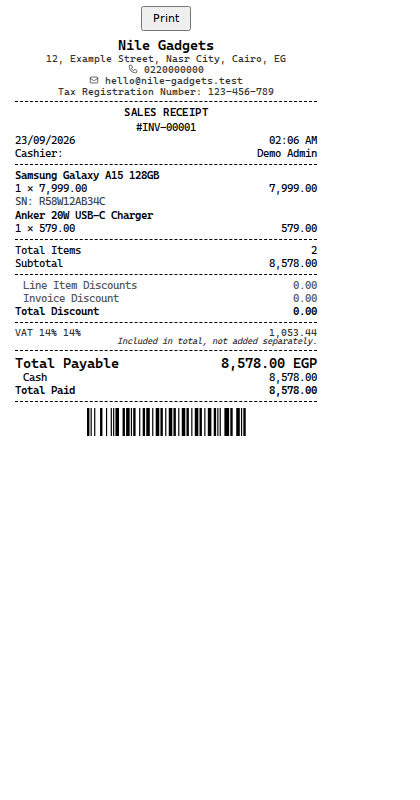
The document lists serial numbers and warranty expiry under each line, the tax, the payments and the balance due. A sale with a delivery address prints it under Delivery Address, with the delivery phone number.
Add a payment
To record money received for a sale that is not fully paid:
- Open ⋮ → Add Payment.
- Choose the Payment Method, enter the Amount, and check the date. It can't be later than now. Add a note if needed.
- Save.
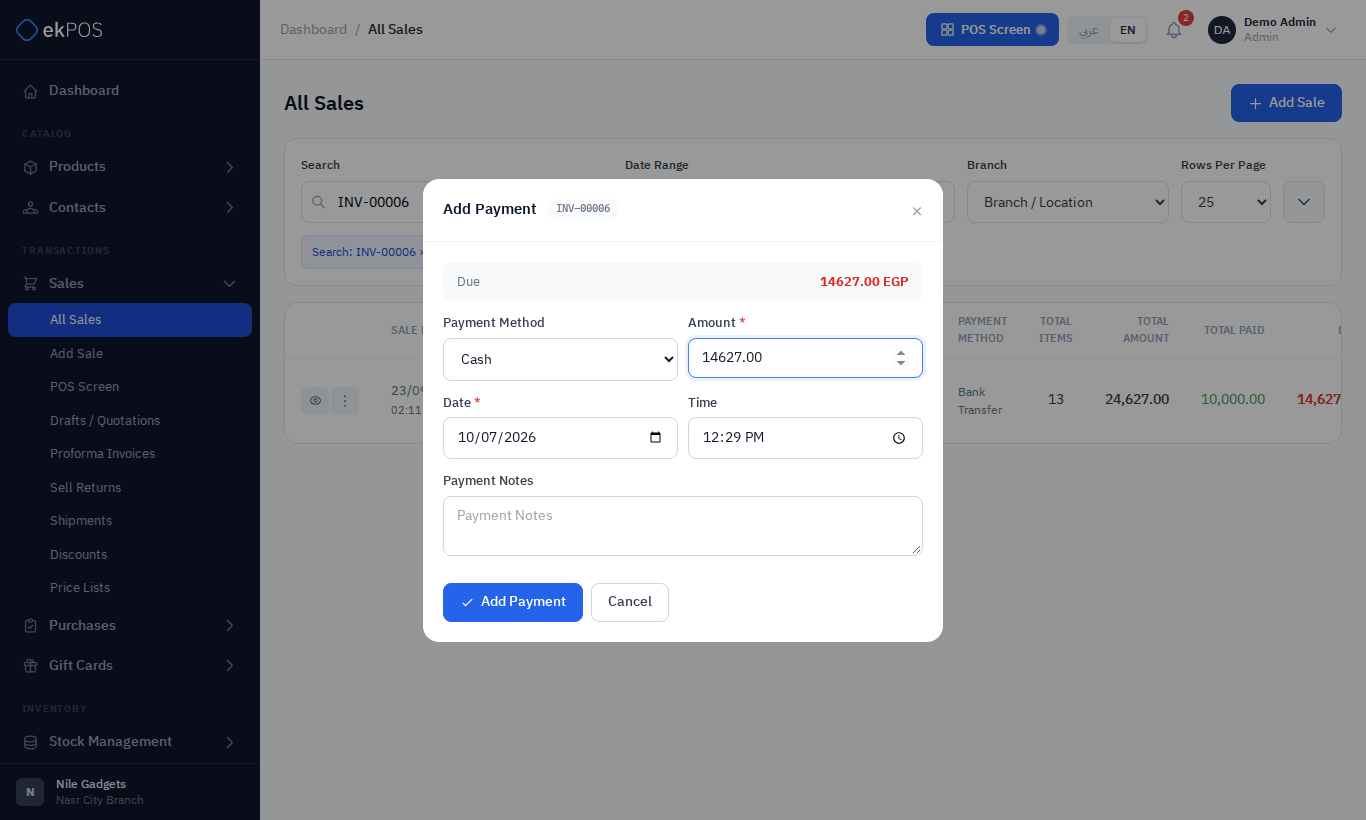
The sale's paid and due amounts and its payment status update, the payment is logged on the sale, and it is written to the customer's ledger.
A payment cannot be more than the amount still due.
To remove a payment recorded by mistake, open the sale with the eye icon and click Delete on the payment. The sale's balance and the customer's ledger are updated and its accounting posting is reversed. A gift card payment is refunded to the card from Gift cards instead.
Edit a sale
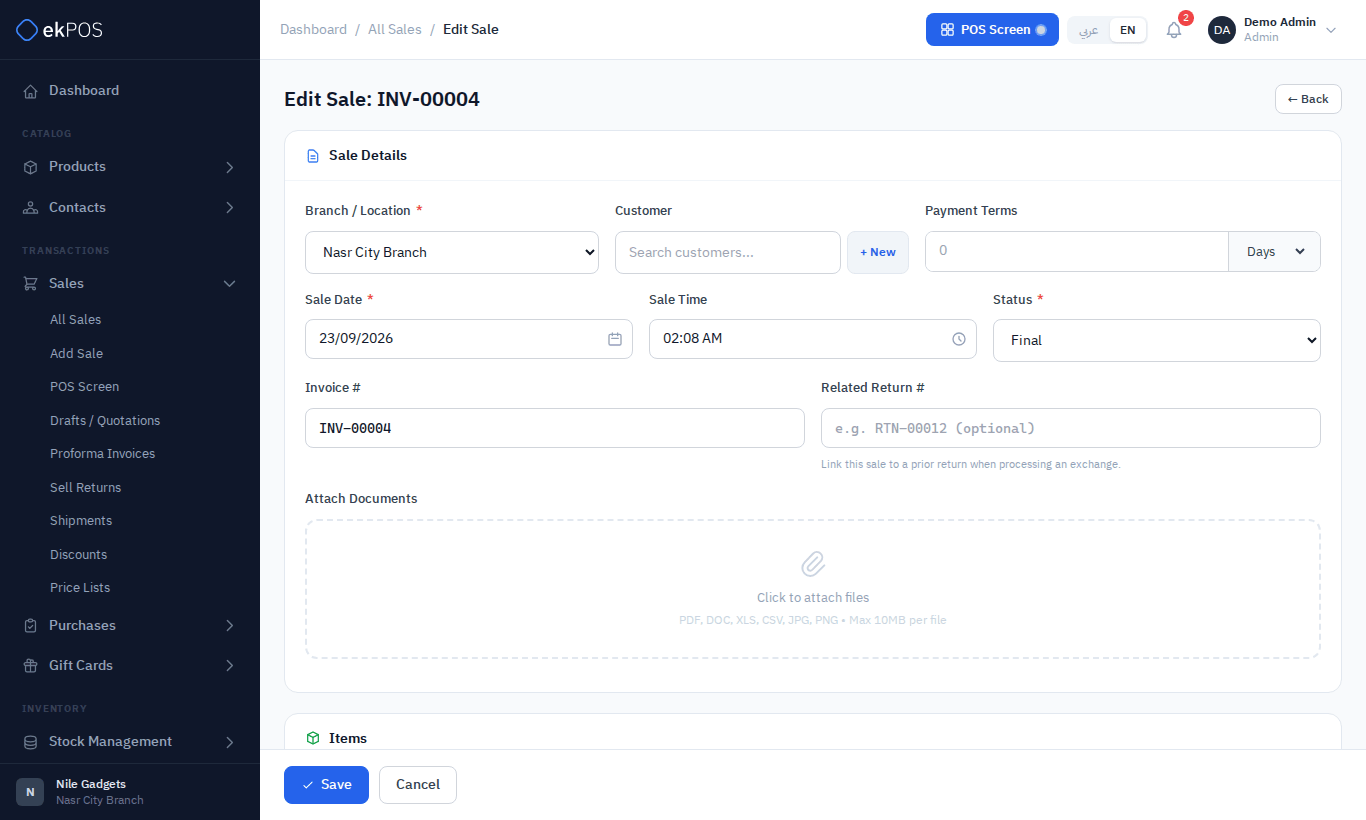
⋮ → Edit opens the sale in the Add Sale layout, with the customer beside Branch / Location and Payment Terms. You can change the customer, lines, prices, status, date and the other details, and save. Record new payments with Add Payment, not on this form.
When you save, ekPOS undoes the sale's effect on stock and applies it again from the edited sale, so stock stays right. Payments already recorded are kept. Changing the status works like this:
| From → To | Stock |
|---|---|
| Draft or Quotation → Final | Taken out |
| Proforma → Final | Reservation released, then taken out |
| Final → Draft, Quotation or Proforma | Put back (and reserved for Proforma) |
Changing or removing the customer unticks Same as customer shipping information and clears the sale’s delivery address, shipping email and phone. Tick it again to copy the new customer’s details. The shipping cost and shipment status stay as entered. Opening the form keeps the saved delivery details.
If the edit leaves the sale costing less than was already paid, it is saved with a notice giving the difference. With a customer, the difference is credit on their ledger: refund it or leave it for their next purchase. With no customer, refund it.
Lines on a saved sale keep their prices when the form opens; they are only re-priced if you change a quantity across a price break, add lines, or change the customer.
A sale that has returns cannot be edited. Each return is matched to the lines it took back, and saving the form replaces every line. To change such a sale, delete its returns first from Sales → Sell Returns, or record the difference as a new sale or return.
Edit shipping
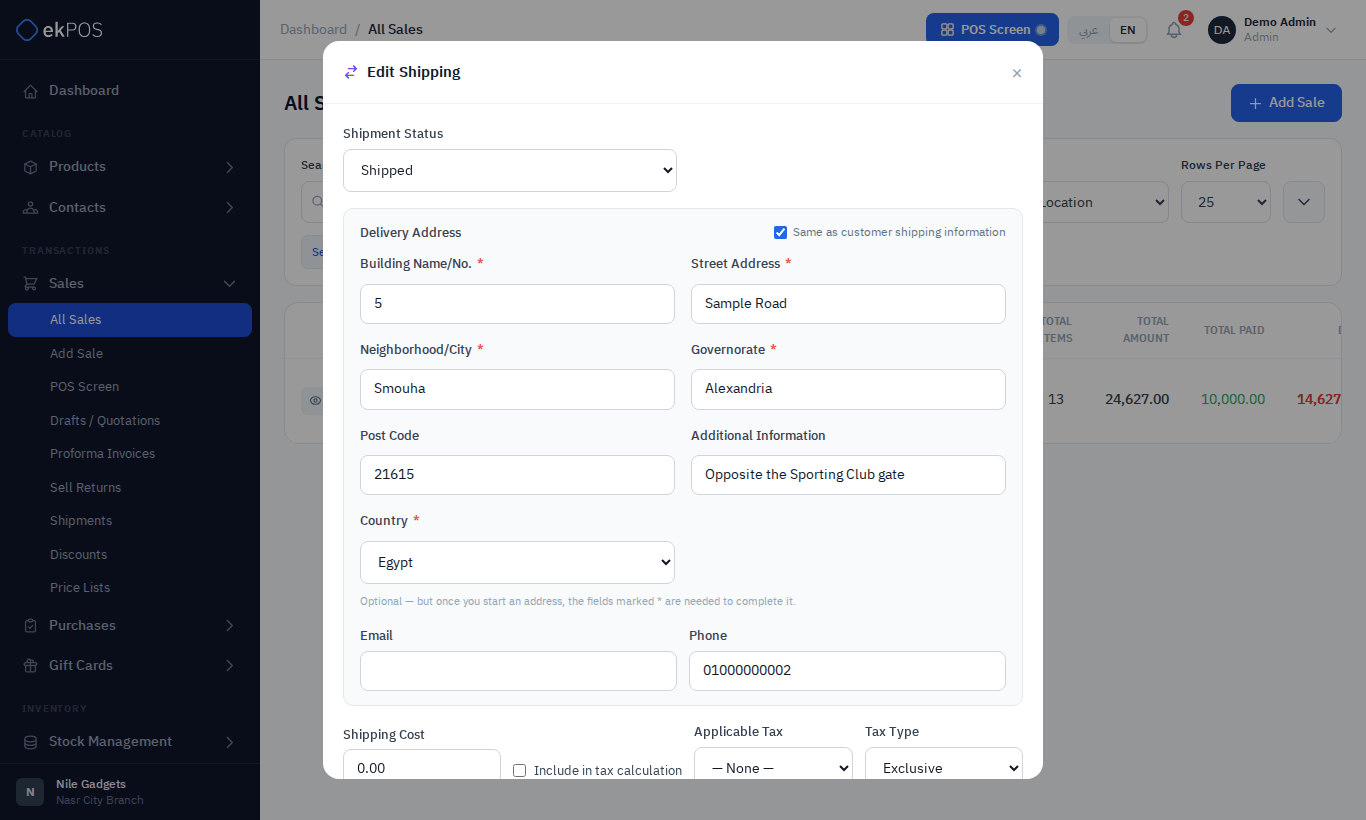
⋮ → Edit Shipping changes the shipment status, delivery address and shipping cost without editing the rest of the sale. For a WooCommerce order, the new status is also sent back to the online store.
The delivery address has the same fields and rules as on Add Sale, and Same as customer shipping information copies the customer's address into it. An address you leave as it was is saved as it was, even if it is incomplete — a WooCommerce order arrives with no building number, and that does not stop you marking it shipped. Change any part of it, and every field marked ✱ is needed.
Delete a sale
⋮ → Delete removes the sale after you confirm. If it has payments, the confirmation says how much was received: deleting the sale removes those payments from your books too. Stock taken by a final sale is put back, a proforma's reservation is released, commission is cancelled and, on plans with accounting, the postings are reversed. A WooCommerce order is marked cancelled in the store.
A sale that has returns cannot be deleted: delete its returns first, from Sales → Sell Returns, then the sale.
WarningDeleting a sale also removes it and its payments from the customer's ledger, leaving no record that it happened. Prefer a return to reverse a real sale, and delete only sales entered by mistake.
Drafts, quotations and proforma invoices
- Sales → Drafts / Quotations lists drafts and quotations from the POS and Add Sale with their customer, status and total.
- Sales → Proforma Invoices lists proforma invoices.
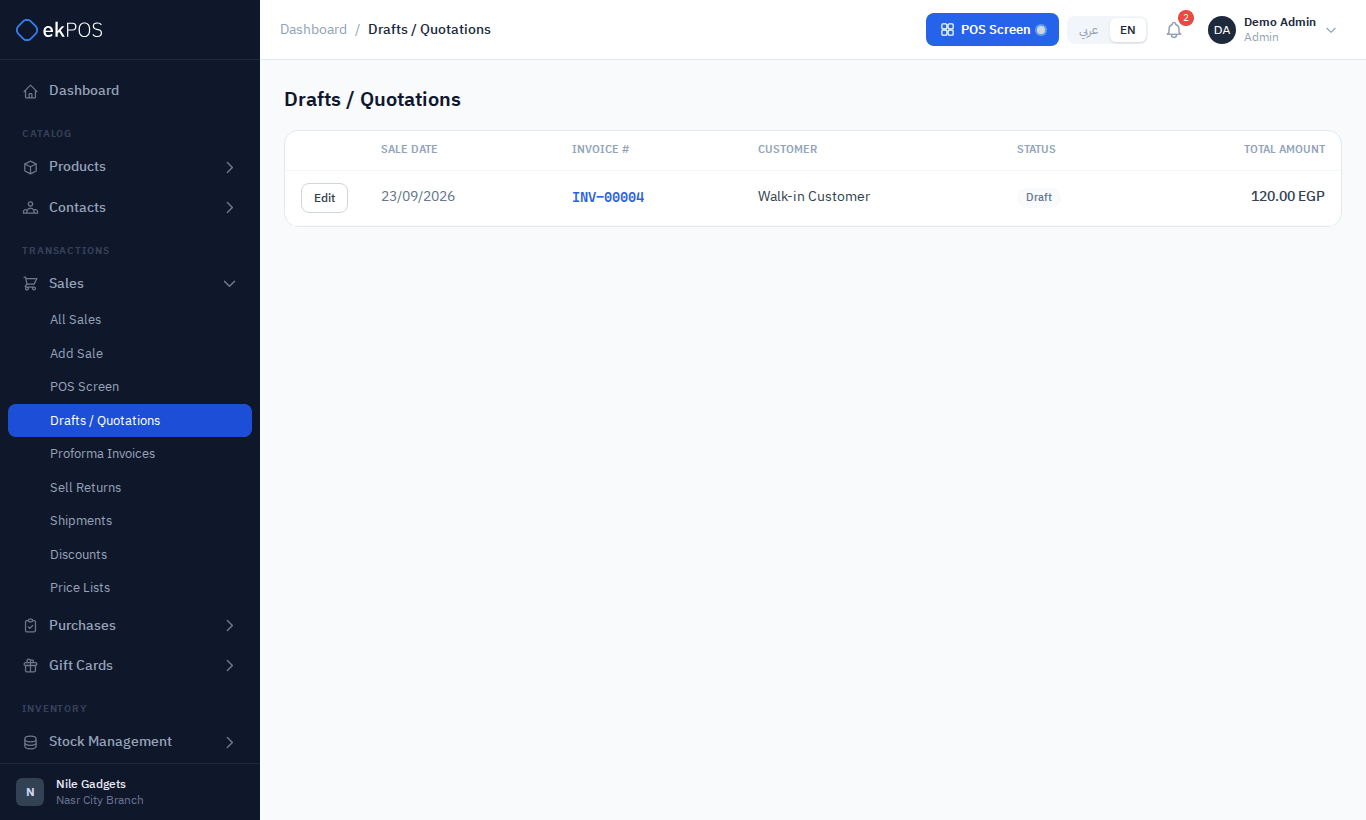
To turn one into a sale:
- Click Edit on it.
- Set Status to Final.
- Save. The sale moves to All Sales and its stock is taken out.
- If the customer is paying now, use ⋮ → Add Payment on the sale.
ImportantPayment lines added on the Edit form are not saved. Always record payments on an existing sale with Add Payment.
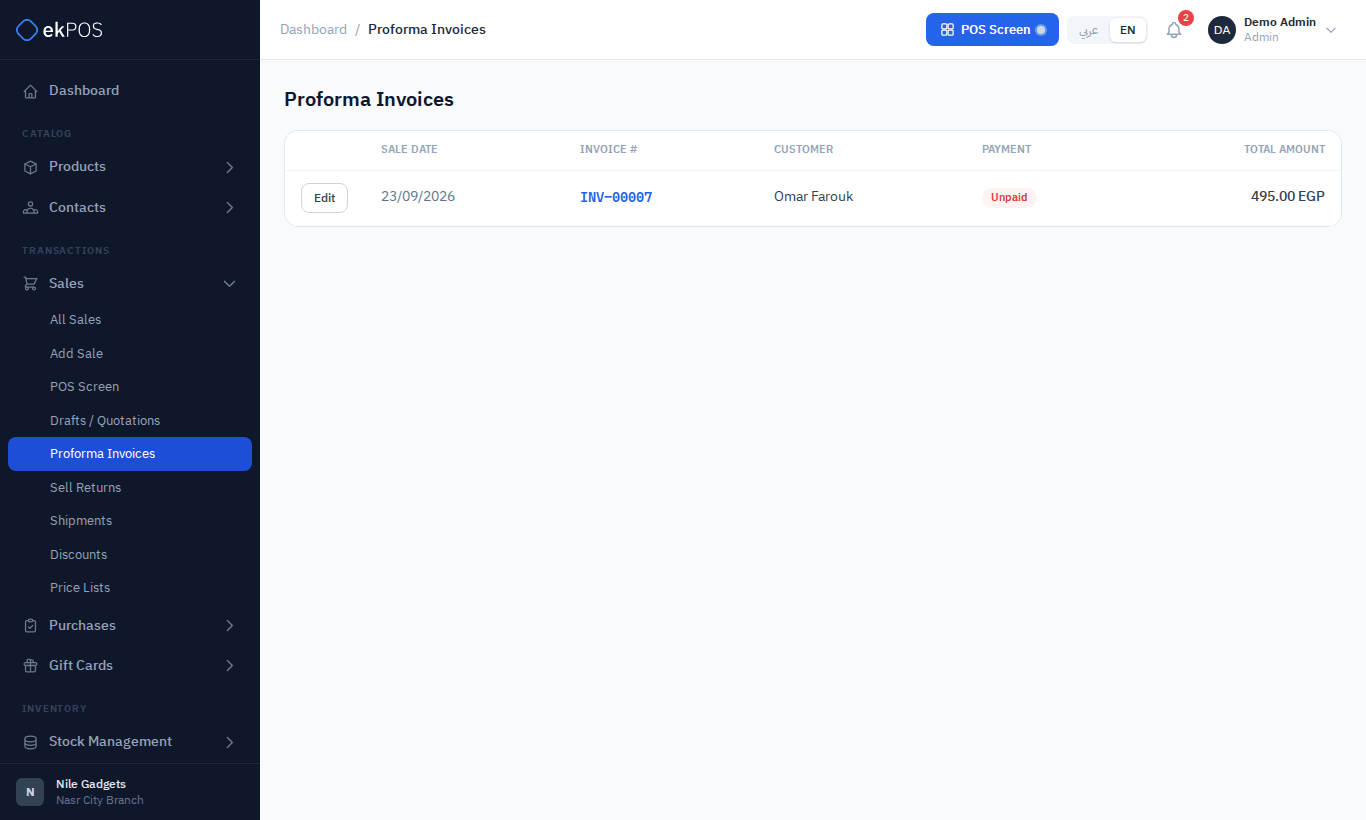
A proforma reserves its stock: the goods stay on the shelf and in your stock totals, but are set aside, and the POS shows the reduced available quantity.
Who can do what
| Permission | Allows |
|---|---|
| Sales → View | All the lists, view, print |
| Sales → Create | Add Sale, quick-add customer |
| Sales → Edit | Edit, Add Payment |
| Sales → Delete | Delete sales and returns |
| Sales → Return | Create returns and refund payments |
| Shipments → Manage | Edit Shipping |
| ETA → Submit | Submit to ETA |