
Inventory audits
An inventory audit is a stock count. ekPOS takes a snapshot of what it thinks is on the shelf, you count what is really there, and the audit shows every difference (variance).
ImportantSubmitting an audit records the variances; it does not change stock. Review the differences, then correct stock with a stock adjustment.
Start an audit
- Go to Stock Management → Start Audit.
- Choose the Branch or Warehouse. For a warehouse you can count one zone, or leave All zones to count the whole warehouse.
- Check the date and time, add notes, and click Start Audit.
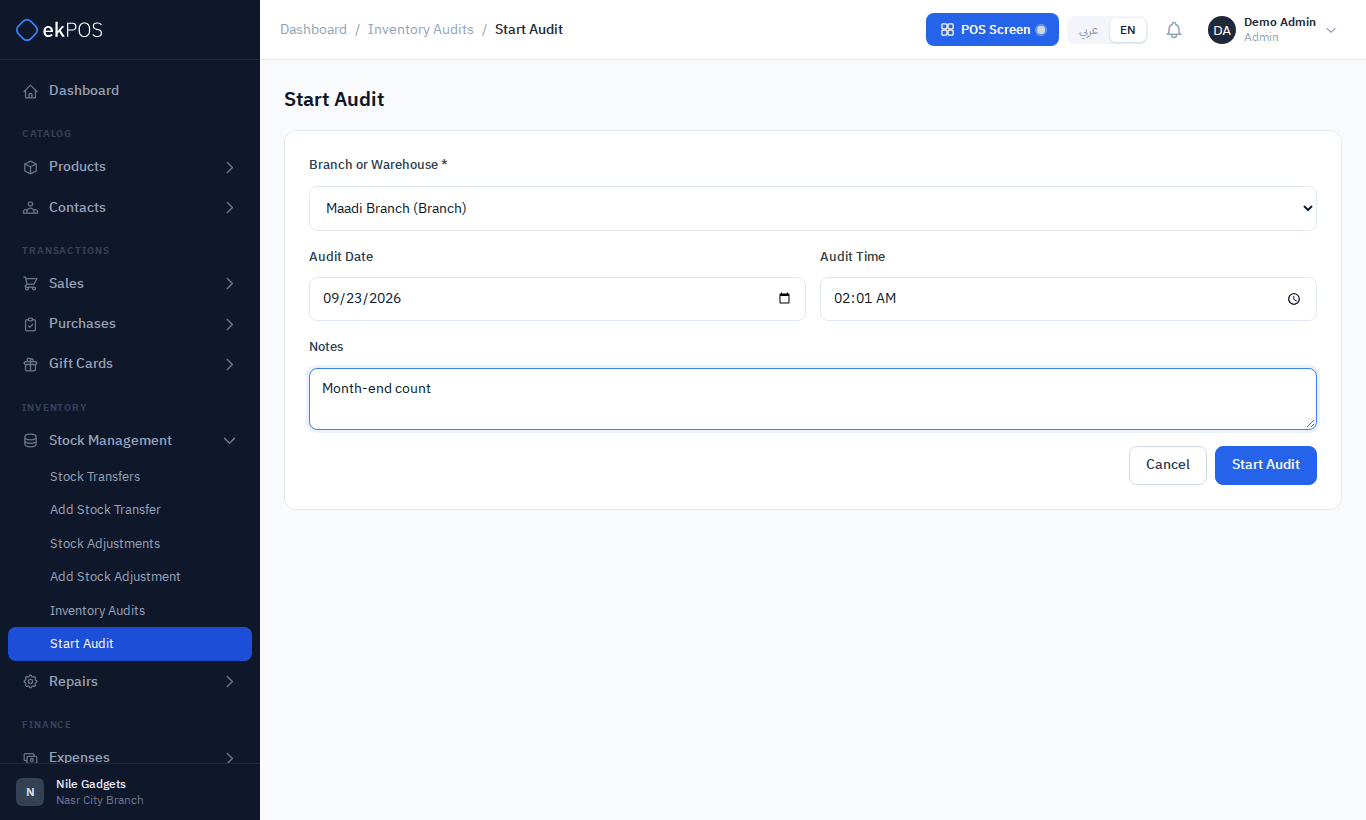
ekPOS lists every product and variant that has stock recorded at that location — including ones at zero — with its system quantity at that moment, then opens the scan screen.
Only one audit in progress is allowed per location (and zone). Starting another takes you back to the one already open.
Count
On the scan screen:
- Scan a barcode, or type a name or SKU and pick the product. For a variable product, pick the variant.
- Enter the Counted Quantity. The variance appears as you type.
- Add a note if something needs explaining.
- Click Save & Next.
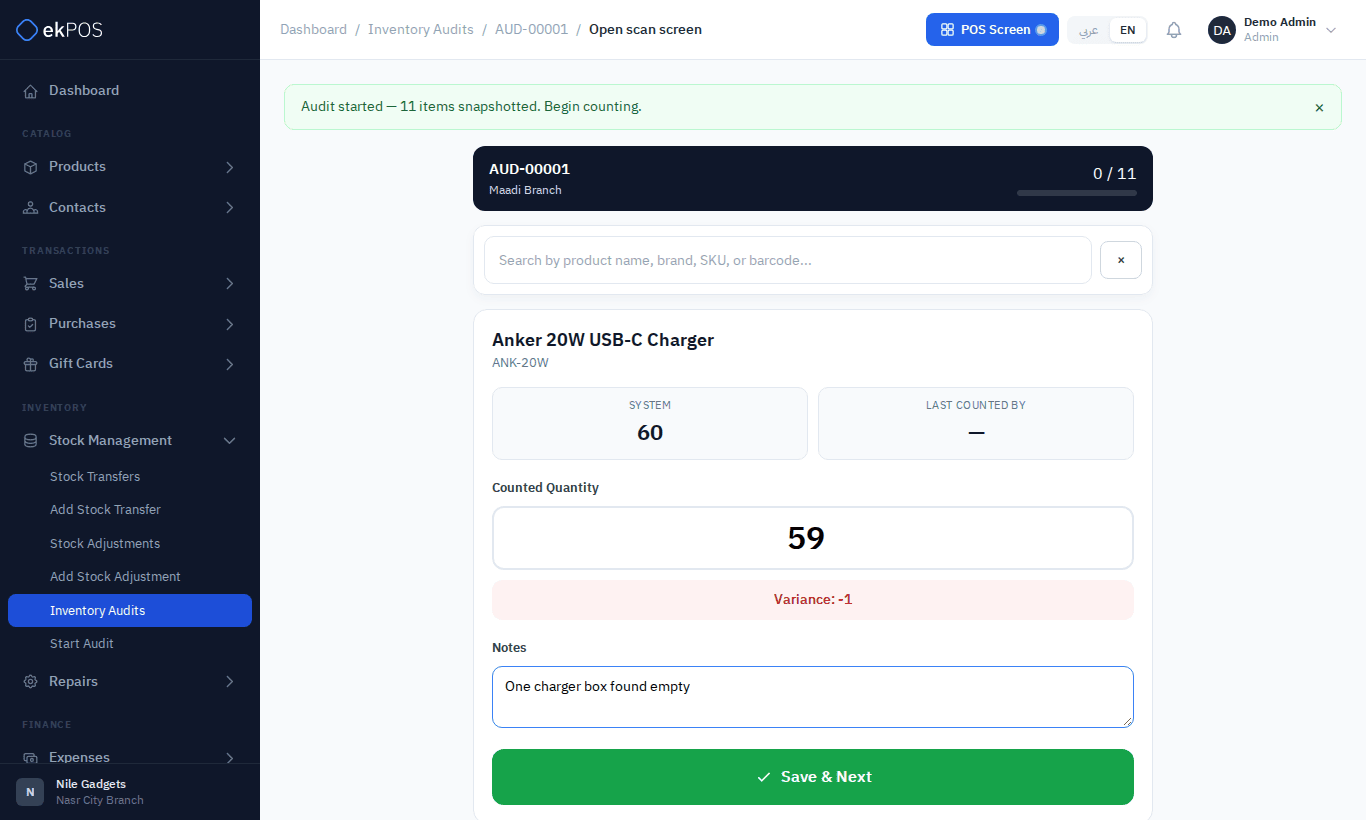
- Scanning a product that was not in the snapshot adds it to the audit.
- Counting the same item again replaces the count. Every count is kept in the audit's history with who made it.
- Several people can count the same audit at once, on different devices.
Review
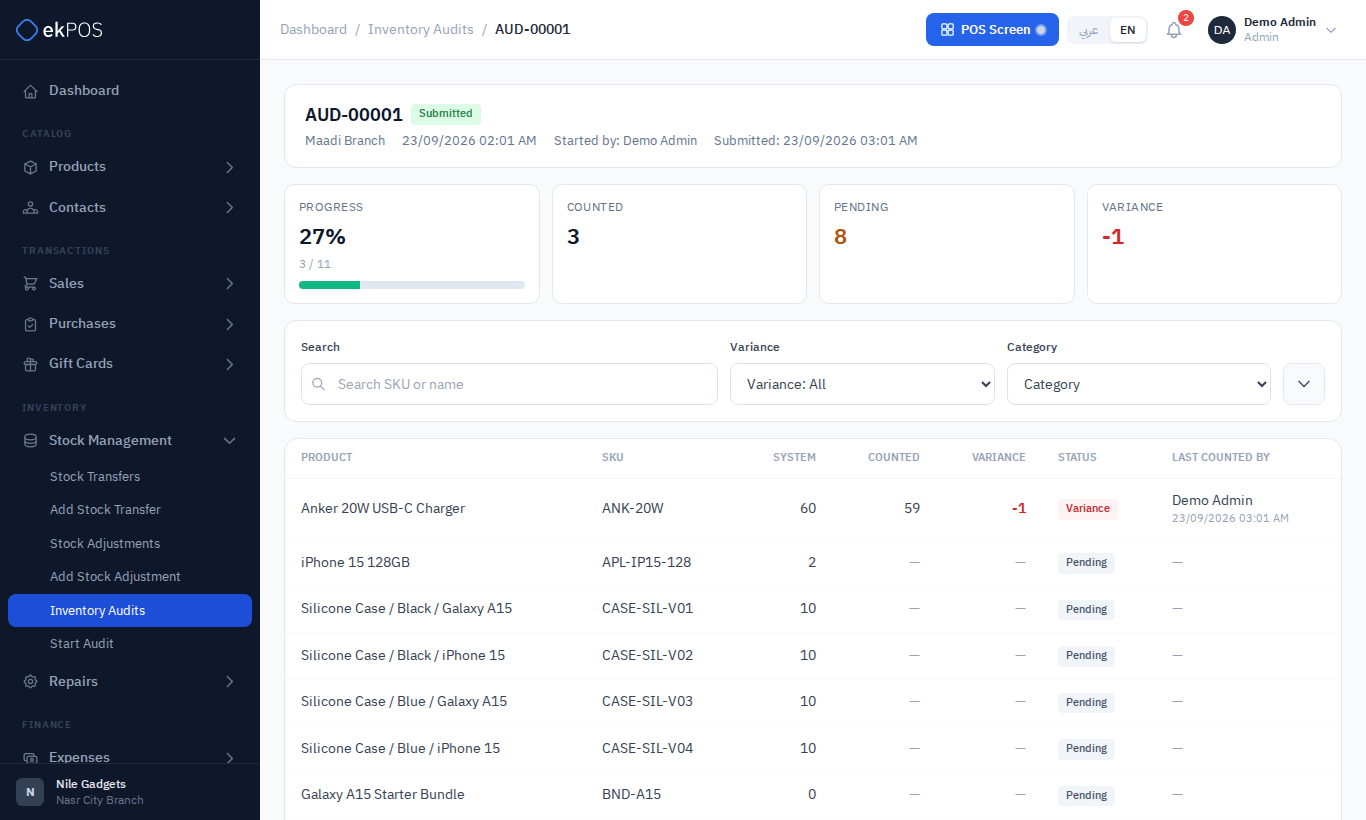
Open the audit (from Stock Management → Inventory Audits, or Open scan screen / the reference) to see progress, and the counted, pending and variance totals. Filter the lines by status (Pending, Counted), variance (Match, Variance), brand or category, or search. Lines with a variance are listed first.
Finish
- Submit Audit locks the audit. Lines not yet counted stay uncounted. You are warned how many are still pending.
- Cancel Audit abandons it.
Neither can be undone.
Then correct stock: for each variance, record an adjustment — Lost or Stock Recount for missing items, Found for extra ones.
The audits list
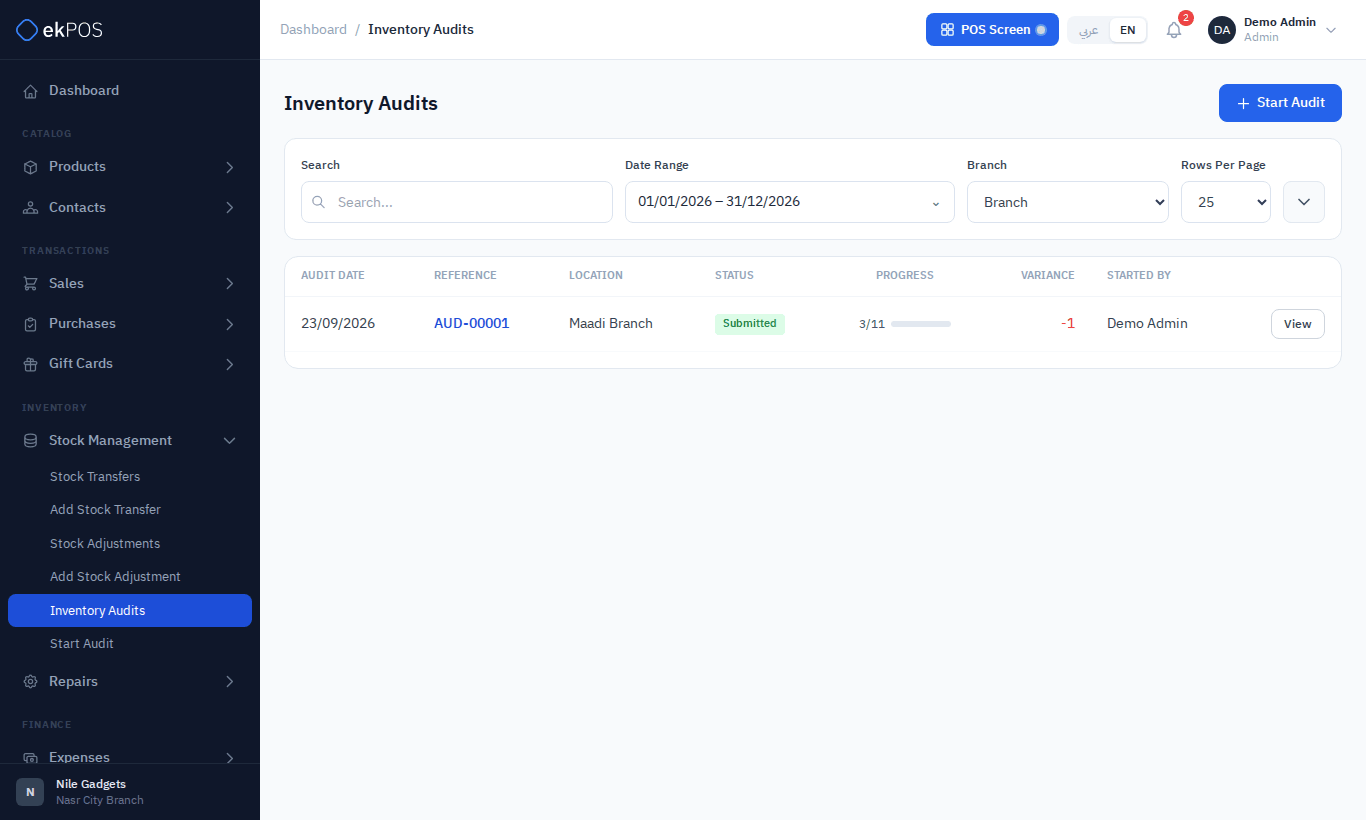
Stock Management → Inventory Audits shows each audit's date, reference, location, status (Draft, Submitted, Cancelled), progress and total variance. Filter by search, status, location and date.
Who can do this
| Permission | Allows |
|---|---|
| Audits → View | See audits |
| Audits → Create | Start an audit |
| Audits → Edit | Enter counts, cancel an audit |
| Audits → Submit | Submit an audit |