
Discounts
Sales → Discounts holds automatic discounts: rules that take money off matching products by themselves when they are added to a sale, at the POS or on Add Sale.
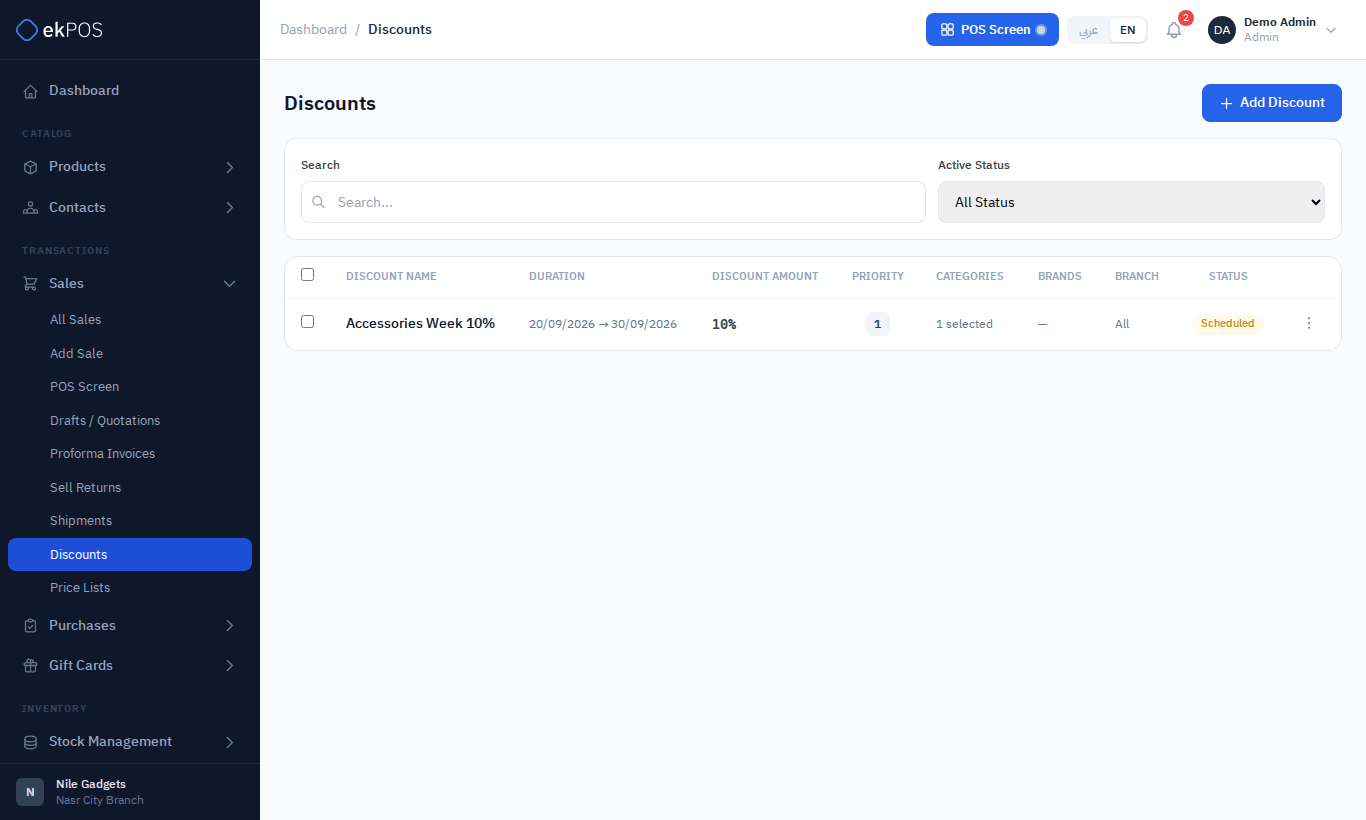
Add a discount
- Click Add Discount.
- Fill in the form and click Save.
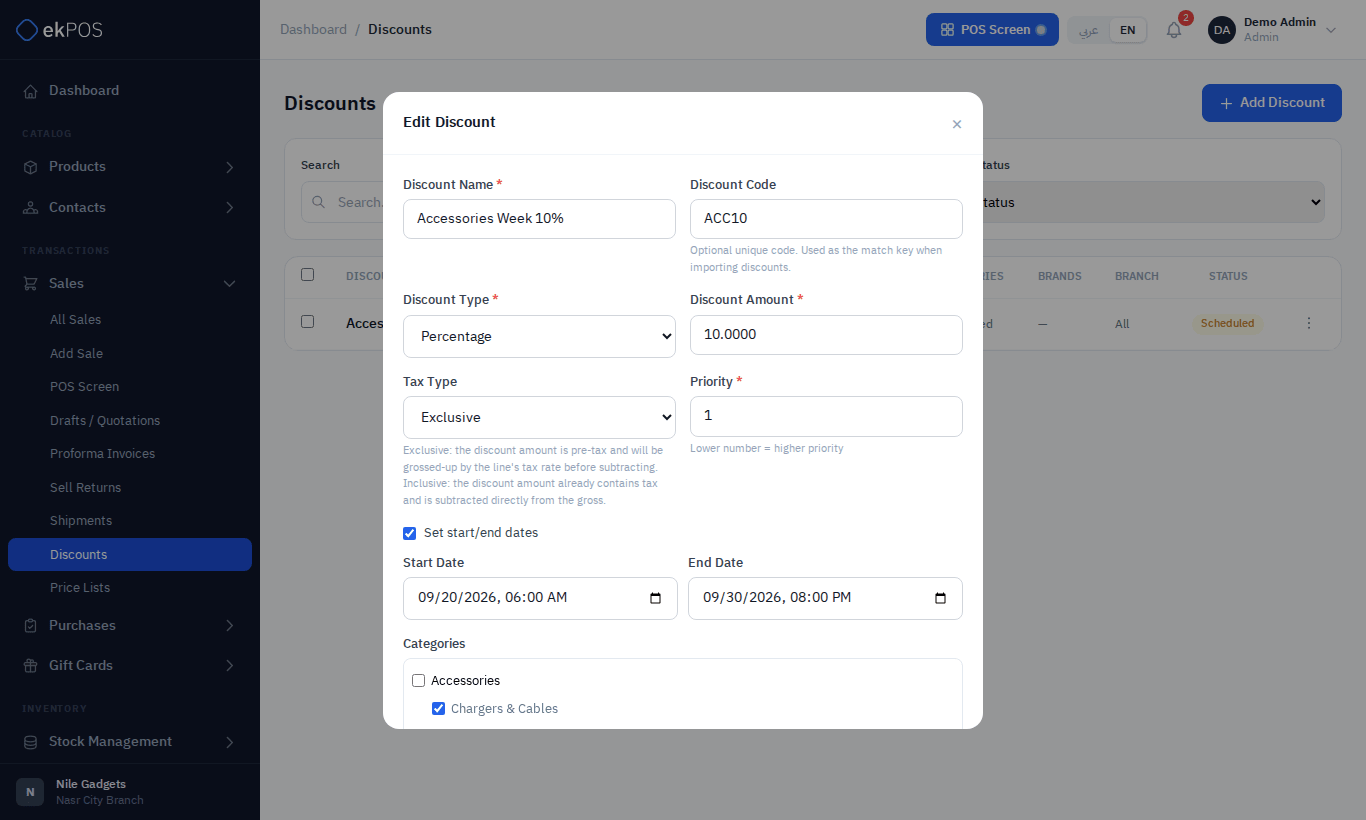
| Field | Description | Required |
|---|---|---|
| Discount Name | Shown against the discounted line. | Yes |
| Discount Code | Your own reference; used to match rows when importing discounts. | No |
| Discount Type / Amount | A Percentage of the line, or a Fixed amount off the line. A fixed amount never makes a line negative. | Yes |
| Tax Type | Exclusive: the amount is before tax and is grossed up by the line's tax rate. Inclusive: the amount already includes tax. | No |
| Priority | When several discounts match, the lowest number wins. On a tie, the newest discount wins. | Yes |
| Set start/end dates | Limit the discount to a date and time window. Without dates it always applies. | No |
| Categories, Brands, Products | Which products it applies to. Leave all empty for every product. | No |
| Branch | Limit it to certain locations. | No |
| Contact Groups | Limit it to customers in certain groups. | No |
How discounts are matched
A discount applies to a product line when all of these hold:
- It is active and today is within its dates (if it has any).
- If it names categories, brands or products, the product is in one of the categories, or one of the brands, or one of the products.
- If it names branches, the sale is at one of them.
- If it names contact groups, the sale's customer is in one of them. A sale with no customer doesn't match.
Only one discount applies to a line: the best by priority.
TipA product filed under a subcategory matches only a discount that names that subcategory. Ticking the parent category does not include the products in its subcategories.
Discounts stack on top of price lists: the price list sets the price, then the discount comes off it. Combo components never receive automatic discounts; the combo's own pricing applies.
Manage discounts
- ⋮ → Edit, Activate / Deactivate, or Delete.
- Tick several and use the bulk bar to activate, deactivate or delete them together.
- Search by name and filter by status.
Who can do this
Viewing discounts needs Discounts → View; creating and changing them needs Discounts → Manage. Applying any discount at the POS also needs POS → Apply Discount.
Related
- Price lists
- Sales report — shows the discount on each sale