
Gift cards
Gift Cards records gift cards you sell and store credit you owe customers. Each card has a code, a balance and a full history.
Gift cards are an optional module; the menu appears only if your plan includes it.
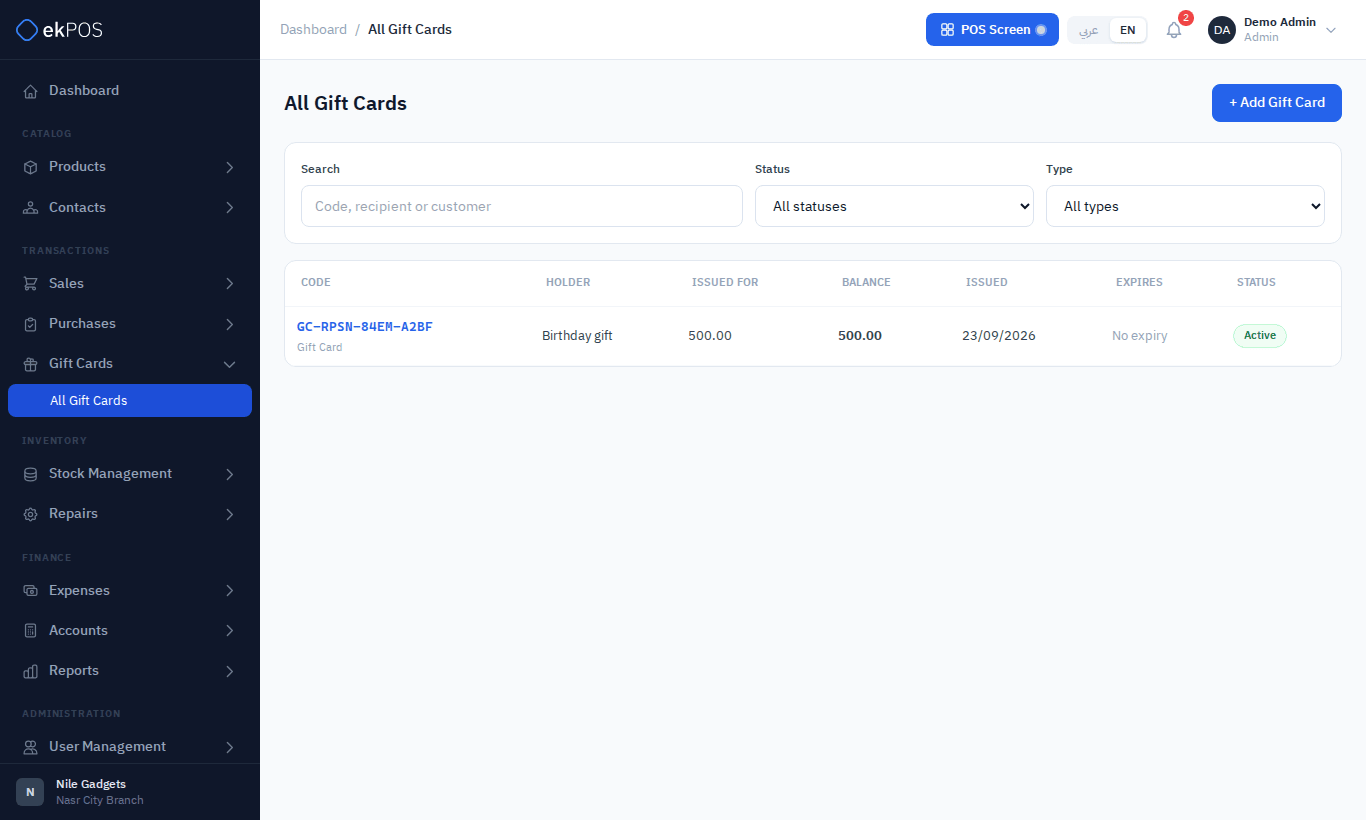
All Gift Cards shows the gift-card table. Use the search, status and kind filters to find cards; click a code to see its balance and history.
Gift card or store credit
| Gift card | Store credit | |
|---|---|---|
| Who can spend it | Anyone holding the code | Only the customer it belongs to |
| Customer | Optional | Always |
Issue a gift card
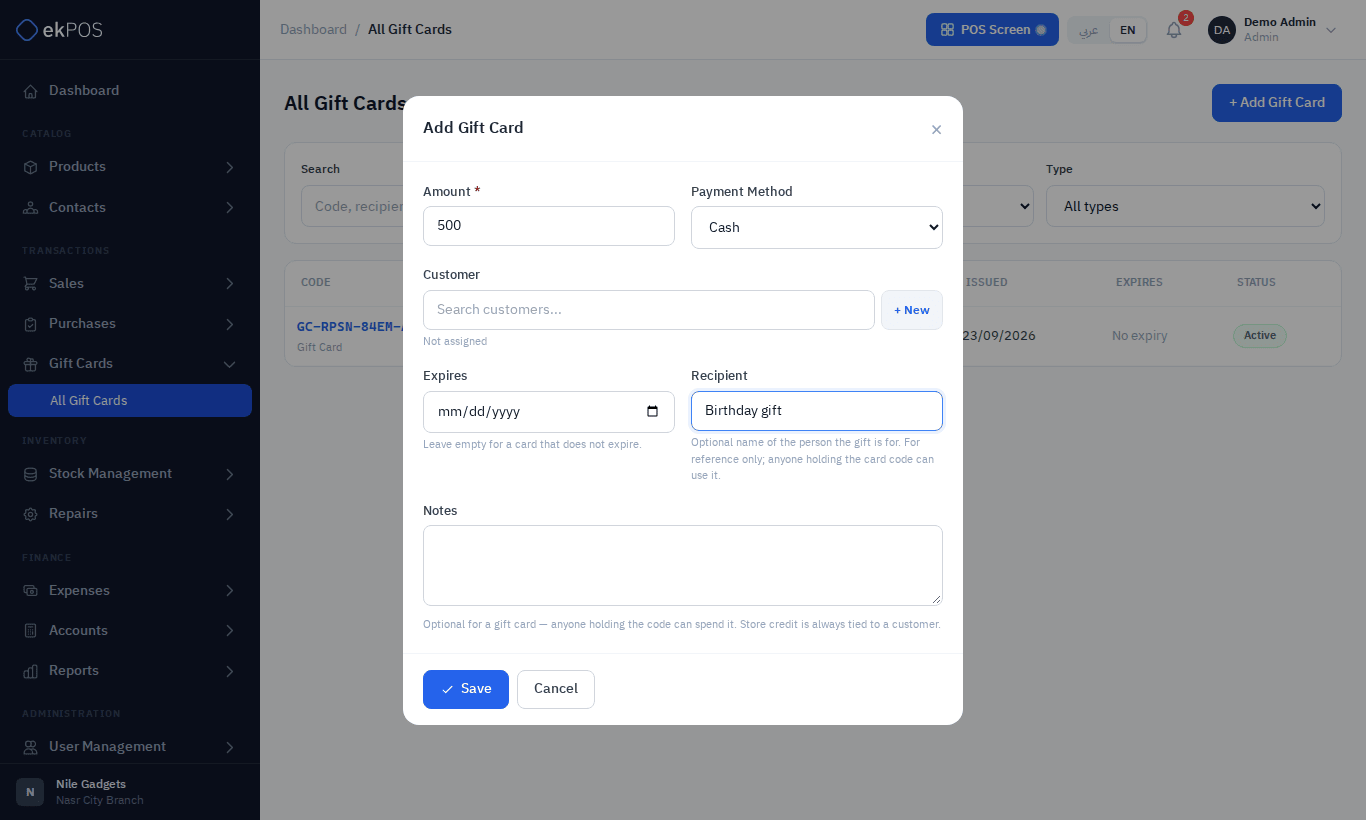
- Click Add Gift Card to open the creation modal.
- Enter the Amount and choose the Payment Method used by the customer — cash, card, wallet and so on.
- Optionally choose a Customer — type two or more letters of their name, phone or email and pick them from the list, or click + New to add one — then a Recipient name, an Expires date (leave empty for no expiry) and notes.
- Click Save in the modal. If a field is invalid, the modal reopens with your entries and the validation messages.
The Payment Method list shows the enabled methods in the same order as Settings → Payment Methods. Recipient is an optional reference name for the person the gift is for; it does not restrict redemption to that person or create a contact. Anyone holding a gift card’s code can use it.
ekPOS generates the code, for example GC-RPSN-84EM-A2BF, and opens the card. Codes never use the easily confused characters O, 0, I, 1 and L, and look-ups ignore upper/lower case and dashes.
Selling a gift card is not revenue. On plans with accounting it is recorded as money you owe (Gift Card Liability) until the card is spent, and the money goes to the account of the method it was paid by — a card payment to your bank account, cash to the drawer.
Store credit given for a return is owed the same way: the return's credit to the customer becomes Gift Card Liability, and the customer's balance shows it as settled by the store credit.
The card page
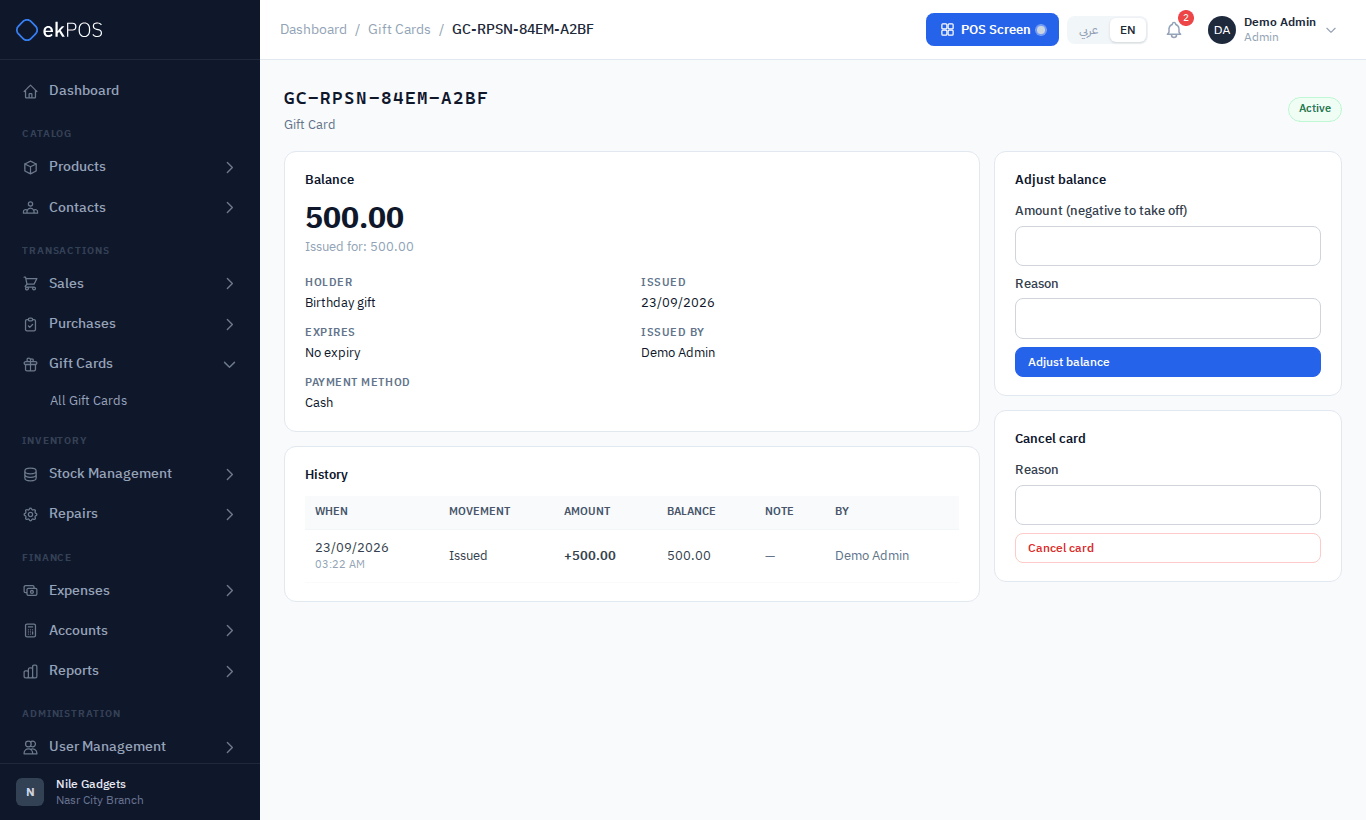
- Balance, what it was issued for, holder, issue and expiry dates, and who issued it.
- History — every movement: issued, redeemed, adjusted, cancelled or expired, with the running balance.
- Adjust balance — add or take off an amount (negative to take off) with a reason.
- Cancel card — cancels the card and its remaining balance, with a reason.
On plans with accounting, an adjustment or a cancellation changes what you owe on the card, against the Gift Card Adjustments mapping (4300 Other Revenue to start with): taking a balance off, or cancelling a card, removes it from Gift Card Liability; adding to one puts it on. Change the account under Accounting settings.
Search the list by code, recipient or customer, and filter by status (Active, Fully redeemed, Expired, Cancelled) and type.
Spend a card
A card is spent as a payment on a sale:
- At the POS, choose the Gift Card method on a Multi-Pay line and enter the card's code.
- On Add Sale, add a payment line on the Gift Card method with the code.
The amount is taken off the card as the sale is saved, and shows in the card's history as redeemed. A card that is unknown, expired, cancelled or holds less than the amount refuses the sale with the reason, and nothing is recorded. Store credit can be spent only on a sale to the customer it belongs to.
A card payment can't be deleted from the sale. To give the amount back, add it to the card with Adjust balance.
Who can do this
| Permission | Allows |
|---|---|
| Gift Cards → View | See cards and balances |
| Gift Cards → Create | Issue cards |
| Gift Cards → Manage | Adjust balances and cancel cards |