
Add a product
This page walks through creating a product and explains every part of the product form. The same form is used to edit a product later.
Choose the product type
At the top of Products → Add Product, pick one of three types. You cannot mix them: a product is exactly one type.
| Type | Use it for | Guide |
|---|---|---|
| Single | One item with one SKU and one price, e.g. USB-C Cable 1m. | This page |
| Variable | One item sold in several versions, each with its own SKU, barcode, price and stock, e.g. a case in 2 colours × 2 phone models. | Variable products |
| Combo | A bundle of other products sold under one SKU, e.g. Phone + charger + case. | Combo products |
Create a single product
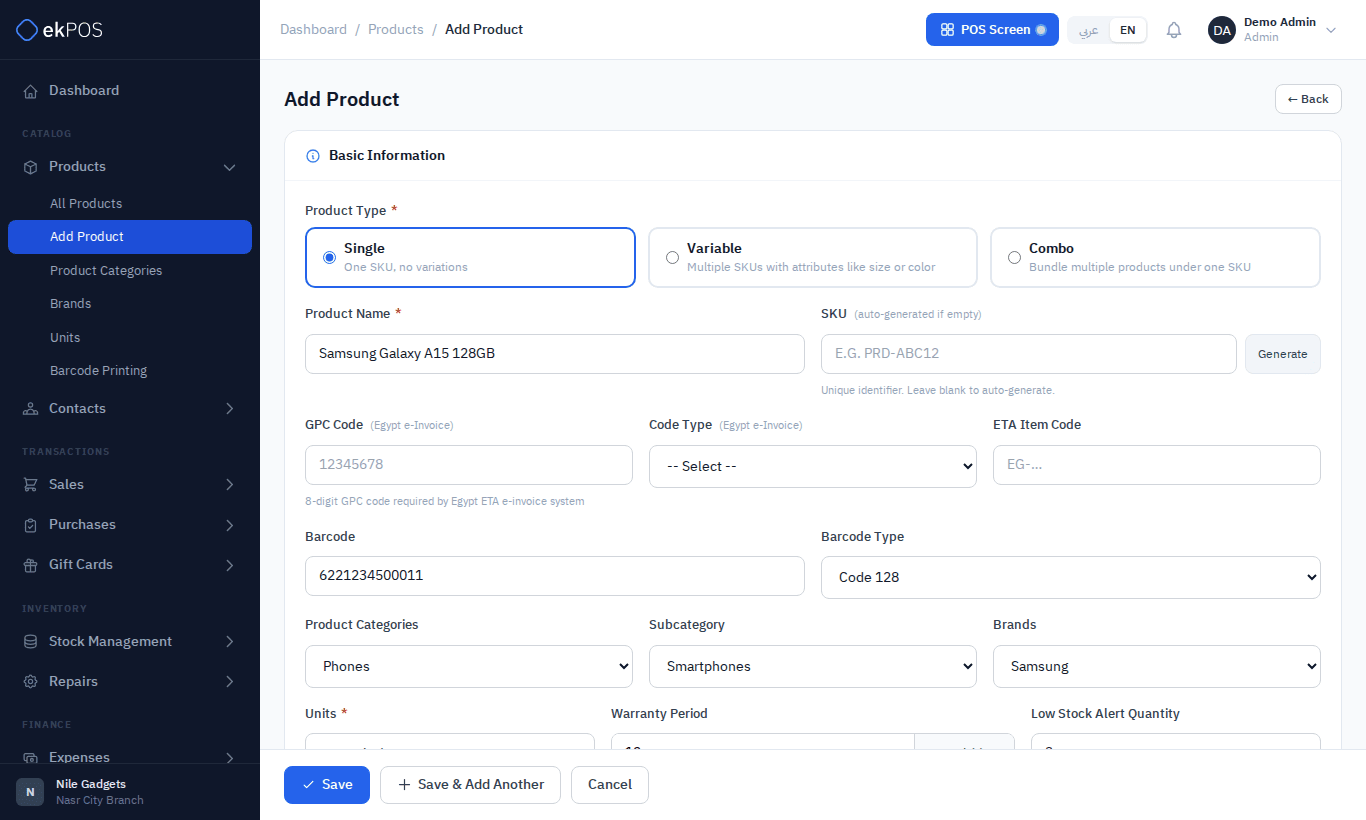
- Go to Products → Add Product. Single is already selected.
- Enter the Product Name.
- Leave SKU blank to have one generated, or type your own. You can also click Generate.
- Scan or type the Barcode, and choose the Barcode Type. If you leave the barcode blank, the SKU is used as the barcode.
- Choose a Category, Brand and Unit.
- Set the Low Stock Alert Quantity, and tick the stock options you need (below).
- Enter the Opening Stock for each location, if you already have the item on your shelves.
- Enter the Purchase Price and Selling Price, with their taxes. See Pricing and tax.
- Click Save, or Save & Add Another to go straight to a fresh form.
Scanning a barcode or pressing Enter in a field does not save the product. Use the Save buttons when you are ready.
You land on the product list with Product saved successfully.
Fields
Basic information
| Field | Description | Required |
|---|---|---|
| Product Name | Up to 255 characters. | Yes |
| SKU | Your stock code. Stored in capitals. Must not be used by any other product. Blank = generated automatically, in the form ABC-12D4E. |
No |
| GPC Code | 8-digit GS1 product classification code for ETA e-invoicing. | No |
| Code Type / ETA Item Code | GS1 or EGS, and the item code registered with ETA. Shown only when ETA is part of your plan. See Item codes. | No |
| Barcode | Stored in capitals and must be unique. Blank = the SKU. | No |
| Barcode Type | Code 128 (default), Code 39, UPC-A, UPC-E, EAN-13, EAN-8 or ISBN. Controls how the barcode is drawn on labels. For EAN-13, EAN-8, UPC-A, UPC-E and ISBN the barcode must have the right number of digits and, except UPC-E, the right last (check) digit, or the product is not saved. A Code 128 barcode that looks like a retail barcode with a wrong last digit is saved with a warning. | No |
| Category / Subcategory | Choose a category; if it has subcategories, you can then choose one. The product is filed under the subcategory, or under the category when you leave the subcategory empty. | No |
| Brand | No | |
| Unit | The unit the product is counted in (Piece, Box, Meter…). Whether quantities can have decimals comes from the unit. See Units. | Yes |
| Warranty Period | A number and Day(s), Month(s) or Year(s). Used with serial numbers to work out warranty expiry. | No |
| Low Stock Alert Quantity | When stock at a location falls to this number or below, the product appears in the dashboard's Low Stock Alert and in the Restock report. | No |
Stock and selling options
| Option | What it does |
|---|---|
| Manage Stock | On by default. ekPOS counts the item in and out at every location. Turn it off for services and anything you don't count, such as Phone Setup Service: it can be sold without stock and shows no stock figures. |
| Enable Serial Number | Asks for each unit's serial number when it is sold, and records it for warranty look-ups. See Serial numbers. |
| Not for Selling | Keeps the product out of the POS and Add Sale product searches. Use it for spare parts and supplies you stock but never sell over the counter. |
Image and media
- Product Image — click to upload; you can crop it before saving. It is stored as a 600 × 600 px square.
- Attachments — catalogs, spec sheets and the like: JPG, PNG, WEBP, PDF, Word or Excel. Up to 10 files per save, each 5 MB at most.
Description and physical details
A formatted description, and weight (kg or lb) and length, width and height (cm or in).
Opening stock
The form has one quantity box per active location — for a single product in this section, and for a variable product on each variant's card. The quantity is recorded as the product's opening stock, dated to when you opened the form.
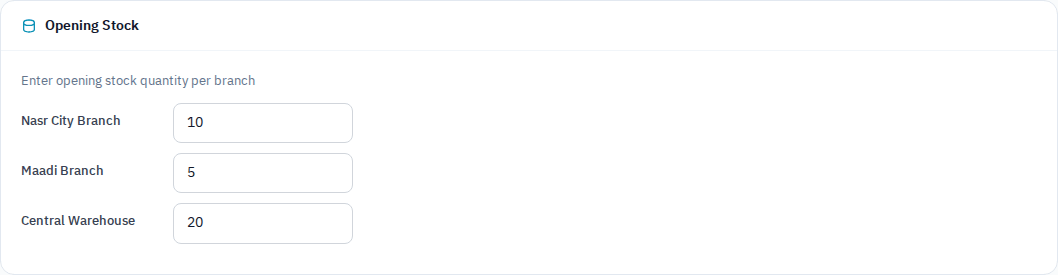
You can also leave these at zero and add opening stock later from the product list; see Opening stock. Once a product has any stock movement, opening stock can no longer be entered. Use a stock adjustment instead.
Custom fields
If you have created custom fields for products, they appear at the end of the form.
Validation and errors
| Message | Cause and fix |
|---|---|
| SKU "…" is already in use by another product. | Another product has that SKU. Choose another, or leave it blank. The form checks as you leave the field. |
| Barcode "…" is already in use by another product. | Same for barcodes. Remember that a blank barcode becomes the SKU. |
| The gpc code field must be 8 digits. | GPC codes are exactly 8 digits. |
| You have reached the maximum number of products allowed on your current plan. | Your plan's product limit counts active products. Deactivate products you no longer sell, or upgrade. Activating a product — one at a time, in bulk, through the API, or by import — takes a place just as adding one does. |
| Please enter a valid value. The two nearest valid values are … and … (when saving an edit) | The purchase price has more than two decimal places. Receiving a purchase sets it to the exact landed cost, which can have four. Round the Purchase Price to two decimals and save. |
Editing a product
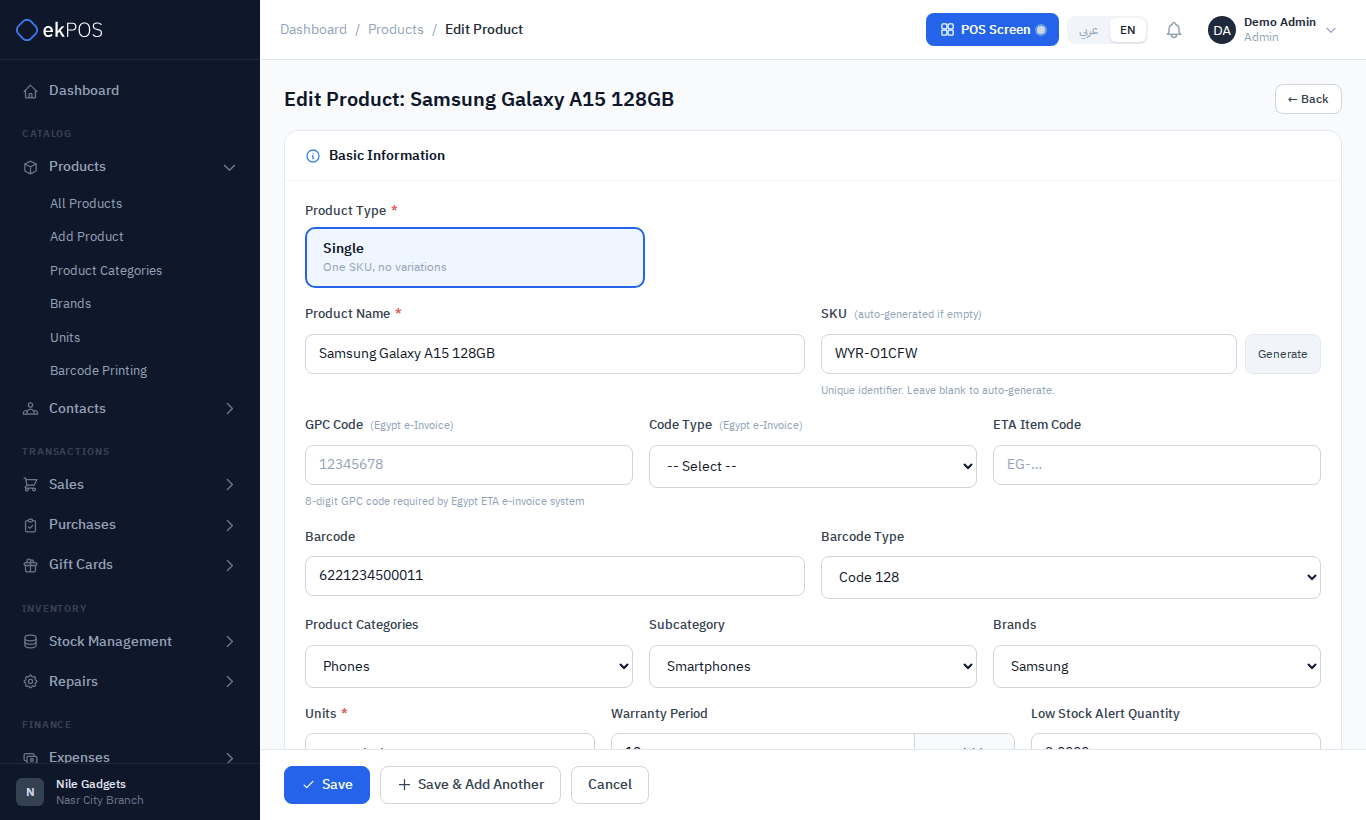
Open ⋮ → Edit on the product list, change what you need, and click Save.
- Price changes apply to sales made from now on. Sales already saved keep the prices they were made at.
- To move a product to another category or subcategory, change it here or from the product list.
- Opening stock is not on the Edit form.
Related
- Pricing and tax
- Import products from a spreadsheet — faster for many products
- Barcodes and labels