
User Guide / People
Users
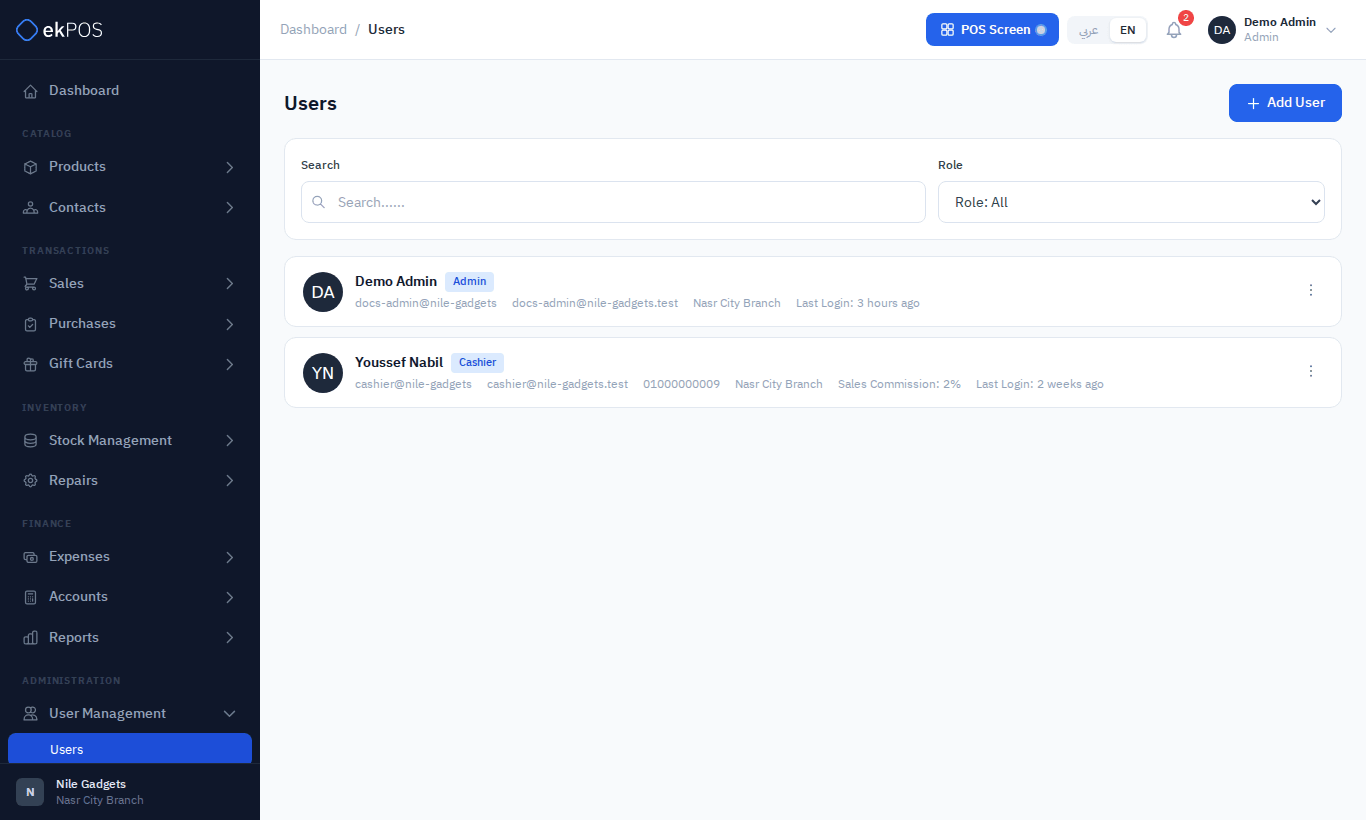
Everyone who signs in to ekPOS needs their own user. A user has a role, which decides what they can do, and a home branch.
Open User Management → Users.
Add a user
- Click Add User.
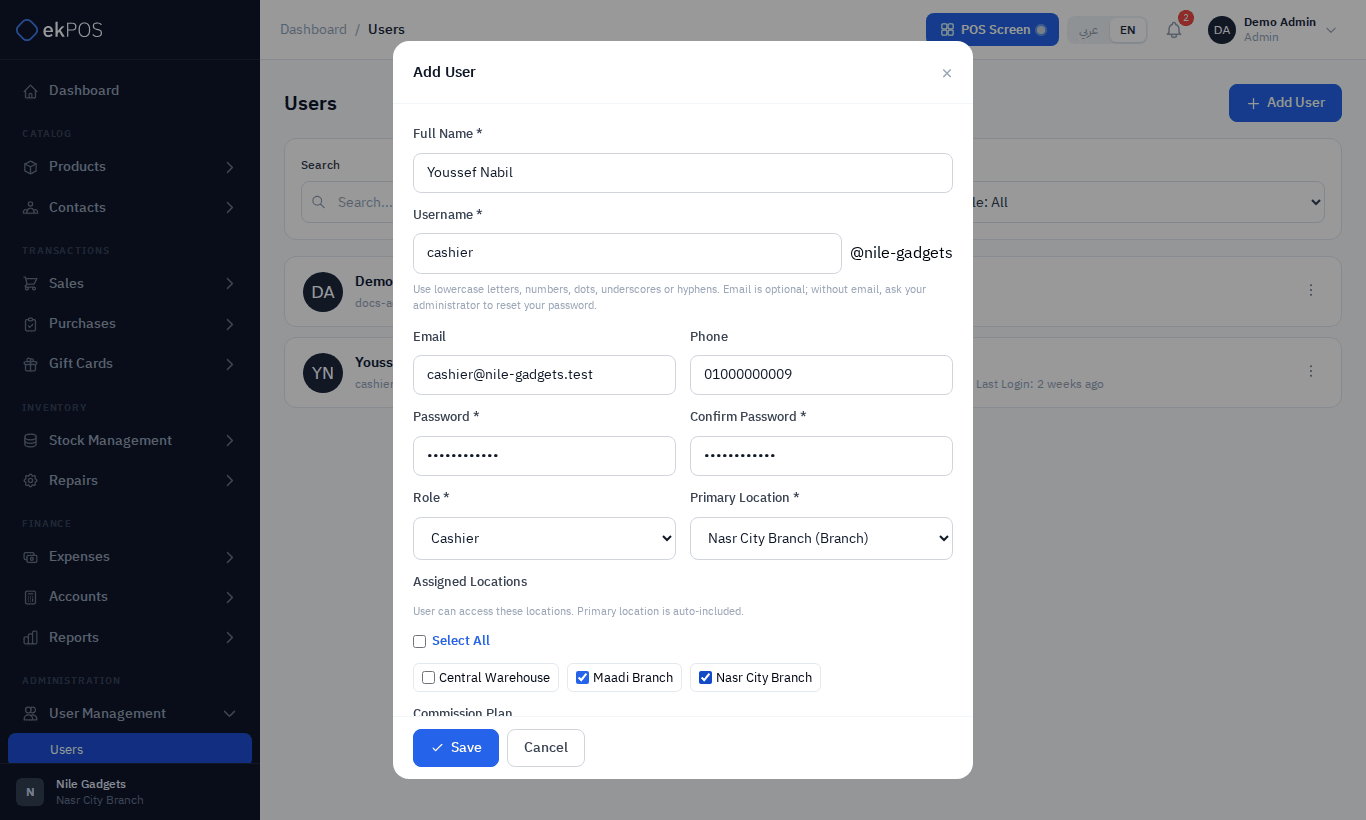
- Enter the Name and Username. Enter only the part before @; the business suffix is added automatically, for example cashier@hijabhouse. Use lowercase letters, numbers, dots, underscores or hyphens. Email and phone are optional. An email, if supplied, must be unique across ekPOS and can also be used to sign in.
- Set a Password of at least 8 characters and confirm it. Give it to the user privately; they can change it in their profile.
- Choose the Role. See Roles and permissions.
- Choose the Branch — their home location. The POS and Add Sale start on it.
- Tick the Locations they work at. Unless their role is an admin role, a user can record sales, returns, purchases, transfers (from), adjustments, audits, repairs, expenses, recurring expenses and petty cash top-ups only at their home branch and these locations, and point the WooCommerce stock and order branches only at them, and those are the only locations their forms offer. The same limit applies to documents already recorded: they can edit, take or delete payments on, receive, settle or delete a document only if it was recorded at one of these locations (for a transfer, the location it was sent from). Their dashboard also counts only these locations. They can still view and print documents, lists and reports for every location.
- Optionally choose a Commission Plan and fill in any user custom fields.
- Save.
Users without email ask their administrator to set a new password. The user list and profile show the full username.
Rules that protect your account
| Rule | Why |
|---|---|
| Only an admin can give someone an admin role. | So nobody can make themselves an admin. |
| You can't give someone a role with permissions you don't have yourself. | You see You cannot grant permissions you do not hold yourself: … |
| You can't change your own role, deactivate yourself or delete yourself. | So you can't lock yourself out by mistake. |
| Only an admin can edit, deactivate or delete an admin's account. Anyone else can only manage users whose permissions they hold themselves, and who work only at locations they are assigned to themselves. | So a user manager can't take over the owner's account, or the account of someone at another branch. Users you can't manage have no ⋮ menu. |
| Changing your own username, email or password here needs your current password. | The same rule as your profile: a browser left signed in is not enough to take your account. |
| Unless you are an admin, you can only give users locations you are assigned to yourself, and you can't add locations to your own account. | So nobody can reach a location they are not assigned to through someone else's account. |
| Your plan may limit the number of active users. Activating a deactivated user takes a place too. | User limit reached for your subscription plan. |
Edit, deactivate and delete
From the ⋮ menu on a user:
- Edit changes any detail. Leave the password fields empty to keep the current password. If you set a new password, the user is emailed that an administrator changed it if they have an email address, and any browser they were signed in on is signed out. Users with an email address can also reset a forgotten password themselves with Forgot password?.
- Deactivate stops the user signing in, without deleting their history. A deactivated user who tries to sign in is told the credentials don't match, like a wrong password. Activate them again the same way.
- Delete removes the user.
Who can do this
| Permission | Allows |
|---|---|
| Users → View | See the user list |
| Users → Create | Add users |
| Users → Edit | Edit, activate and deactivate users |
| Users → Delete | Delete users |