
Sales and customer reports
Sales report
Reports → Sales Report lists sales with their totals.
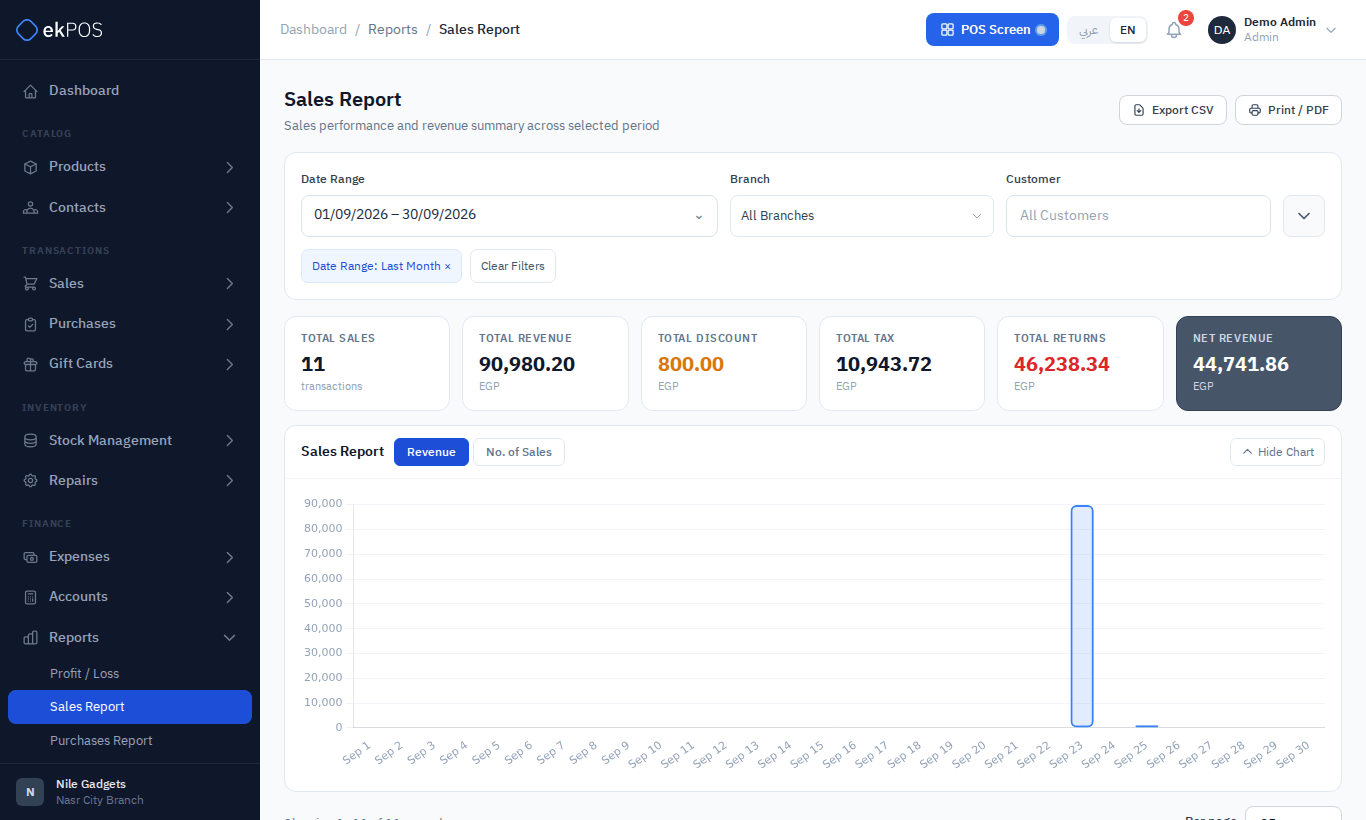
Filters: date range, branch, customer, payment method and Sale Status (All, Completed, Draft, Returned). The cards show the number of sales, Total Revenue, discounts, tax, returns and Net Revenue. The table lists each sale with its date, customer, branch, payment methods, items, gross amount, discount, tax, net amount and status.
NoteWith Sale Status set to All, the totals include drafts and proforma invoices. Choose Completed for takings.
Customer report
Reports → Customer Report shows, for each customer with sales or returns in the period, the number of orders, the amount bought, the returns, the amount paid, the last purchase and the sales person, with a link to their ledger.
Only final sales count — drafts, quotations and proformas are left out. Total Purchased is what the customer was billed, after discounts and including VAT, so it compares directly with Total Paid. Returns are the returns dated in the period, whenever the sale was.
Filters: date range, branch, customer, payment status (fully paid or with a balance) and sales person.
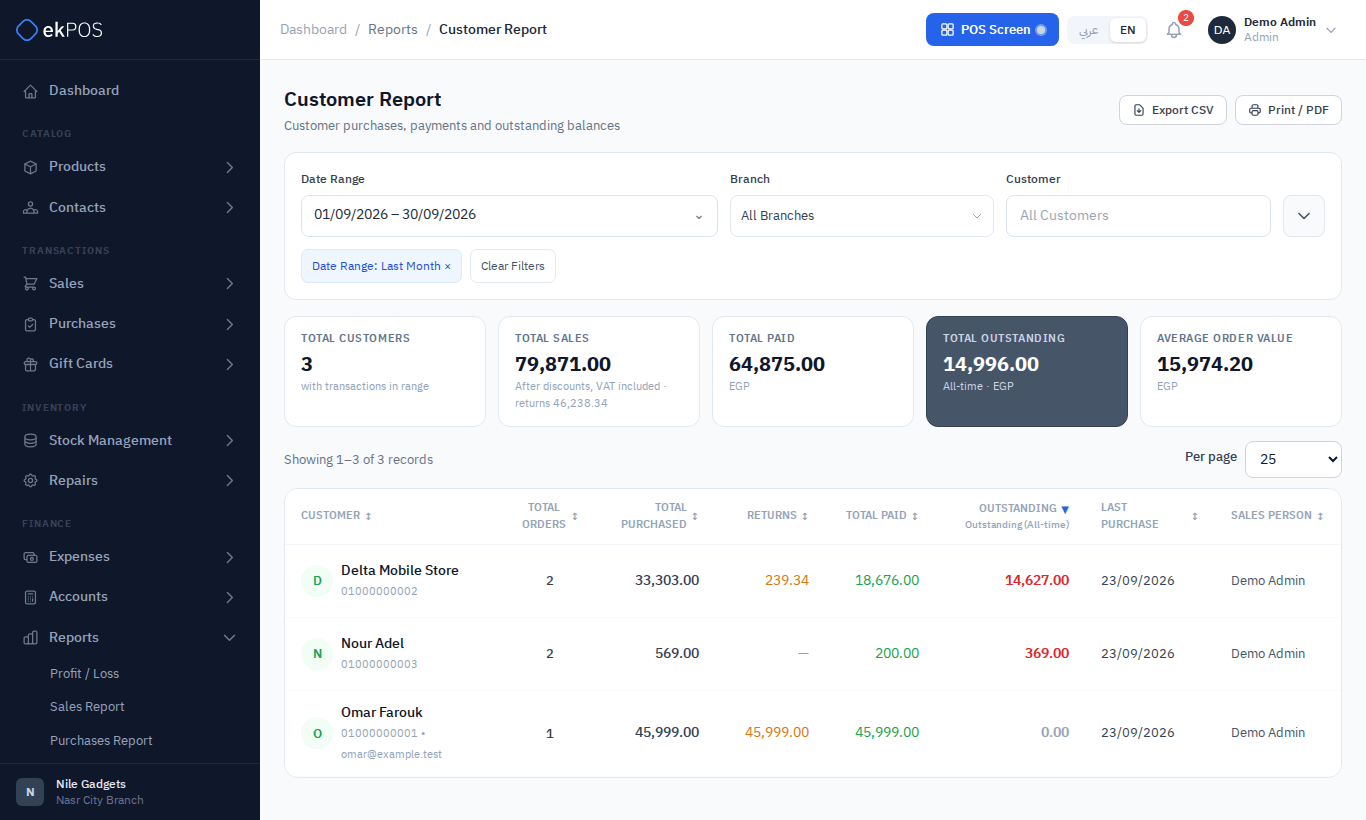
NoteThe Outstanding column and card are each customer's ledger balance, so they include opening balances and entries added by hand as well as sales, payments and returns.
Salesperson report
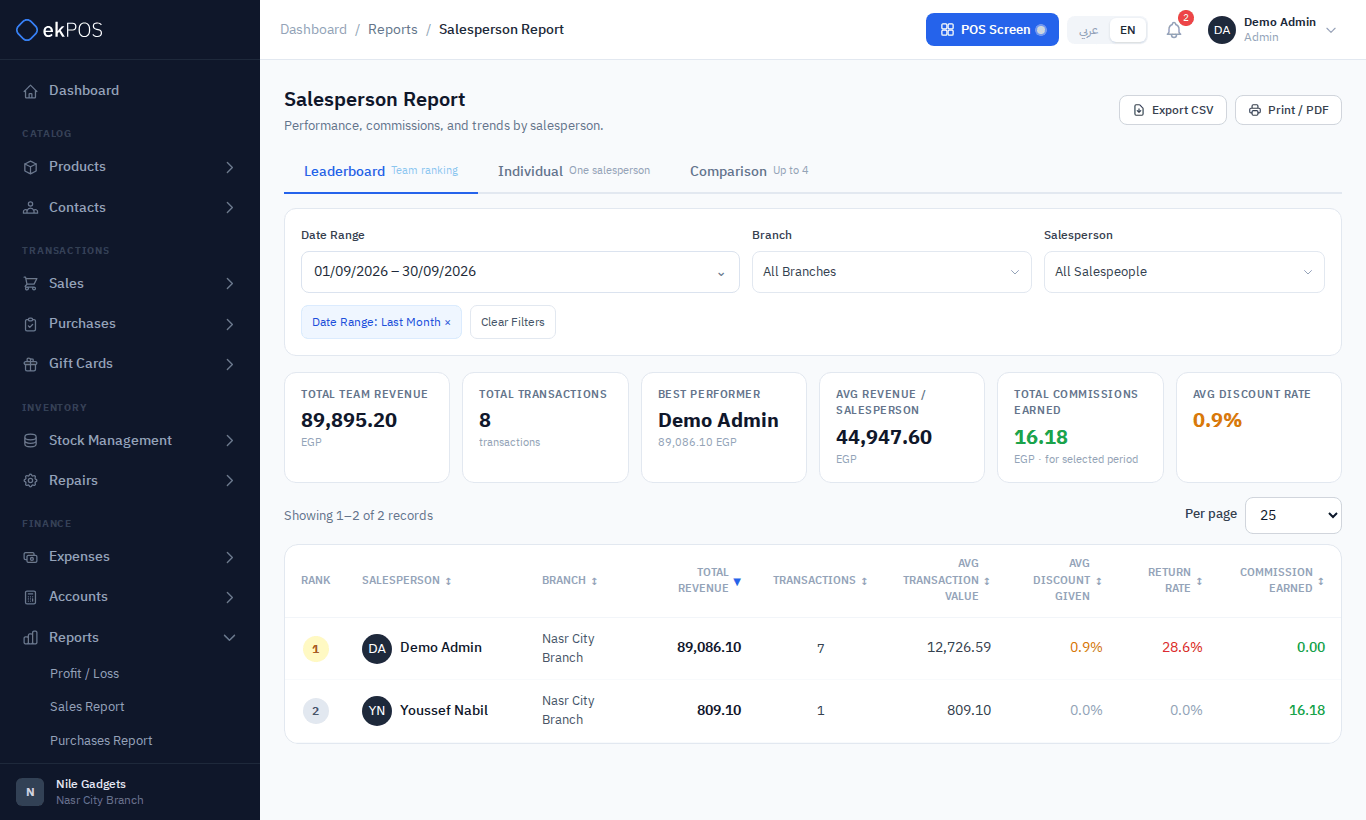
Reports → Salesperson Report measures performance by sales person, from completed sales. Three tabs:
- Leaderboard — the team ranked by revenue, with transactions, average transaction value, average discount, return rate and commission.
- Individual — one sales person's trend and figures.
- Comparison — up to four people side by side.
Filters: date range, branch and sales person. Users without View All Salespeople see only their own figures, and the leaderboard and comparison are hidden from them.
A POS sale is credited to the cashier; an Add Sale to the chosen sales person, or whoever saved it.
Commission report
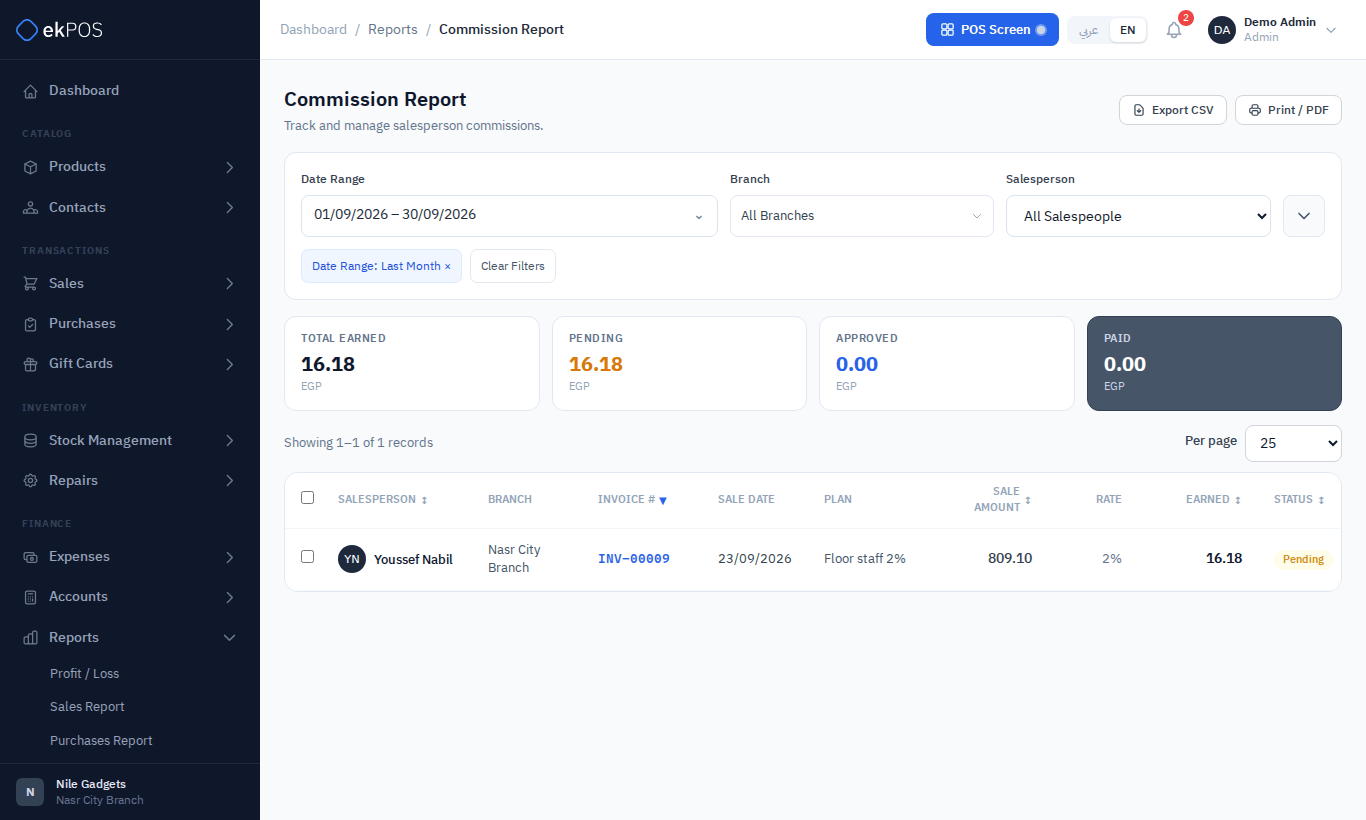
Reports → Commission Report lists the commission earned on each sale, with its plan, rate, sale amount and status: Pending, Approved, Paid or Voided (the sale was deleted).
Filters: date range, branch, sales person, plan and status. Cards show total earned, pending, approved and paid.
- Approve or Mark Paid a commission from its row, or tick several and use the bulk actions.
- Approving needs Commissions → Approve; marking paid needs Commissions → Mark Paid.
See Commission plans for how commission is earned.
Shipment report
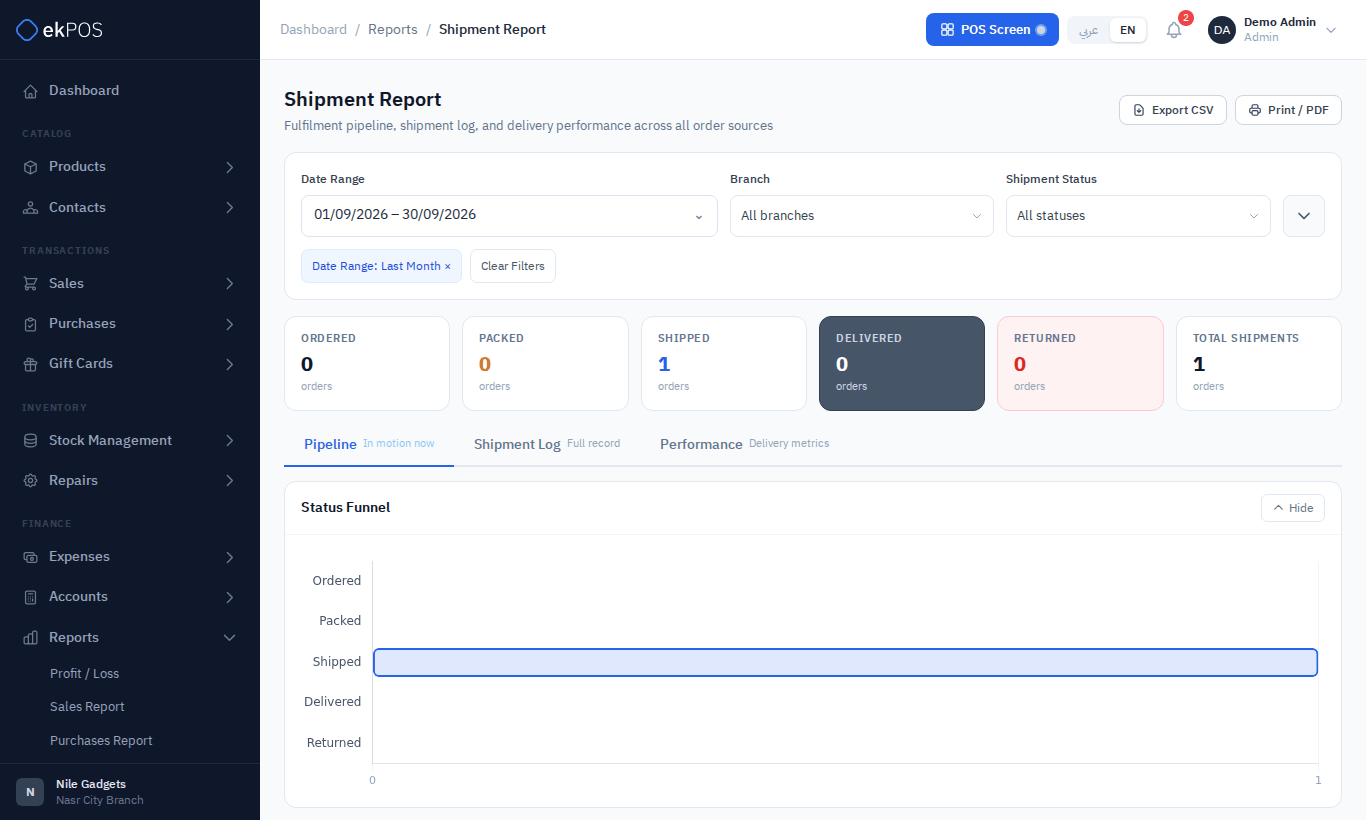
Reports → Shipment Report follows deliveries, with three tabs: Pipeline (shipments still moving — not delivered or returned), Shipment Log (everything) and Performance (delivery metrics). Filters: order date range, branch, shipment status, source (ekPOS, WooCommerce…) and customer. The cards count orders at each status.
Peak hours report
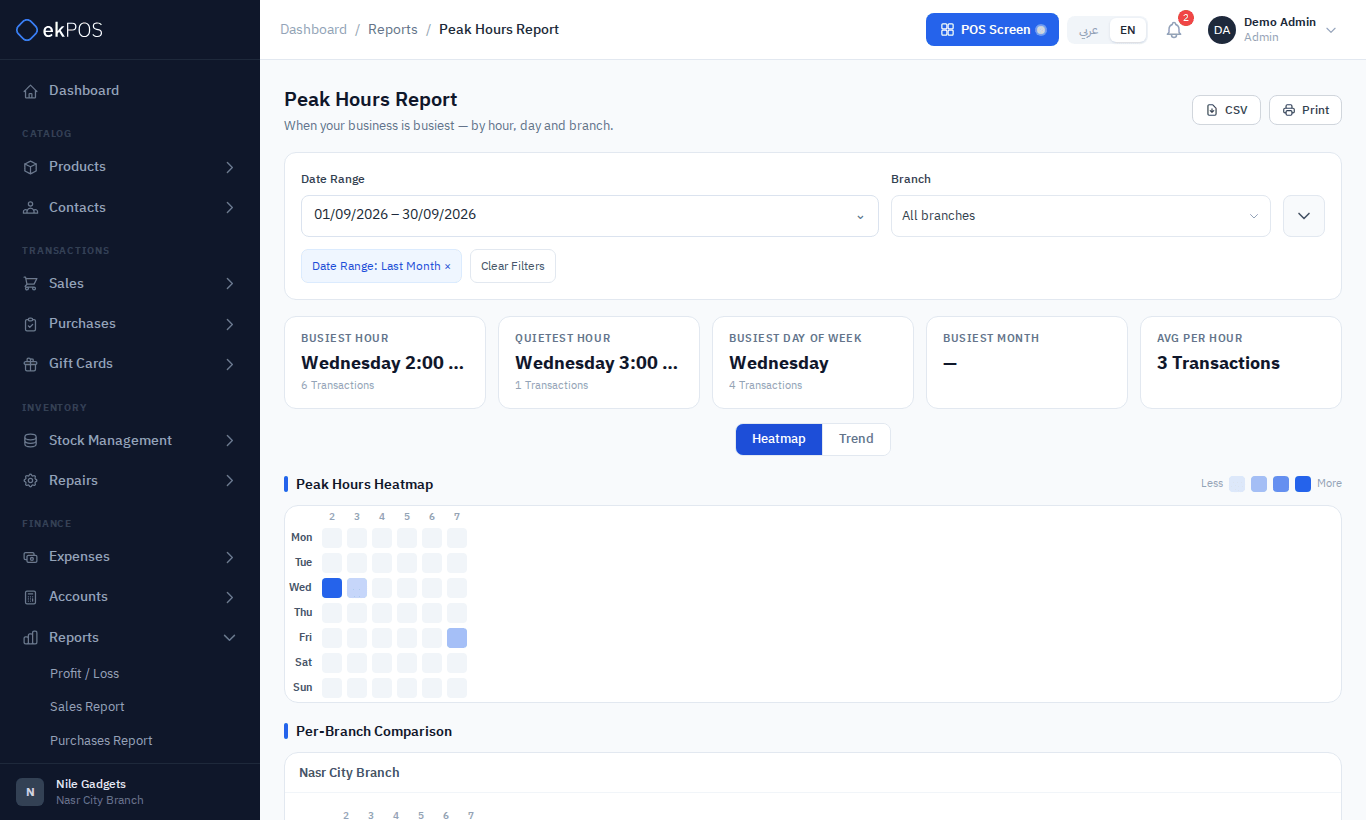
Reports → Peak Hours Report shows when you are busiest, as a heatmap of hour against day of the week, a trend, and a per-branch comparison. Choose the metric — transactions, revenue or average basket size — and filter by date range, branch and days of the week. Cards show the busiest and quietest hour, the busiest day and month, and the average per hour.
Register history
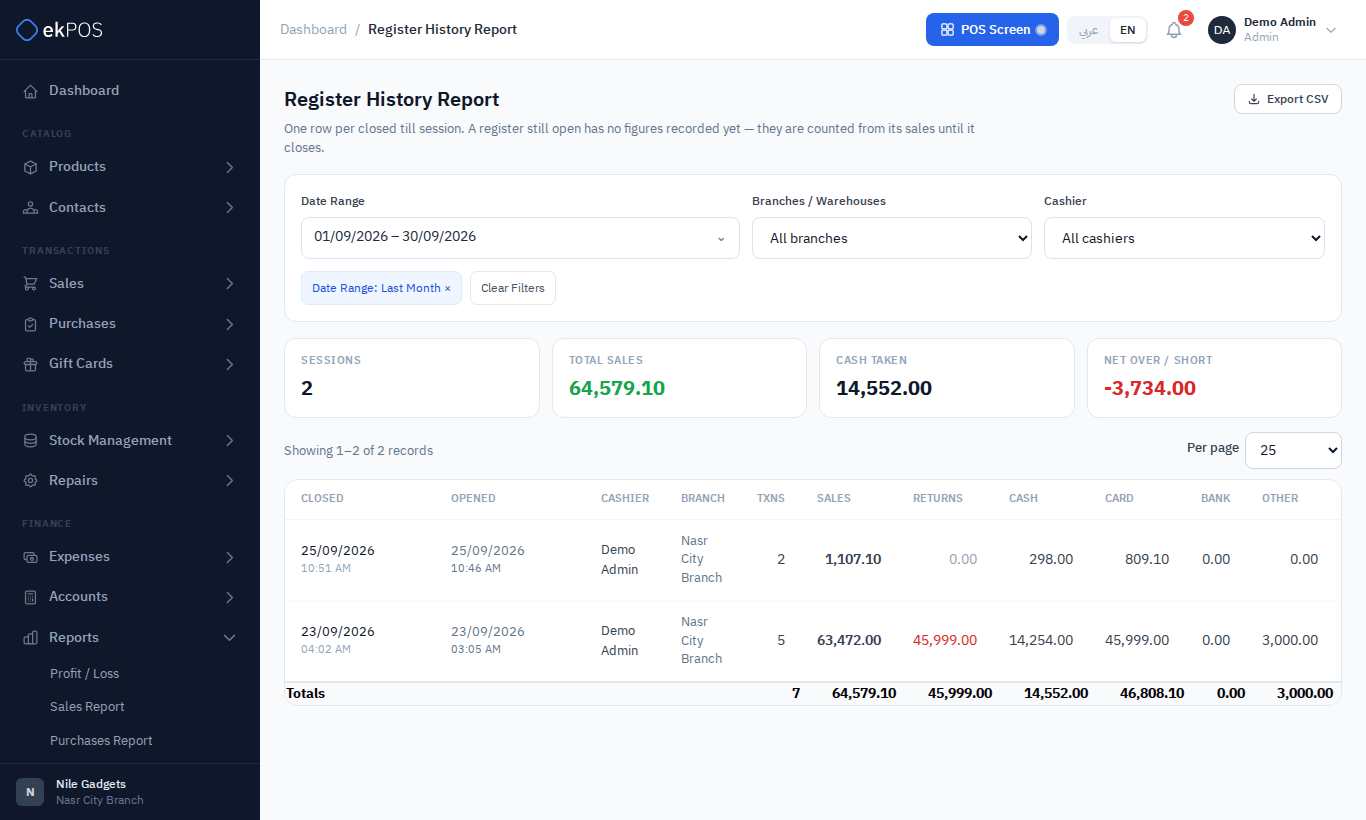
Reports → Register History Report has one row per closed POS register session: when it opened and closed, the cashier, branch, transactions, sales, returns, cash, card, bank and other takings, cash refunds, opening cash, closing cash counted, expected cash, and over / short. Filter by branch, cashier and closing date.
Expected cash is the opening cash plus cash taken minus cash refunds. A register that is still open doesn't appear until it is closed. See Opening and closing the register.
Repairs report
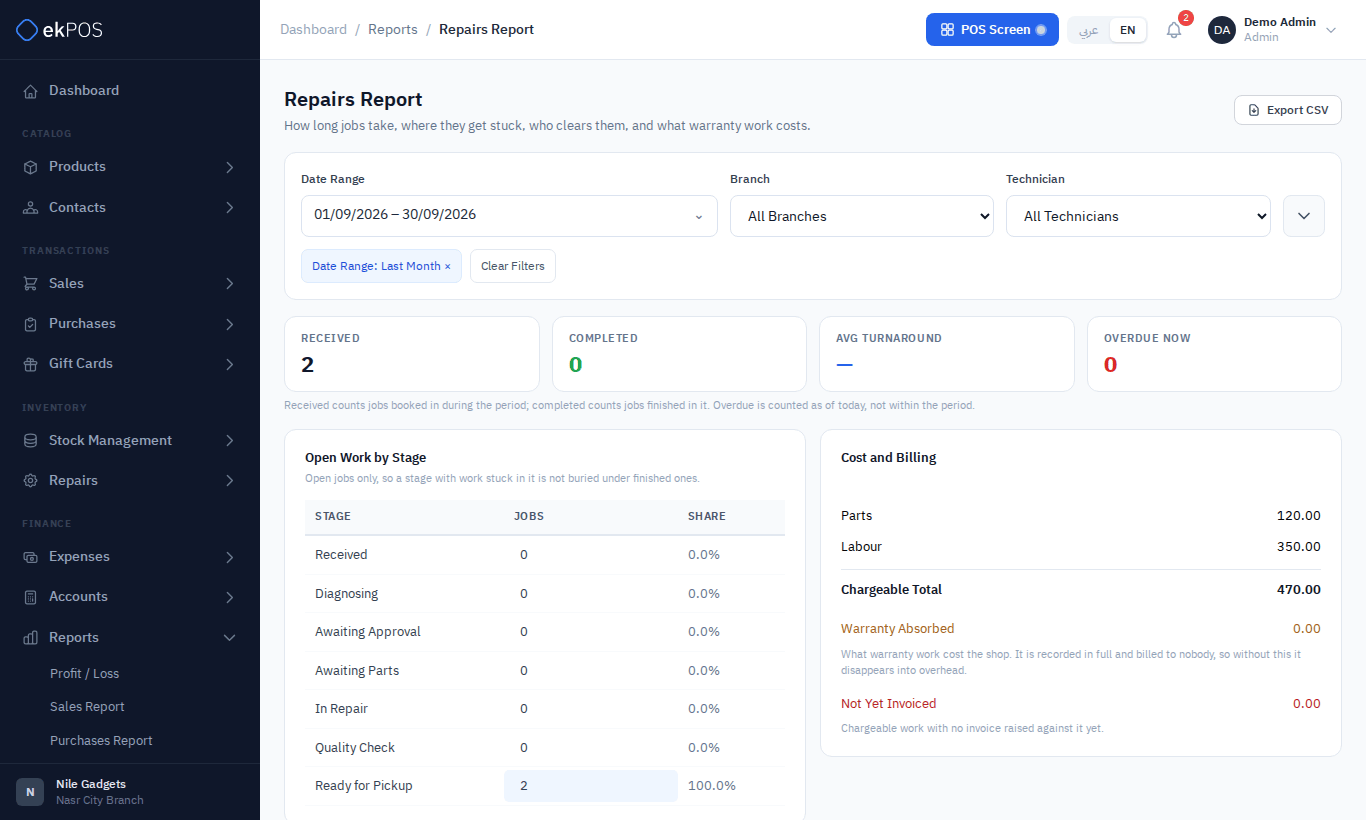
Reports → Repairs Report summarises the repairs desk: jobs received and completed in the period, average turnaround, jobs overdue now, open work by stage, parts and labour, what warranty work cost you (Warranty Absorbed), chargeable work not yet invoiced, and each technician's figures — Billed is the work they have had invoiced, before VAT, for invoices dated in the period, whether the job has been moved to Completed or not. Filter by dates, branch, technician and billing (warranty or chargeable).
Serial and warranty reports
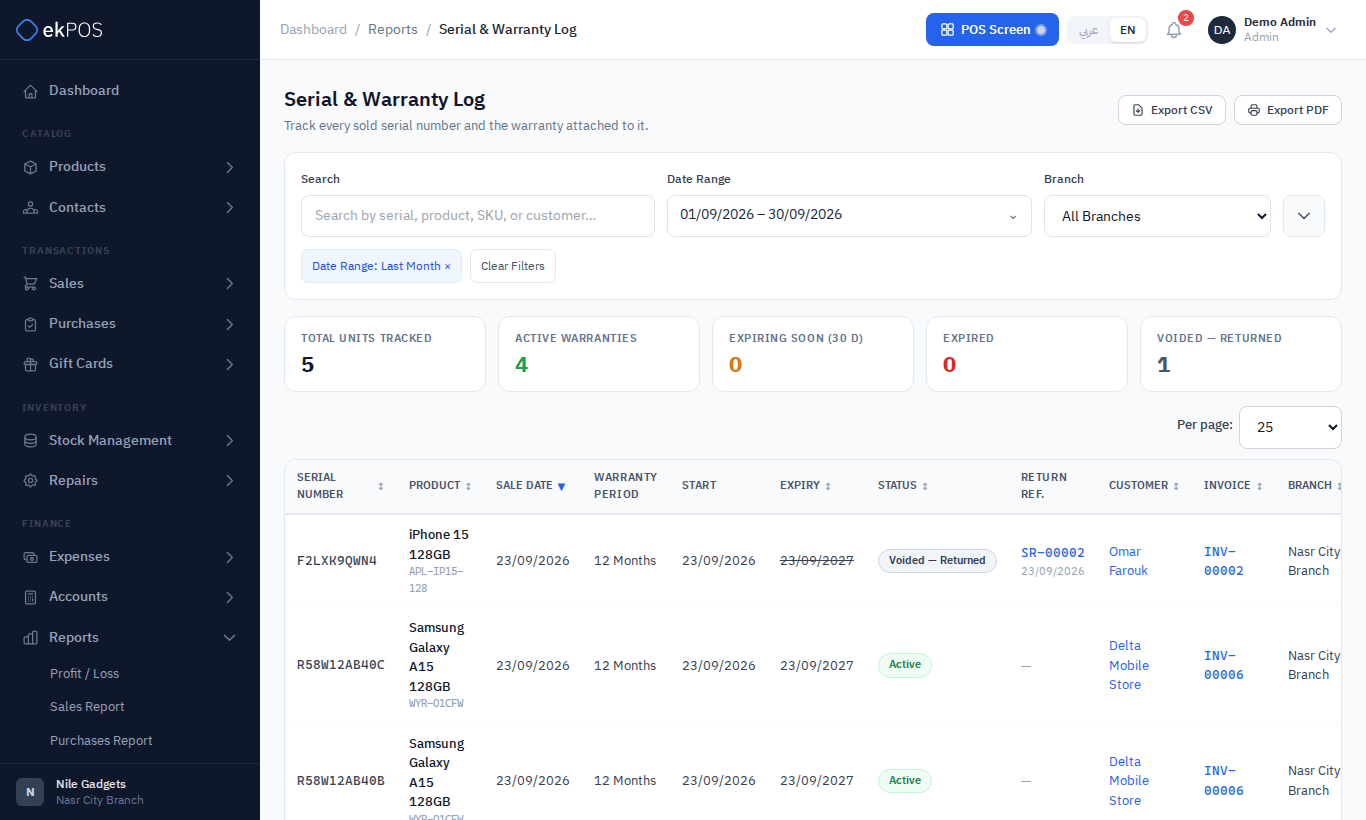
- Reports → Serial & Warranty Log lists every sold serial with its product, sale date, warranty period, start and expiry, status (Active, Expiring Soon within 30 days, Expired, Voided — Returned, No Warranty), the return if any, customer, invoice, branch and user. Filter by search, branch, warranty status and dates.
- Reports → Serial Lookup finds a serial and shows each time it passed through the shop — sold, returned — with the customer, invoice and warranty expiry.
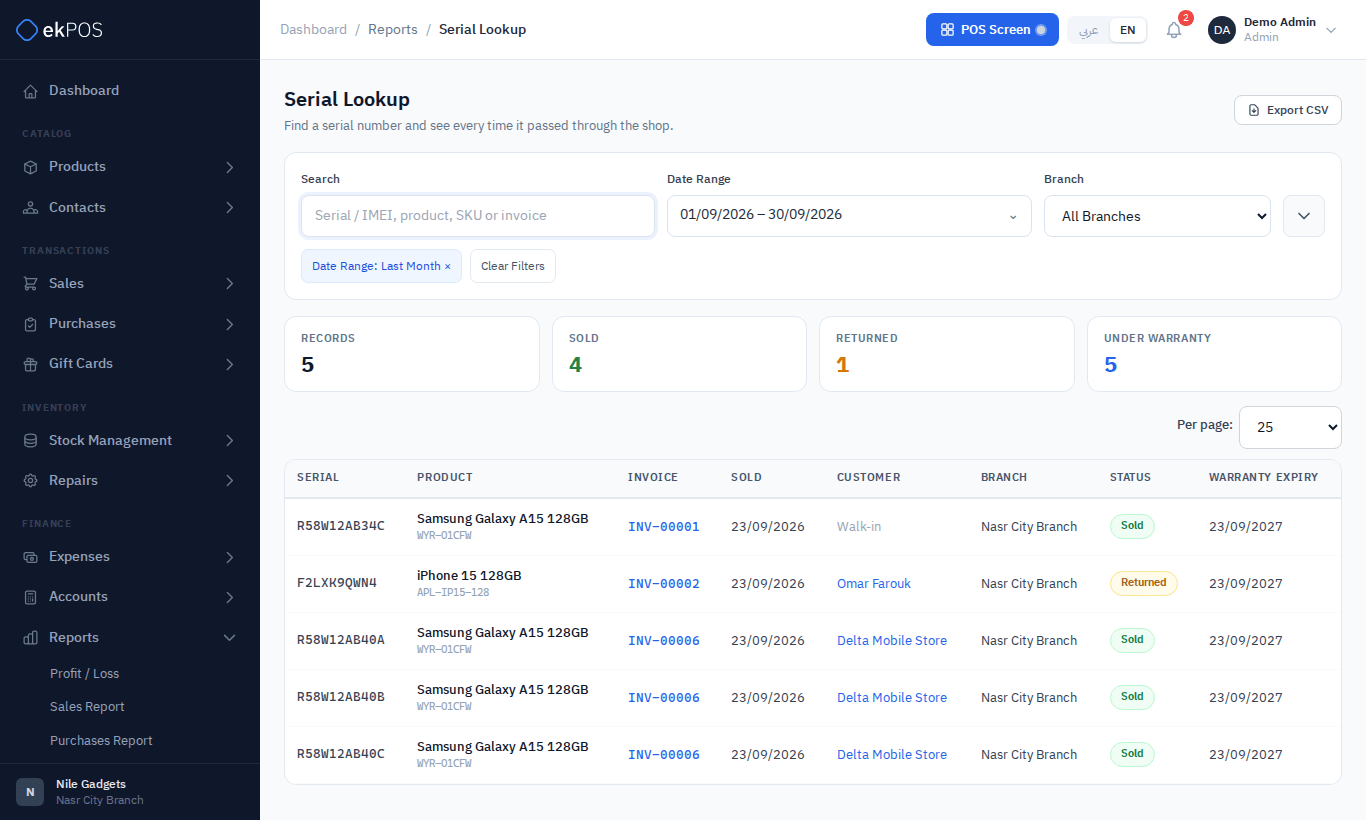
NoteBoth reports list serials sold on Add Sale and at the POS. A phone is one row showing its serial and IMEIs, and searching any of its numbers finds it. See Serial numbers and warranty.