
Other imports
Besides products, Import / Export handles opening stock, contacts, sales, discounts, purchases and price lists. Every import works the same way:
- Download the template (or the Download Stock Sheet for opening stock).
- Fill it in and save it as CSV (UTF-8).
- Upload & Preview, check each row's status and the reasons for invalid ones.
- Import the valid rows. Nothing is saved before this step.
The Column Guide on each page lists every column, whether it's required, an example and notes.
Opening stock
Import / Export → Import Opening Stock sets the starting quantity of many products at every location in one go.
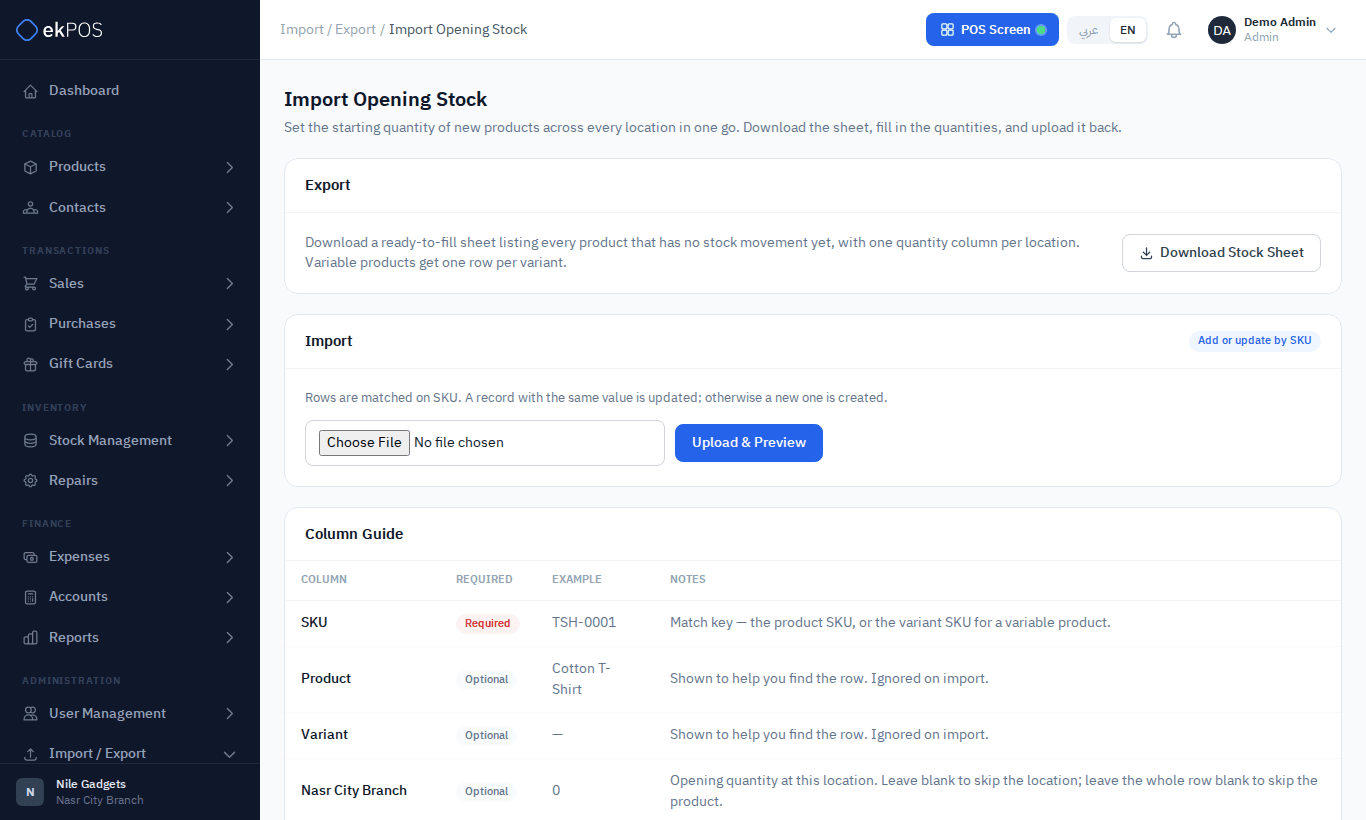
- Click Download Stock Sheet. It lists every product with no stock movement yet — one row per product, or per variant for variable products — with a quantity column for each location. If your user is limited to some locations, only those have a column.
- Fill in the quantities. Leave a cell blank to skip that location; leave a whole row blank to skip the product.
- Optionally set an Opening Date (defaults to today).
- Upload, preview and import.
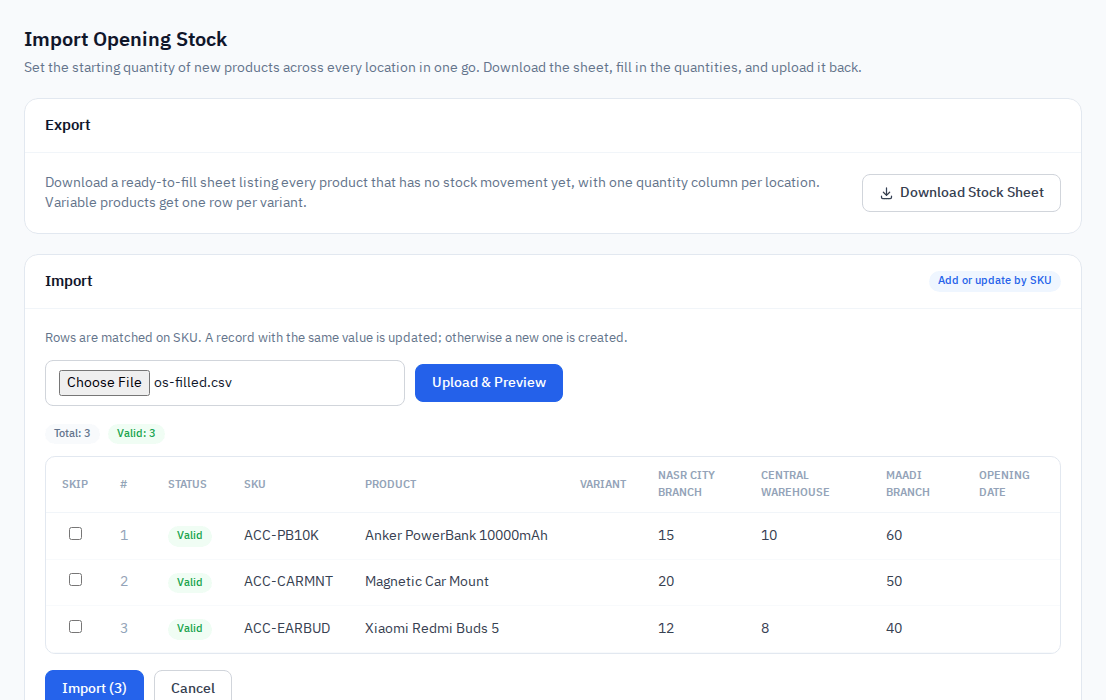
Rows are matched on SKU (the variant's SKU for a variant). A product that has had any movement since you downloaded the sheet is rejected, the same rule as Opening stock.
Contacts
Import / Export → Import/Export Contacts adds and updates customers and suppliers.
- Rows are matched on Email first, then Phone. At least one of the two is required.
- Columns: first name, last name, company, type (
customer,supplierorboth), email, phone, tax number, billing and shipping addresses — building, address (the street), city, state (the governorate), postal code, additional info and country — (or Shipping = BillingYes). An address is all-or-nothing: a row that starts one without its building, street, city, governorate and country is refused, credit limit, opening balance, active. - Opening Balance only counts when a contact is created; it is written to their ledger once and ignored on updates.
- Two contacts cannot share a phone, email or tax number, as on the contact form. A row is refused if one of its values is already on a contact other than the one it updates, inactive contacts included. It is also refused if the same tax number appears on more than one row of the file, or if an earlier row in the file has just taken one of its values. The refusal names the contact that holds the value.
Sales
Import / Export → Import/Export Sales brings in past invoices, for example from your old system.
- One row per line. Rows with the same Reference become one invoice. The reference must be new — an existing one is skipped. Sales are never updated by import.
- Invoice-level fields — date, branch, customer and status — are read from the first row of each reference. The date can't be later than today.
- Branch is matched by name or code. If your user is limited to some locations, a row at any other branch is refused, the same as entering it by hand. Customer Phone / Customer Email link to an existing contact; if none matches, the sale has no customer.
- Status:
completed,draft,quotationorproforma. - Each line has a product SKU, quantity, unit price and a flat Line Discount taken off before tax.
- Taxes names the line's taxes exactly as on Tax Settings, separated by
|— for exampleVAT 14% | Table Tax. Blank means no tax. An invoice-level tax such as withholding can't be put on a line. Tax Type says whether the unit price isexclusive(tax added on top, the default) orinclusive(tax already in the price). - The line is charged exactly as on Add Sale: several taxes follow ETA's order of calculation, and the sale shows each tax separately on the invoice and in the tax report.
- Tax Amount is filled in on export so you can see what each line was charged. It is ignored on import.
- A file that still has the old Tax % column is refused at preview, so its invoices are never imported without their tax. Download the template and name the taxes instead.
- Each row can carry one payment: an amount, method (
cash,bank,card,mobile_wallet,instapay,cheque,other) and date, which can't be later than today. A sale paid part in cash and part by bank has one payment on each of two rows; a row with a payment and no product carries only that payment. - Imported sales are posted to your accounts like any other.
- If any row of an invoice is invalid, the whole invoice is skipped.
Completed imported sales take stock out and are written to the customer's ledger, and on plans with accounting they are posted to your accounts with their payments. Stock is not checked: an imported sale can take a location below zero.
Discounts
Import / Export → Import/Export Discounts creates and updates discounts, matched on Discount Code: name, type (percentage/fixed), amount, tax type, priority, dates (YYYY-MM-DD HH:MM) and active. Which products, branches and customer groups a discount targets is set on the Discounts screen, not in the file.
Purchases
Import / Export → Import/Export Purchases works like the sales import: one row per line, grouped by Reference, insert only.
- Supplier Phone / Supplier Email link to an existing supplier.
- Quantity is what was ordered and Received Quantity is how much of it has arrived; only what arrived is added to stock. Leave Received Quantity blank to follow the status: everything for
received, nothing for the rest. A purchase exported while 4 of 10 had arrived comes back in as 4 of 10, with the statuspartially_received. - Status:
received,partially_received,ordered,pending,draftorcancelled. It is checked against the lines: areceivedpurchase with a short line is stored as partially received, and one with nothing received as ordered. - Lines have product SKU, quantity, unit cost, line discount, Taxes and Tax Type, named and charged as for sales; each row can carry one payment, as for sales, and received purchases are posted to your accounts.
Imported purchases are written to the supplier's ledger. Their date and payment dates can't be later than today, as for sales.
Price lists
Import / Export → Import/Export Price Lists adds and updates the prices in your price lists. It appears only when your plan includes price lists.
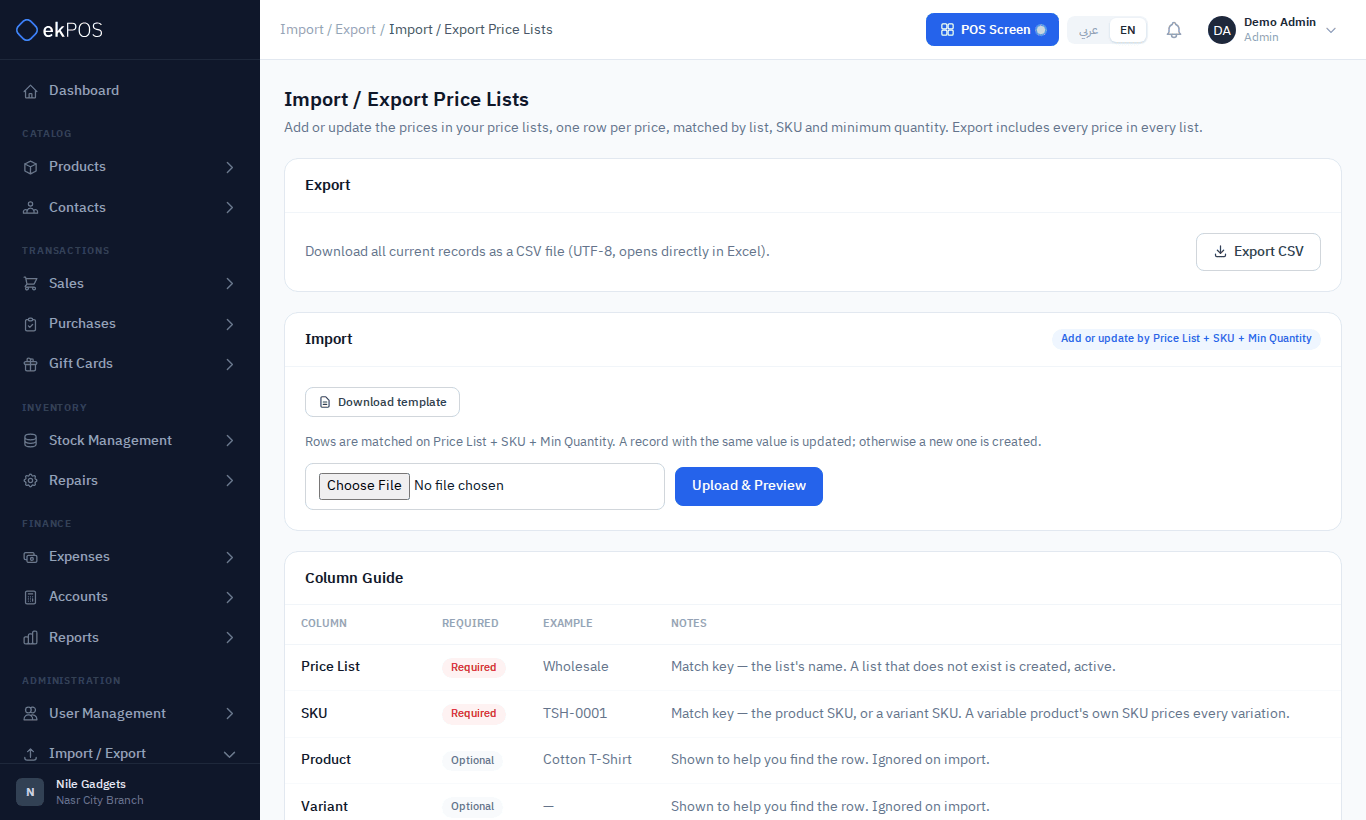
- One row per price: a Price List name, a SKU, a Min Quantity (the From qty on the screen; blank means 1) and the Price.
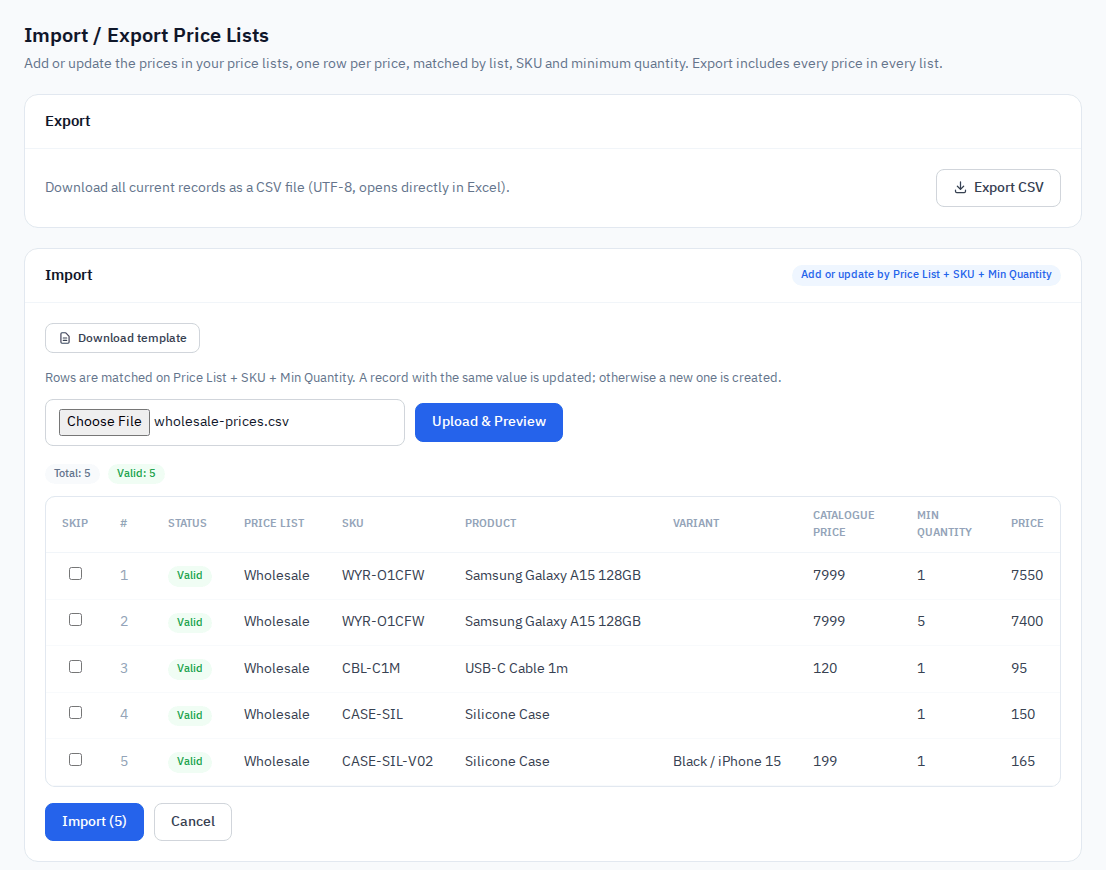
- Rows are matched on Price List + SKU + Min Quantity. A matching price is updated; otherwise it is added. Prices the file doesn't mention are left as they are — to remove one, use the Price Lists screen.
- A variant's SKU prices that variant only. A variable product's own SKU prices all variations.
- A list named in the file that doesn't exist yet is created, active. List names are matched regardless of capitals.
- Export downloads every price in every list, with the product, variant and normal selling price beside it for reference. Those columns are ignored on import, so you can edit the prices in the export and upload it back.
- Which customers and groups use a list is set on their own forms, not in the file.
Who can do this
Every import needs Data → Import. Importing or exporting price lists also needs Price Lists → Manage.