
WooCommerce
Connect a WooCommerce online store to keep products, stock and prices in step, and to bring web orders into ekPOS as sales.
Open Integrations → WooCommerce. The tabs are Overview & Connection, Sync Settings, Product Mapping, Sync Log and Orders.
NoteThis page is written from the ekPOS screens and code. The demo account used for the screenshots is not connected to a store.
Connect your store
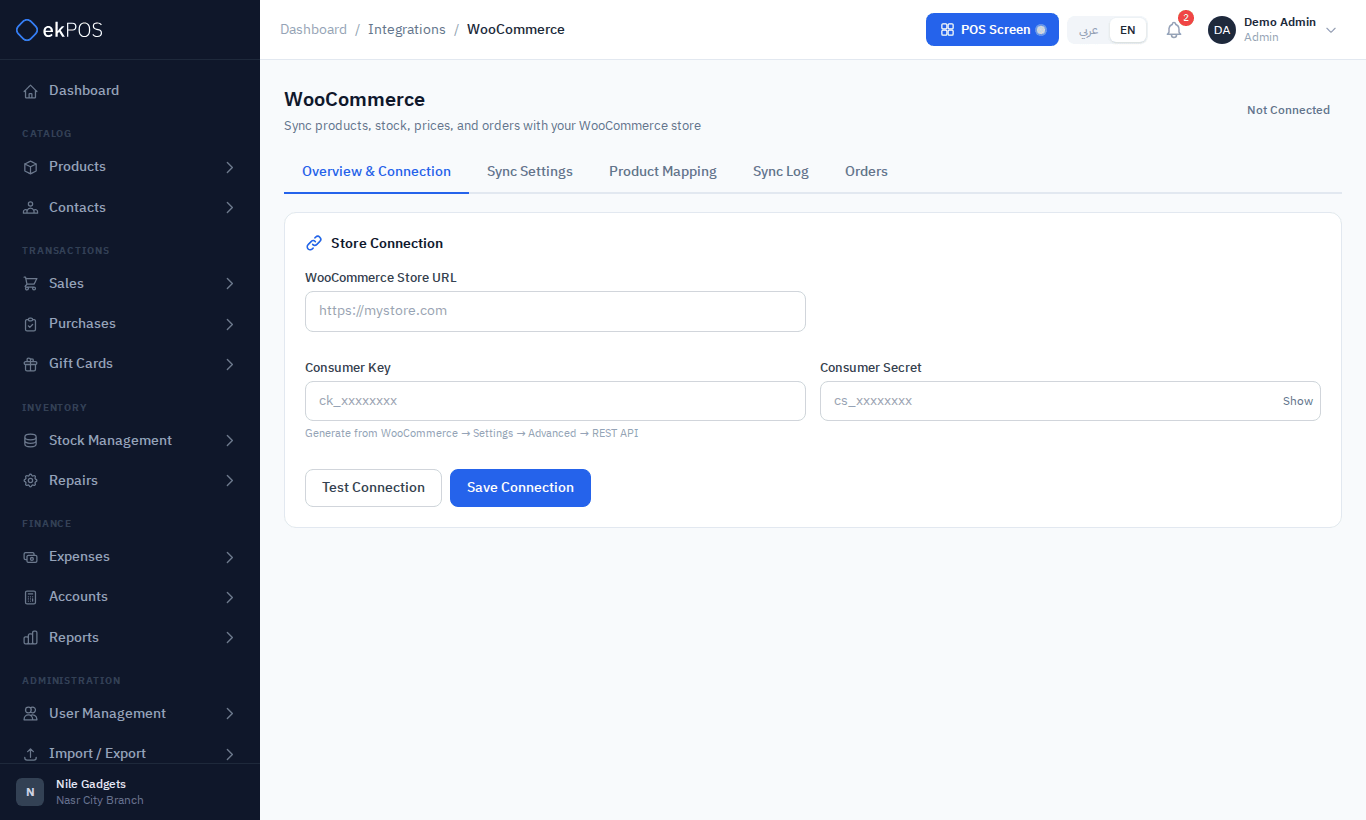
- In WordPress, open WooCommerce → Settings → Advanced → REST API and create a key with Read/Write access.
- In ekPOS, enter the WooCommerce Store URL, Consumer Key and Consumer Secret.
- Click Test Connection, then Save Connection.
- Click Configure Webhooks so the store tells ekPOS about new orders straight away. The webhook status shows Active, Failed or Not configured.
The Store URL must be the store's public https:// address, such as https://shop.example.com. ekPOS sends your keys with every request, so it refuses an http:// address, a port number, an IP address, an internal name, or a name that leads to a private network. If the store redirects to another address, the message gives the address to use instead.
Connecting a different store
Saving a different Store URL removes ekPOS's webhooks from the old store and gives the connection a new webhook secret, so the old store can no longer send orders in. Click Configure Webhooks again to set them up on the new store. Saving the same store again changes nothing.
Match products
Products are matched on SKU. The Product Mapping tab shows:
- Matched Products — linked pairs. Unlink separates a pair.
- Import from WooCommerce — store products with no match in ekPOS, which you can import.
- Export to WooCommerce — ekPOS products missing from the store, which you can create there.
The Overview shows how many are matched and unmatched.
Sync settings
| Setting | What it does |
|---|---|
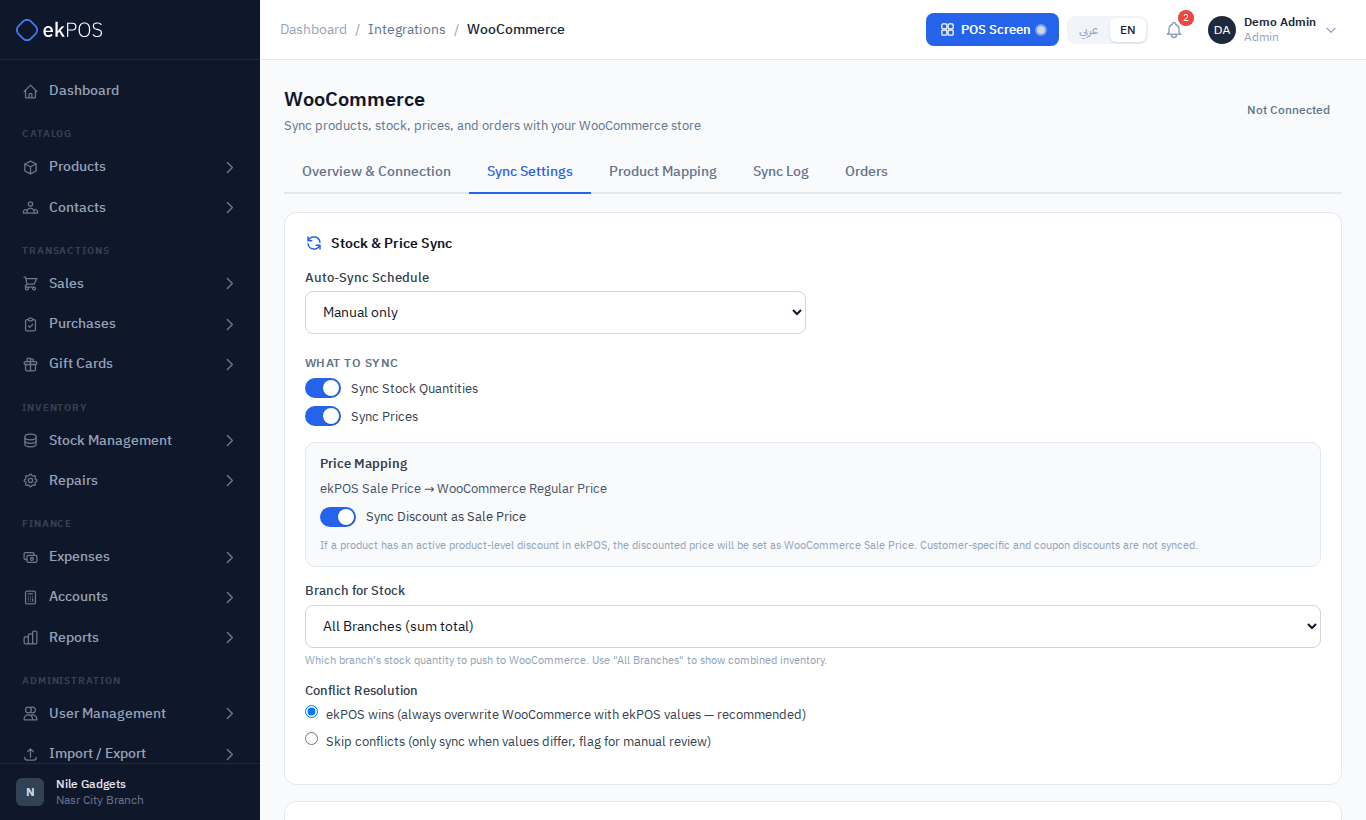
| Auto-Sync Schedule | Manual only, every 12 or 24 hours, weekly or monthly. Sync Now runs it at any time, in the background: the result appears in the Sync Log when it finishes, and clicking again meanwhile does not start a second run. |
| Sync Stock Quantities / Sync Prices | What to push to the store. The ekPOS selling price becomes the WooCommerce regular price. |
| Sync Discount as Sale Price | A product-level discount becomes the WooCommerce sale price. Customer-specific discounts are not synced. |
| Branch for Stock | Which branch's stock to publish, or all branches added together. Unless your role is an admin role, only locations you are assigned to are offered, here and for the two order locations below. |
| Conflict Resolution | ekPOS wins (overwrite the store — recommended), or Skip conflicts and flag them for review. |
| Auto Import / Auto Export | Pull new store products in, or push new ekPOS products out, automatically. |
| Receive WooCommerce Orders | Turn order sync on. |
| Default Branch for WC Orders | Where web orders are sold from and stock is taken. Required. |
| Default Stock Location | The warehouse zone stock is taken from. |
| COD / Online Payment Method | Which payment method records cash-on-delivery and online payments. |
| Auto-create Customer Contact | Create a customer when the order's email and phone match no contact. Deleted contacts are not matched; inactive ones are. |
| Notify on New WooCommerce Order | Send a bell notification to users at the order branch. |
Scheduled syncs, imports and exports stop while the business is suspended, or when its plan no longer includes WooCommerce, and so does a run already waiting to start. They resume on the next schedule once the business is active and the plan includes it again. Store orders are not taken in either while the plan leaves WooCommerce out, and sale changes are not sent back to the store.
Web orders
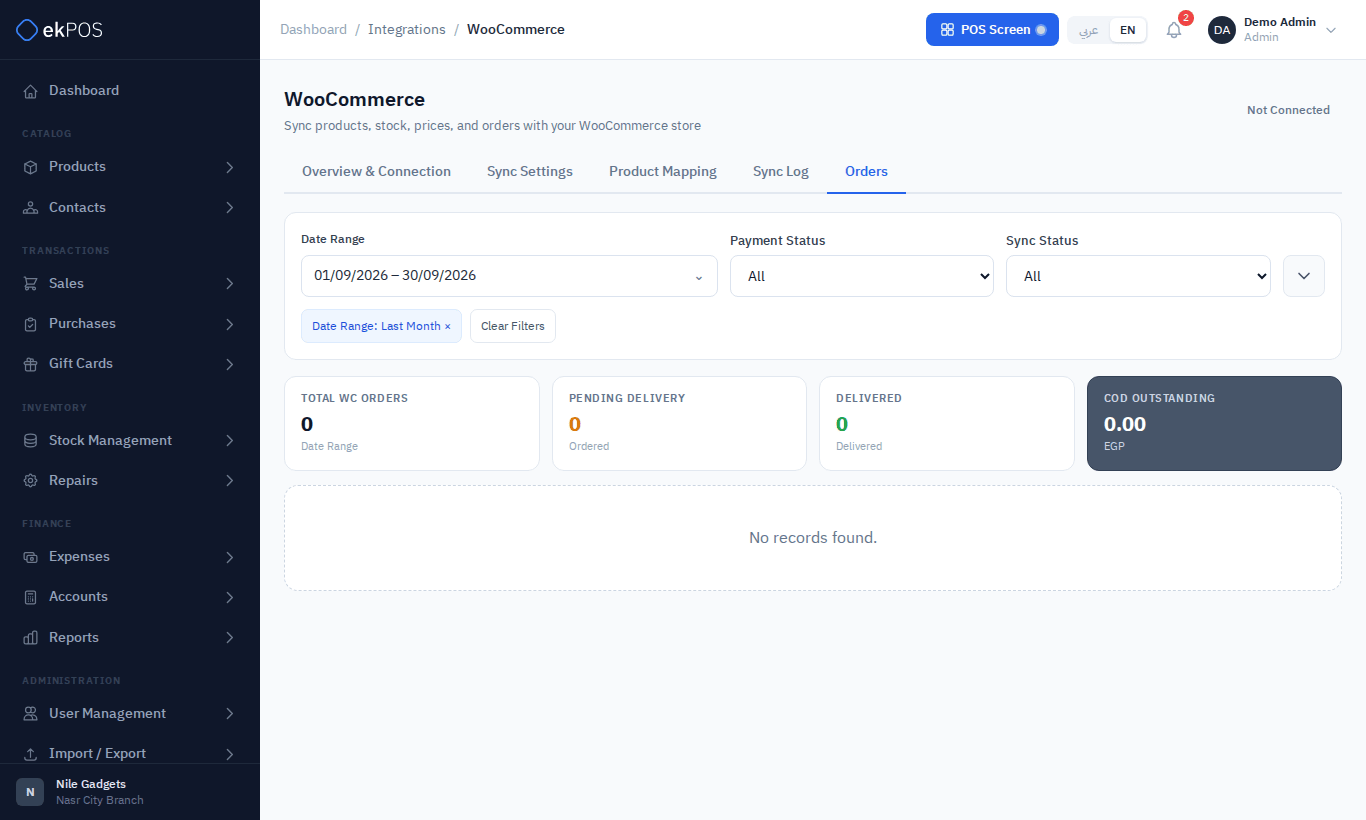
With order sync on, each new store order becomes an ekPOS sale at the default branch: stock is taken and the customer is linked or created. The sale is taxed with each product's ekPOS selling taxes, split out of what the shopper paid, and is posted to your accounts like any other sale. An order paid online arrives with its payment recorded under the Online Payment Method. One still awaiting payment in the store (On hold, such as a bank transfer or cheque not yet received) arrives unpaid, and its payment is recorded when the store marks it Processing or Completed; a cash-on-delivery order arrives unpaid, to be settled with Add Payment when the courier pays you. The Orders tab lists them with payment, shipment and sync status, pending deliveries and outstanding cash-on-delivery.
Web orders are not refused for lack of stock: an order takes stock even below zero, because the shopper has already bought it.
Changes flow back to the store: marking the sale's shipment Delivered completes the order in WooCommerce, and deleting the sale cancels it. If the store later marks a deleted sale's order as paid, ekPOS doesn't record the payment; the Sync Log says so.
Sync log
Every sync, import, export and webhook is recorded with its result. Open an entry for the details of a failure.
Who can do this
| Permission | Allows |
|---|---|
| WooCommerce → View | See the WooCommerce page |
| WooCommerce → Sync | Sync now, import and export products |
| Integrations → Manage | Connection, webhooks and settings |