
Payment methods
Payment methods are the ways customers pay you and you pay suppliers: cash, card, bank transfer, mobile wallet and so on. They appear on the POS tender buttons, on sale and purchase payment forms, and as report filters.
Open Settings → Payment Methods.
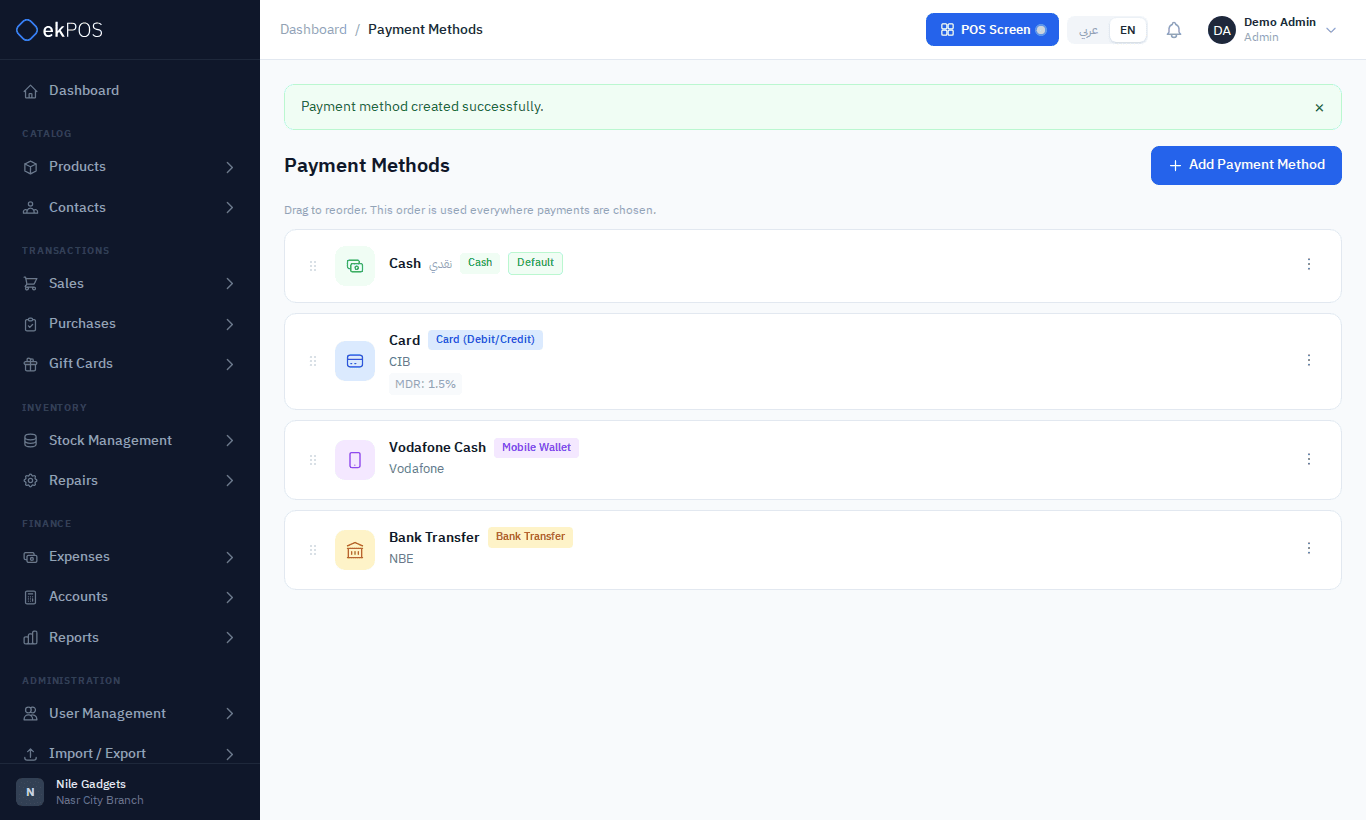
Every account starts with Cash, marked as the default.
Add a payment method
- Click Add Payment Method.
- Fill in the form and click Save.
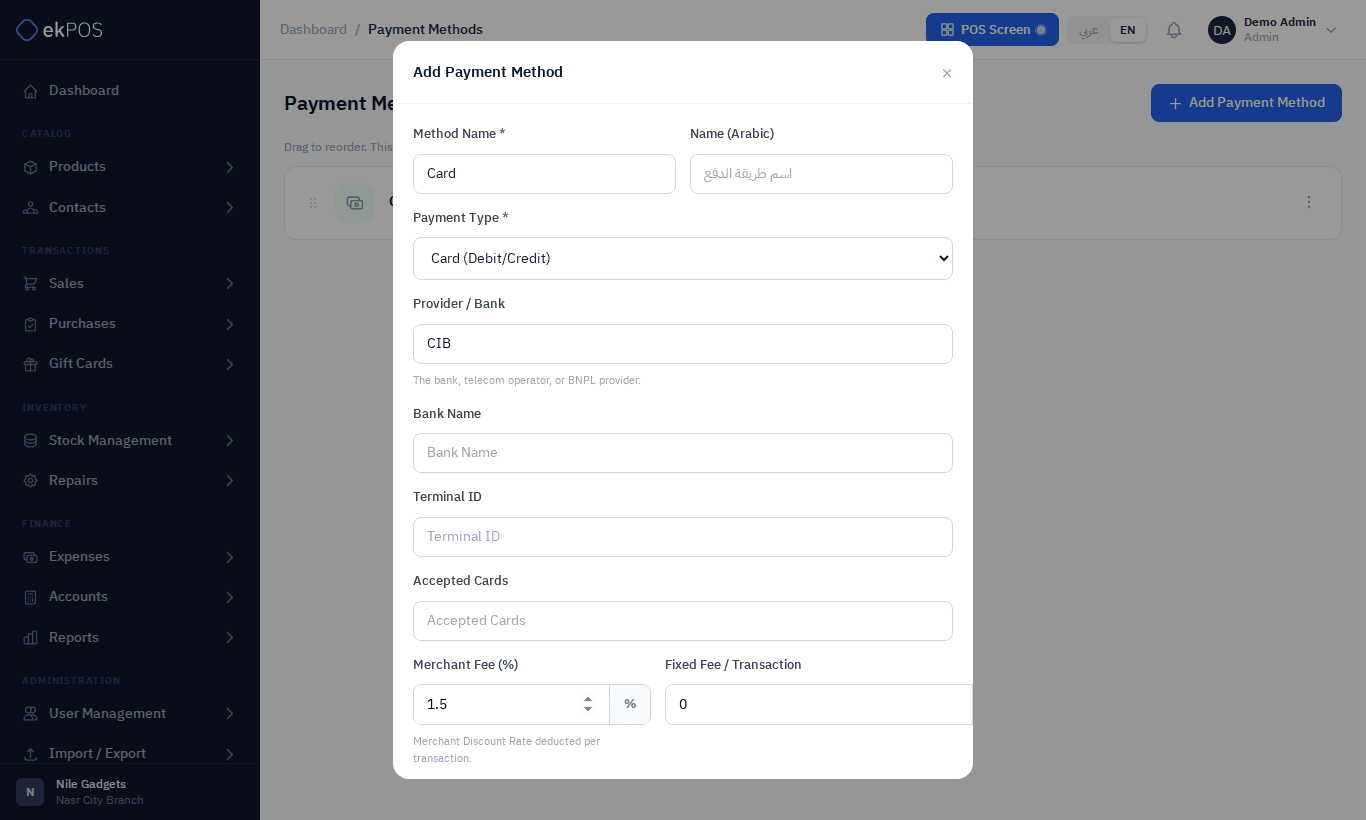
| Field | Description | Required |
|---|---|---|
| Method Name | What staff see, e.g. CIB Visa. | Yes |
| Payment Type | Cash, Card, Bank Transfer, Mobile Wallet, Buy Now Pay Later, Cheque or Custom. | Yes |
| Provider / Bank | The bank, telecom operator or BNPL provider. | No |
| Extra details | Depending on the type: bank name, terminal ID, account number, IBAN, wallet number, instalment terms and similar. Kept for your reference. | No |
| Merchant Fee (%) / Fixed Fee | The fee your provider charges per transaction. Kept for your reference; ekPOS does not deduct it from payments. | No |
| Set as default payment method | Makes this the default. | No |
Change the order
Drag a method by its handle (⋮⋮ on the left) to a new position. The order saves as soon as you drop it, and every payment picker in ekPOS uses the same order. Put the method you use most first.
Deactivate or delete
From the ⋮ menu:
- Deactivate hides the method from new payments. Past payments keep it.
- Delete removes it.
You cannot delete or deactivate the default method. Make another method the default first.
Payment methods and accounting
If your plan includes accounting, each payment method can post to its own cash or bank account. For example, card payments can post to Bank Account while cash posts to Cash on Hand. Set this in Accounting settings.
Who can do this
Payment Methods → View / Create / Edit / Delete. Reordering needs Edit.