
Purchase returns
A purchase return sends goods back to the supplier — damaged, wrong or surplus stock — and takes them out of your stock.
Create a purchase return
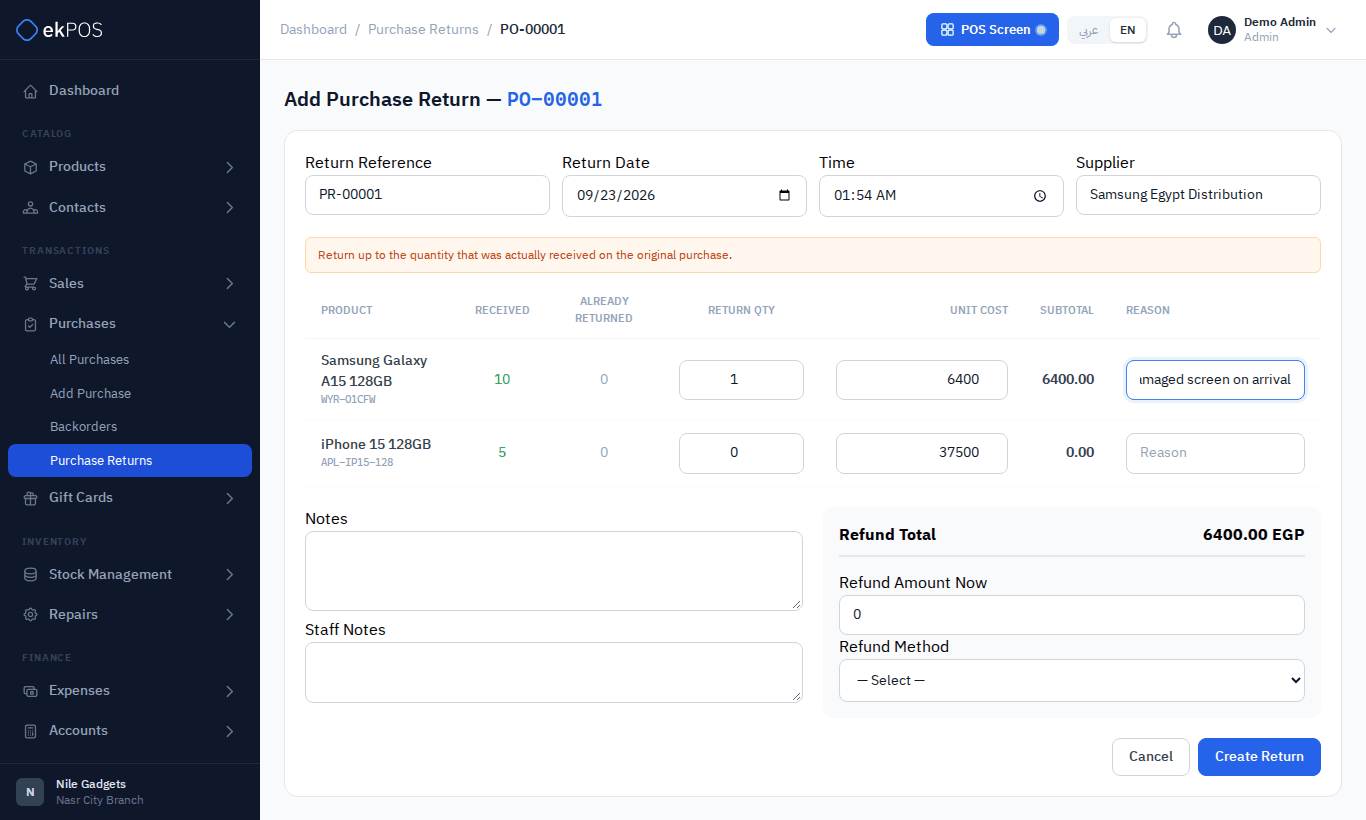
- On Purchases → All Purchases, open ⋮ → Add Purchase Return on the purchase. The option appears on purchases that are Received or Partially Received.
- Check the Return Reference (PR-00001…), date and time. Neither the return nor a refund can be dated later than now.
- For each line, enter the Return Qty. You can return at most what was received, less anything already returned; both figures are shown on the line.
- Adjust the Unit Cost if the supplier is crediting a different price, and give a Reason.
- If the supplier refunds you now, enter the Refund Amount Now and the Refund Method.
- Click Create Return.
What happens next
- The returned quantities are taken out of stock at the purchase's location.
- The return is valued at quantity × unit cost, with no tax added. If the supplier is refunding the tax as well, include it when you enter the refund. The refund can be at most the return's value plus the tax the purchase carried on the units sent back.
- Any refund entered is recorded against the return. A return with a refund equal to its value is Paid.
- What the return is worth, less any refund, comes off what you still owe on the purchase, so the purchase's due and Add Payment reflect the goods you sent back.
- The return is noted in the original purchase's Transaction Log.
- The return reduces what you owe the supplier in their ledger, and a refund they pay you is written there too.
The purchase returns list
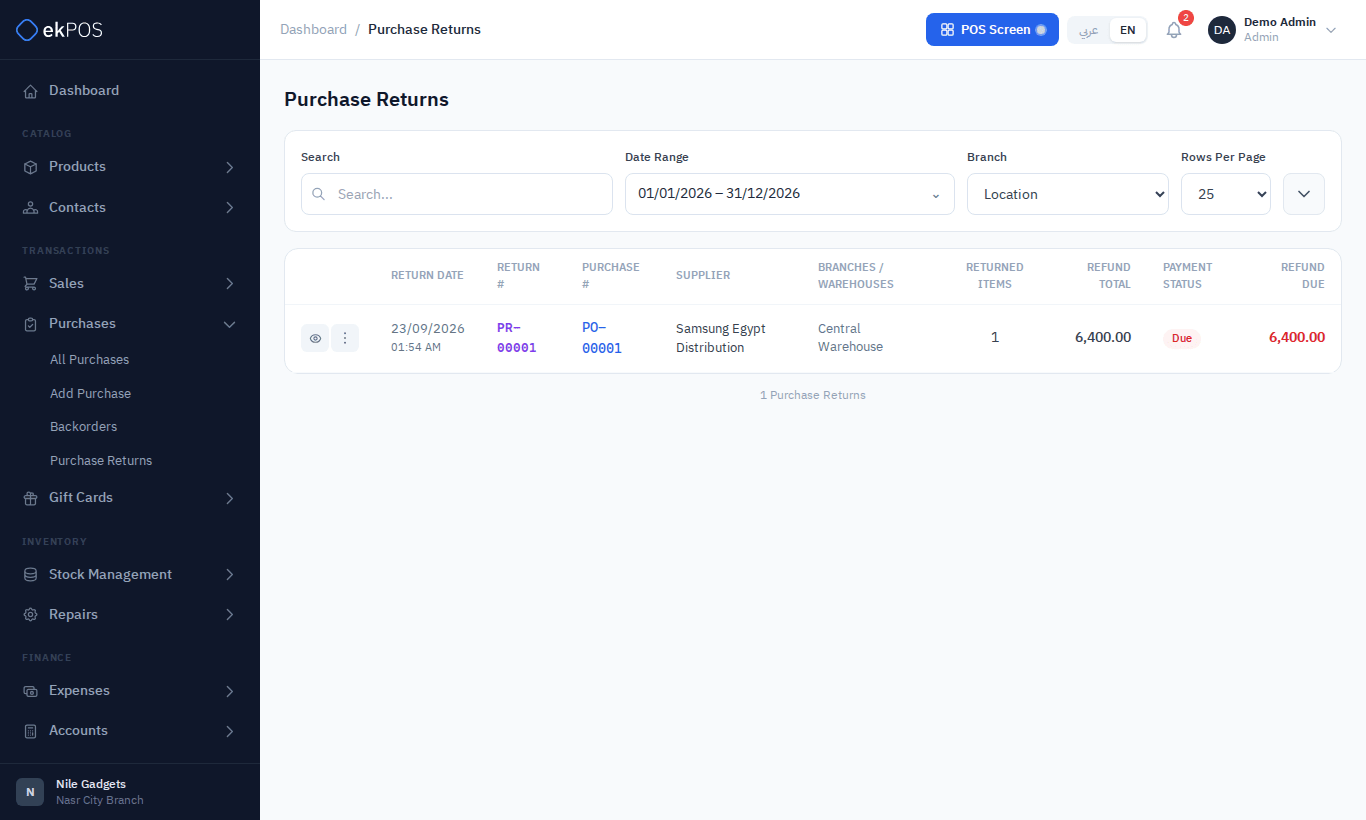
Purchases → Purchase Returns lists every return with its reference, original purchase, supplier, location, amount and refund status. Search by return or purchase reference or supplier, and filter by payment status, location and date. Click the eye to see the return details: supplier, original purchase, date/location, returned products and reasons, totals, refunds and notes. The ⋮ menu opens the original purchase list filtered to that purchase, the supplier ledger, Print, View Payments and Delete, when your permissions allow them. While part of the return is still unrefunded, choose ⋮ → Record Refund when the supplier pays you back later. A refund is posted to your accounts and written to the supplier's ledger.
Deleting a return puts the goods back into stock and reverses the refunds recorded against it.
Who can do this
Creating returns needs Purchases → Return; deleting them needs Purchases → Delete.
Related
- Purchases and purchase orders
- Stock adjustments — for stock written off rather than returned