
Two-factor authentication
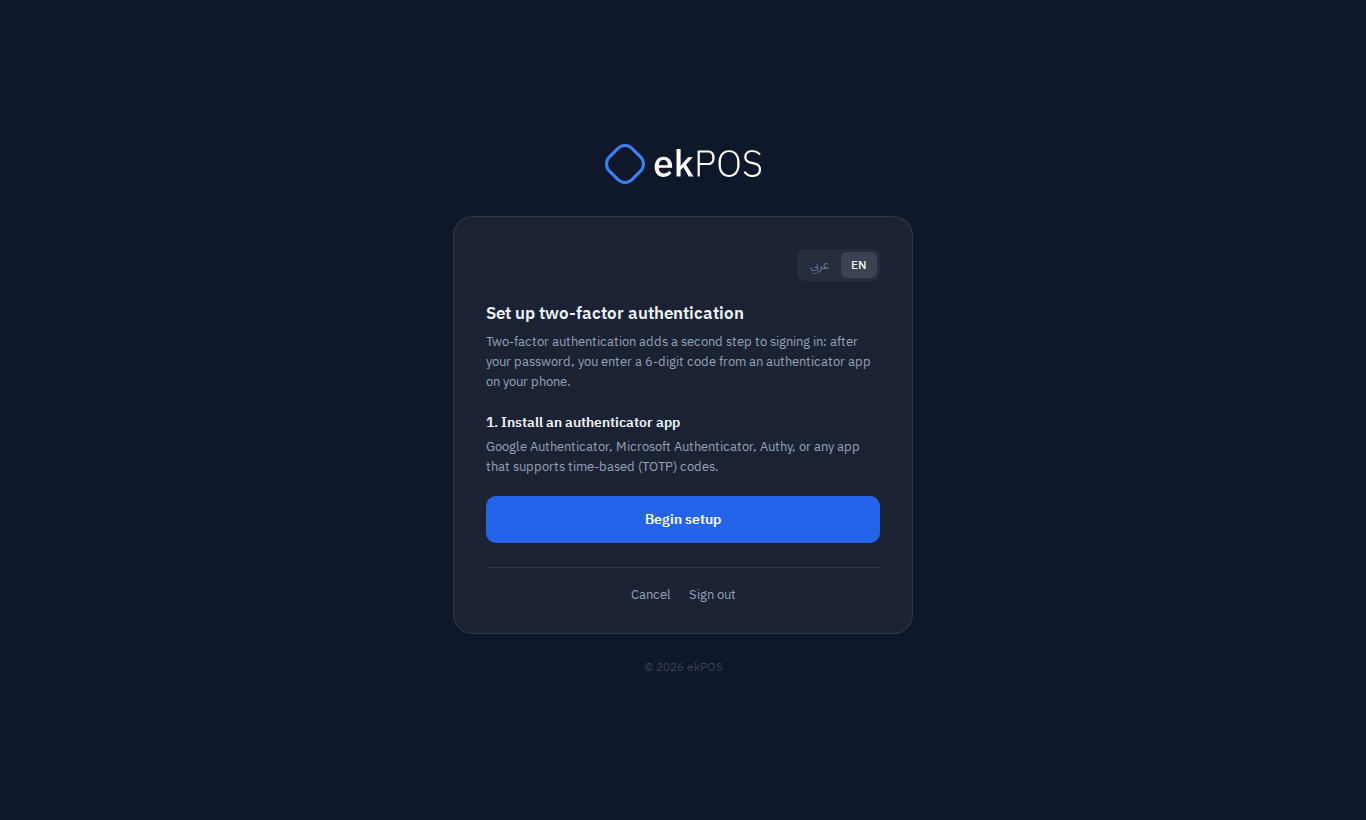
Two-factor authentication (2FA) adds a second step to signing in. After your password, ekPOS asks for a 6-digit code from an authenticator app on your phone. Someone who learns your password still can't sign in without your phone.
Any standard authenticator app works: Google Authenticator, Microsoft Authenticator, Authy, or any app that supports time-based (TOTP) codes. ekPOS does not send codes by text message.
Turn it on
- Open My Profile and find the Security section.
- Click Set Up 2FA.
- Install an authenticator app on your phone if you don't have one, then click Begin setup.
- In the app, add an account and scan the QR code ekPOS shows. If you can't scan it, type the setup key shown under it instead (choose time-based if the app asks).
- Type the 6-digit code the app now shows and click Verify & Enable 2FA.

2FA is not switched on until step 5 succeeds. If you close the page half way, nothing changes — you can come back and Continue setup, or Start again with a new key.
Save your recovery codes
When 2FA switches on, ekPOS shows 8 recovery codes. Each one lets you sign in once instead of a code from the app — for when your phone is lost, broken or out of battery.
- This is the only time the codes are shown. Use Copy, Download or Print, and keep them somewhere safe away from your phone — a password manager, or a printed copy in a drawer.
- Anyone with your password and a recovery code can sign in as you. Treat them like a spare key.
- Running low? In My Profile → Security, type your current password and click Regenerate Recovery Codes. You get 8 new codes and all the old ones stop working straight away.
Signing in with 2FA
- Enter your email and password as usual.
- Open your authenticator app and type the 6-digit code for ekPOS.
- Click Verify.
Each code works once and changes every 30 seconds. If ekPOS says the code is not valid, wait for the next one. Check that your phone's clock is set automatically — a clock that is a few minutes out gives wrong codes.
Lost your phone? Click Use a recovery code instead and type one of your recovery codes. ekPOS tells you how many you have left. Then set up the app on your new phone: in My Profile → Security, turn 2FA off and on again (or Replace authenticator, see below).
Lost your phone and your recovery codes? Ask your ekPOS provider to reset your two-factor authentication. You then sign in with your password and set it up again.
After 5 wrong codes, ekPOS sends you back to the sign-in page for a few minutes.
Turn it off
In My Profile → Security, type your current password and click Disable 2FA. Your key and recovery codes are deleted; signing in needs only your password again. ekPOS emails you when 2FA is turned on or off, so you know if someone else did it.
When your business requires 2FA
Your ekPOS provider can require two-factor authentication for everyone in your business.
- If you haven't set it up, ekPOS takes you to the setup page as soon as you sign in, and nothing else opens until you finish. The page says why.
- You can't turn 2FA off. Instead, Replace authenticator removes your current app and takes you straight to setting up a new one — use it when you change phones.
- If the requirement is later lifted, your 2FA stays on until you turn it off yourself.
Integrations and the API
2FA is only for people signing in to the ekPOS screens. API tokens used by integrations — WooCommerce, online stores, accounting links — are never asked for a code, and keep working when you turn 2FA on, when your business requires it, or when you change your password. Manage them in Integrations → API.