
Categories, brands and units
These three lists organise your catalog. They are managed from the Products menu and chosen on each product.
Categories and subcategories
Products → Product Categories holds a two-level tree: categories, and subcategories inside them.
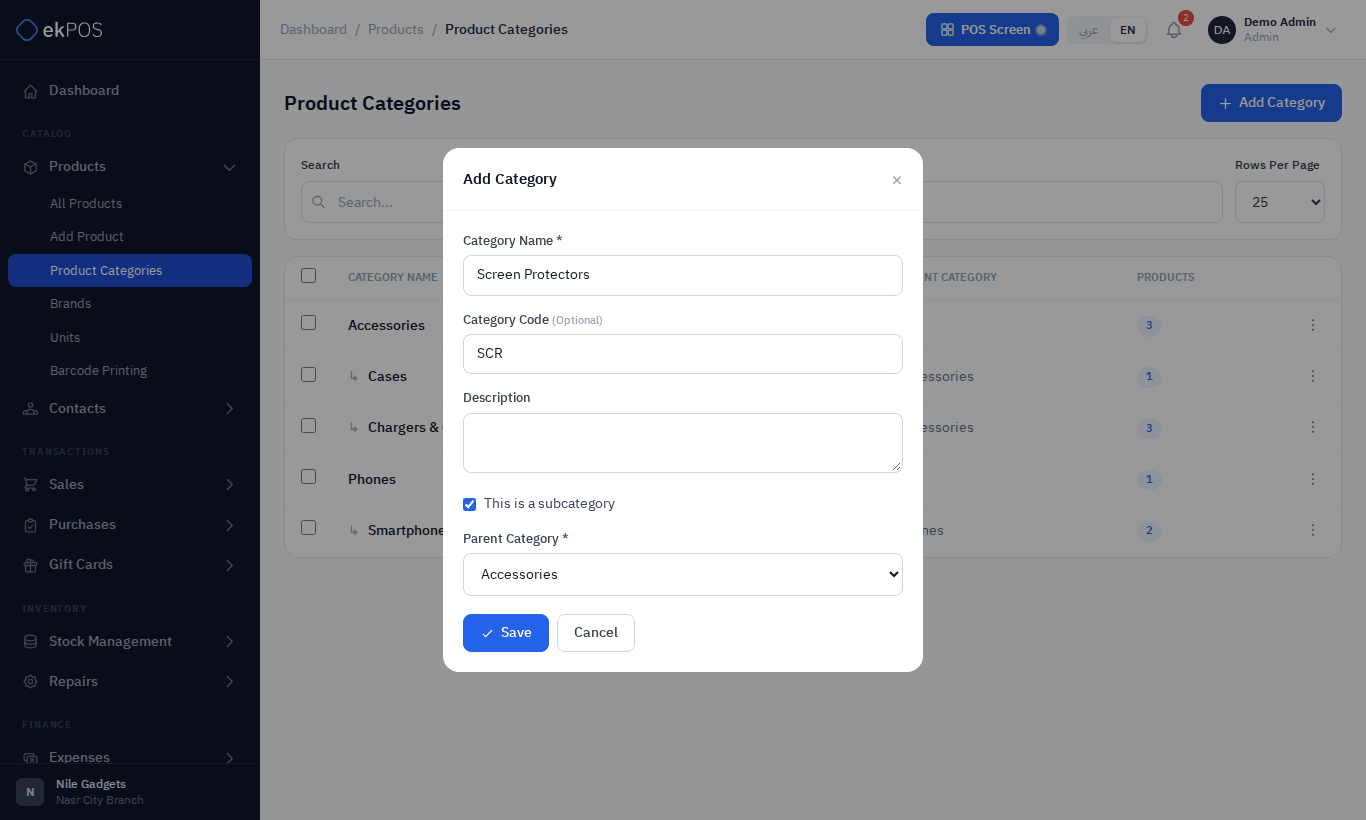
Add a category
- Click Add Category.
- Enter the Category Name, and optionally a Category Code (stored in capitals) and a description.
- To make it a subcategory, tick This is a subcategory and choose the Parent Category.
- Click Save.
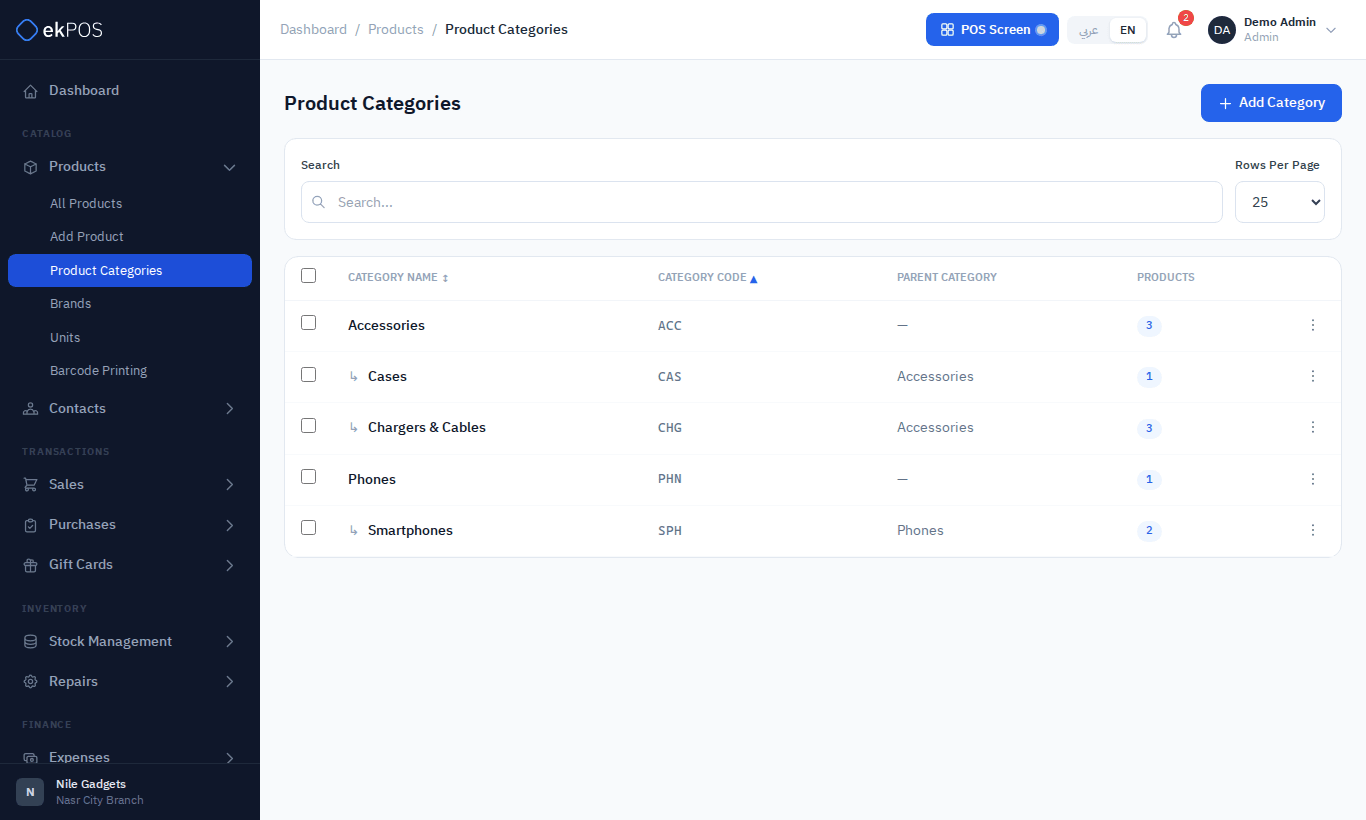
The list shows each subcategory under its parent, with the number of products in it. Search, sort by name or code, and choose rows per page at the top.
Delete a category
You cannot delete a category that still has products or subcategories. Move the products (for example with the list's category picker) and delete or move the subcategories first. Bulk delete skips any selected category that still has products or subcategories.
Put a product in a category or subcategory on Add Product, on Edit Product, or from the product list's category picker.
Brands
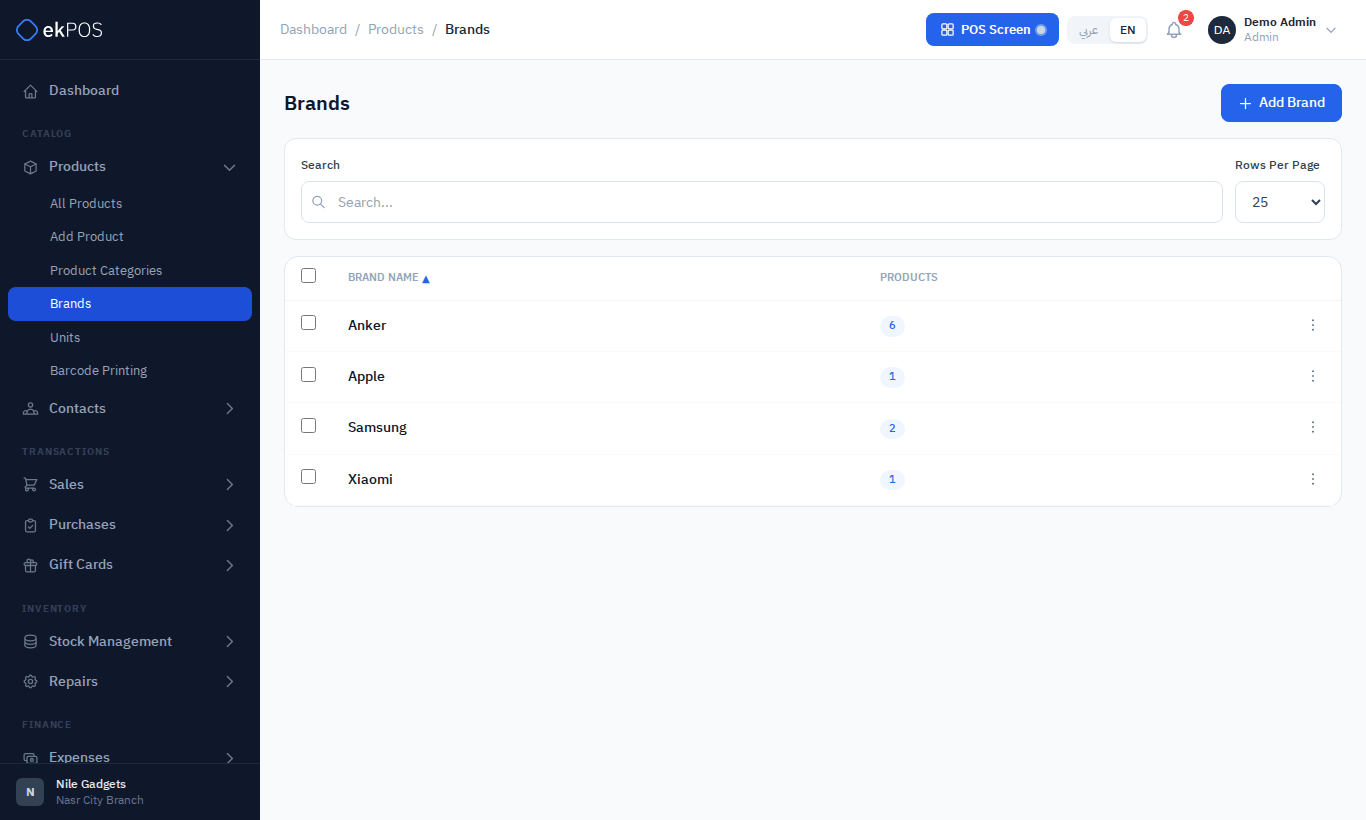
Products → Brands is a simple list: a name (required) and a description. A brand that is used by any product cannot be deleted; bulk delete skips such brands.
Units
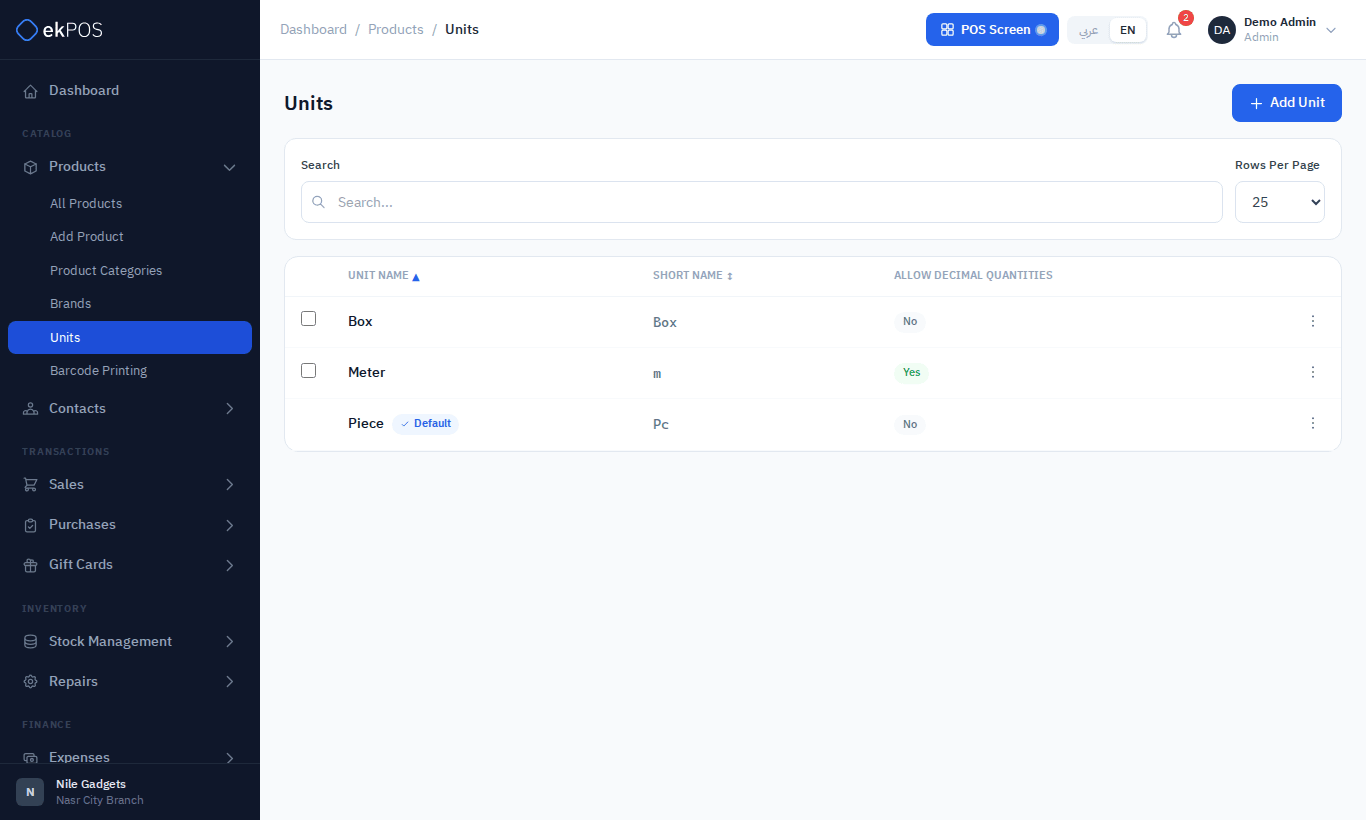
Units use one name and one short name. Allow Decimal Quantities starts unchecked for new units; enable it for units such as kilograms that accept fractions. In Add/Edit Unit, Short Name and Unit Code (ETA) share a row with equal widths.
Products → Units lists the units products are counted in. Every account starts with Piece (Pc).
| Field | Description | Required |
|---|---|---|
| Unit Name | e.g. Box, Meter. | Yes |
| Short Name | Printed after quantities, e.g. Box, m. | Yes |
| Unit Code (ETA) | The ETA unit type, needed for e-invoices. | No |
| Allow Decimal Quantities | Ticked: quantities like 1.5 are allowed (metres, kilograms). Unticked: whole numbers only (pieces, boxes). |
No |
WarningAllow Decimal Quantities starts ticked on the Add Unit form. Untick it for units that are always counted in whole numbers.
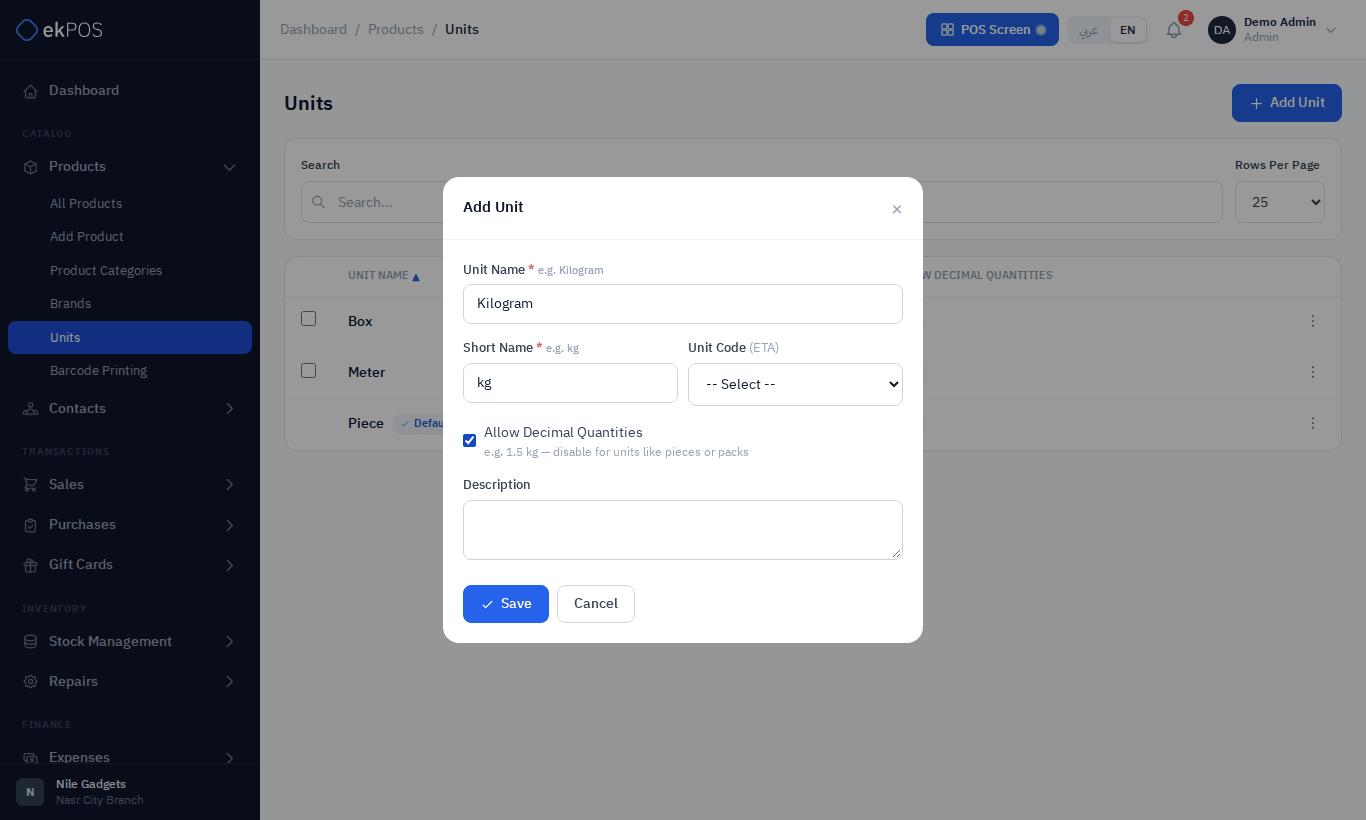
- Set As Default Unit (⋮ menu) marks a unit as the default. The default unit cannot be deleted.
- A unit used by any product cannot be deleted.
NoteThe Default badge does not decide which unit Add Product preselects. The form preselects the first unit in alphabetical order, so check the Unit field when you add a product.
Who can do this
Each list has its own View / Create / Edit / Delete permissions: Categories, Brands and Units.
Related
- Product list
- Import products — categories, brands and units named in the file are created if they don't exist, and a subcategory can be set by its name