
The product list
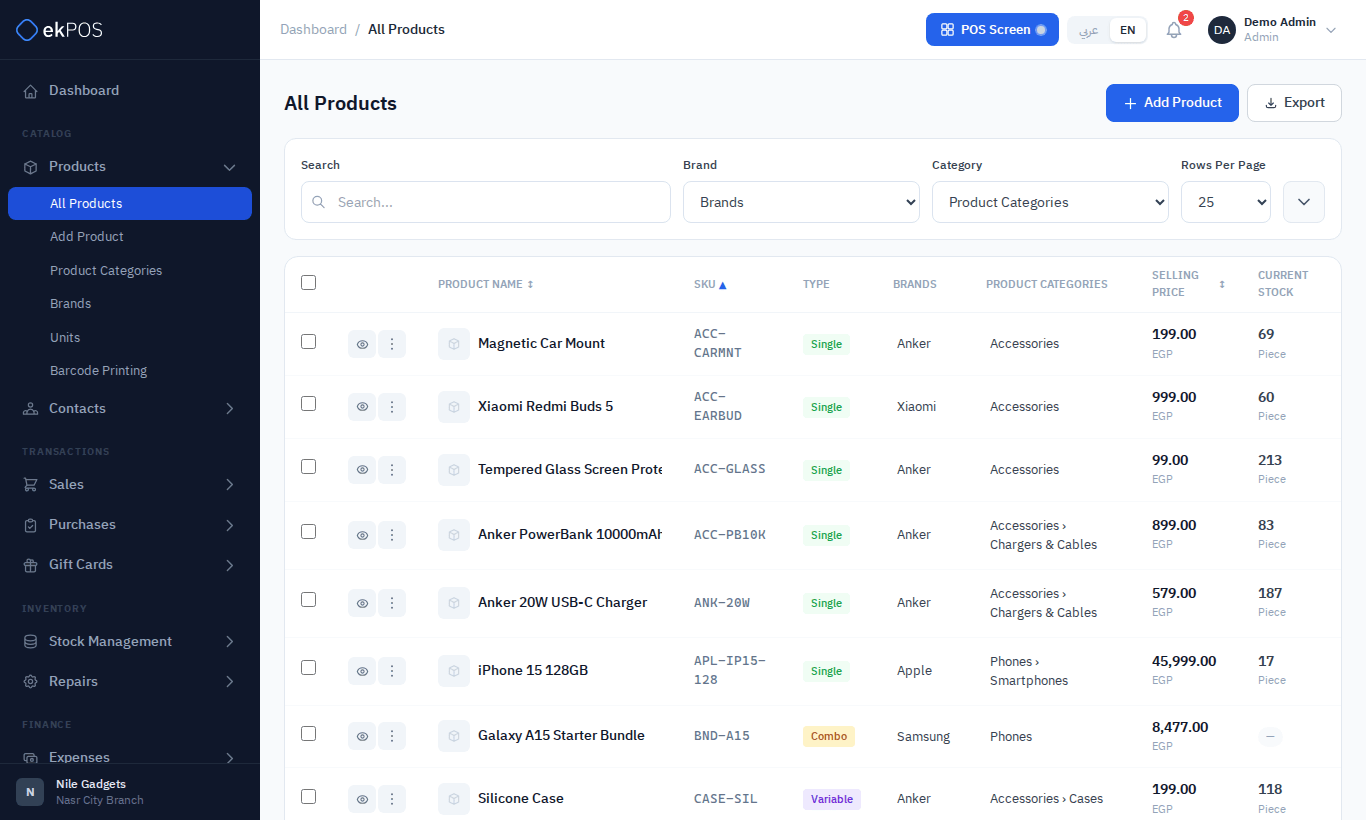
Products → All Products lists your catalog. You can search and filter it, edit common fields without opening a product, and act on one product or many at once.
Search, filter and sort
- Search matches the product name, SKU or barcode.
- Filters: Brand, Category, Type (Single, Variable, Combo), Status (Active, Inactive), and For Selling (Available or Not Available — see Not for selling).
- Sort by clicking the Product Name, SKU or Selling Price column heading. Click again to reverse.
- Per page: 25, 50, 100, 250 or 500 rows.
Filters update automatically after two seconds of inactivity and are kept in the page address, so you can bookmark a filtered view or share it with a colleague. The product-list export includes the products matching the applied filters.
The Current Stock column is the total across all your locations. A dash means the product does not track stock (services and combos).
Quick view
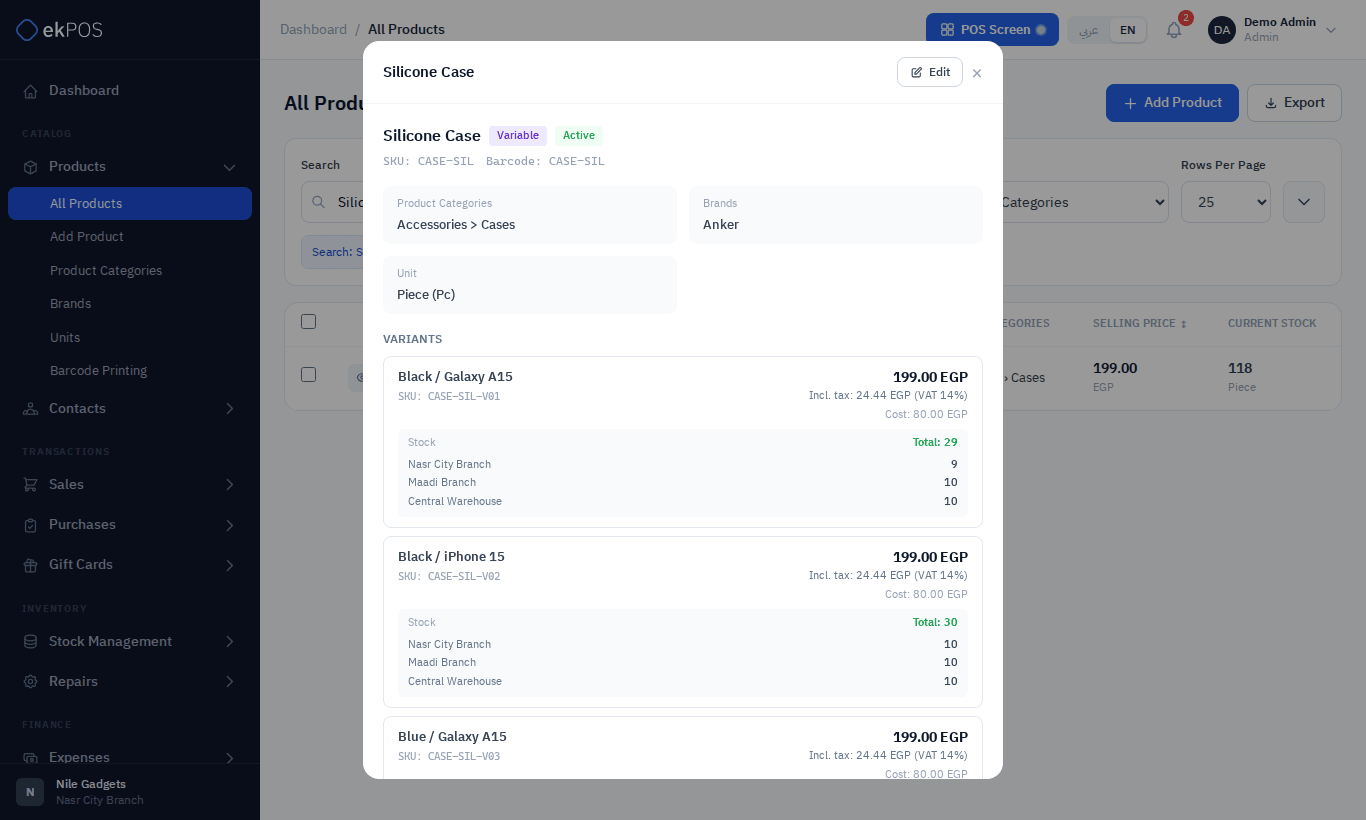
Click the eye icon to open a product's details without leaving the list: prices with the tax included, category and brand, custom fields, attachments, and stock at every location. For a variable product, each variant is shown with its own price and stock.
Edit in the list
Some fields can be changed straight from the list:
| Column | How |
|---|---|
| Product name | Click the name, type, and click away. |
| Brand | Click the brand and pick another. |
| Category | Click the category, pick a category, then a subcategory (or No subcategory (use parent)). |
| Selling price | Click the price, type, and click away. Single products only; variable and combo prices are not edited here. |
Each change saves as soon as you leave the field.
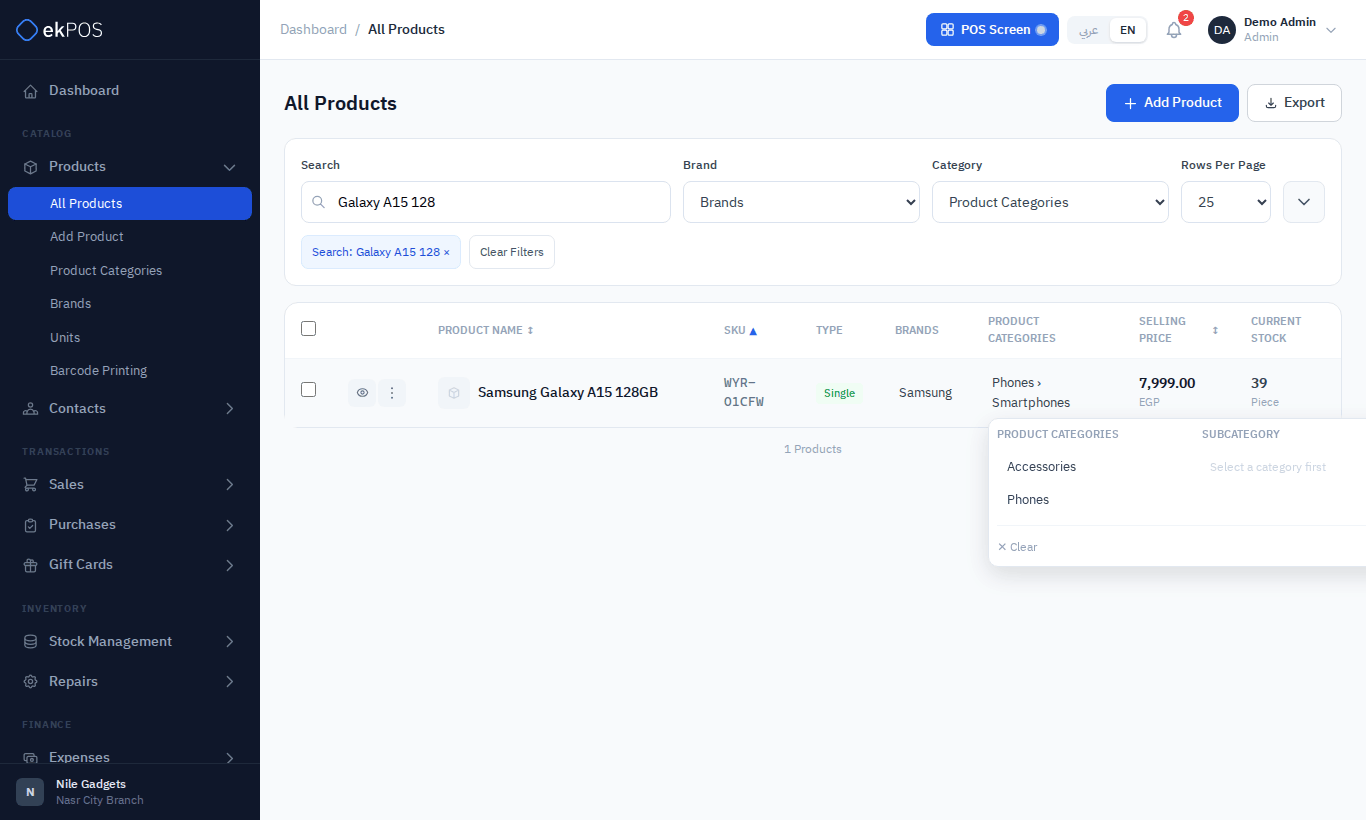
TipThe category picker is the quickest way to re-file many products. The Add Product and Edit Product forms set the category and subcategory too. See Categories.
Row actions
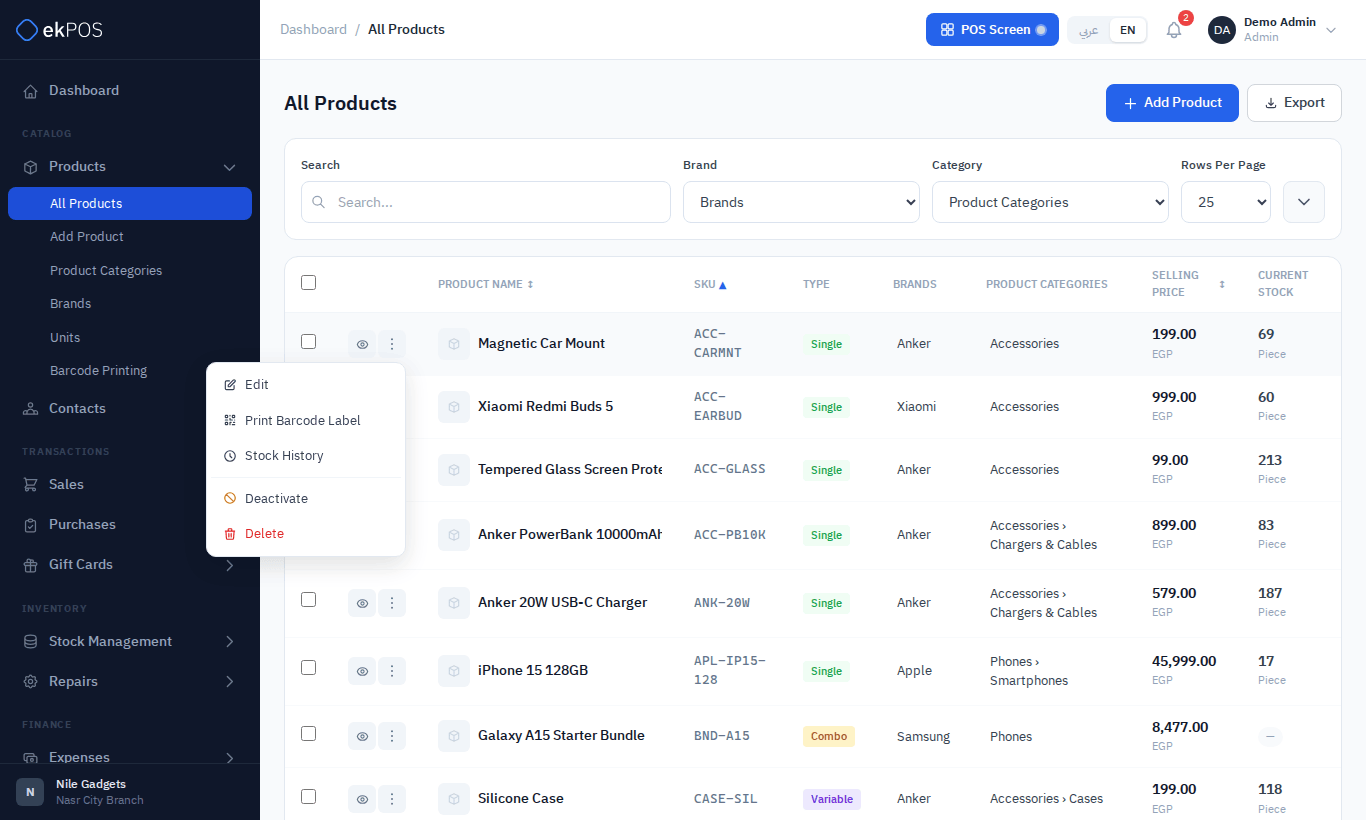
Open the ⋮ menu on a row:
| Action | What it does |
|---|---|
| Edit | Opens the full product form. |
| Print Barcode Label | Prints labels for this product. See Barcodes and labels. |
| Opening Stock | Enters starting quantities. Shown only for a product that tracks stock and has no stock history yet. See Opening stock. |
| Stock History | Opens the Product Stock History report for this product. |
| Deactivate / Activate | An inactive product stays in your records and reports but is hidden from the product searches on sales, the POS, purchases, transfers and adjustments. |
| Delete | Removes the product after you confirm. |
Bulk actions
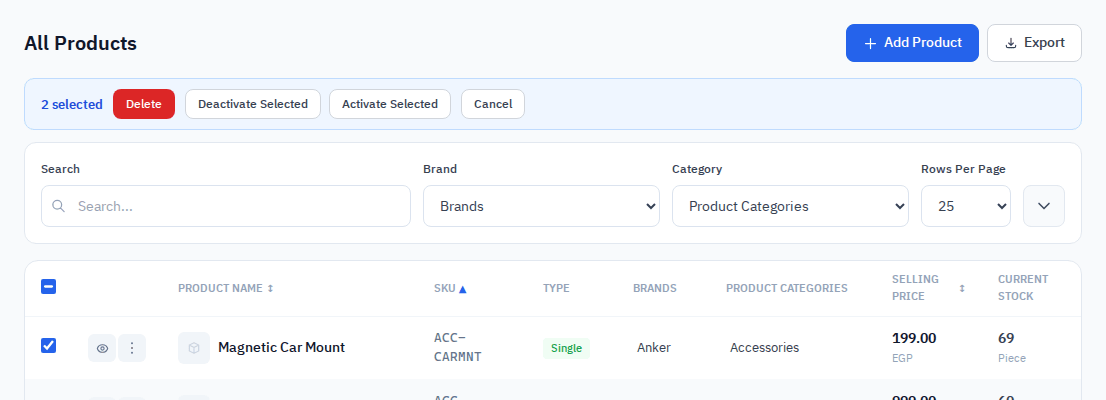
Tick the boxes on the left (or the box in the header to select the whole page). A bar appears with:
- Delete — deletes all selected products.
- Activate Selected / Deactivate Selected.
What deleting does
Deleting a product removes it from the product list and from every product search. Sales, purchases, returns and stock movements that already include it keep it, so your history and reports stay complete. There is no way to restore a deleted product from the app, so deactivate a product you might sell again rather than deleting it.
Once a product is deleted, its SKU and barcode are free to use on a new product.
Export
Export → Excel downloads the products matching the list's current filters as a CSV file, in the same layout as the Import / Export products file, so it can be edited and imported back. There is no PDF export of the product list; choosing PDF says so.
Who can do what
| Permission | Allows |
|---|---|
| Products → View | Open the list, search, quick view. |
| Products → Create | Add Product. |
| Products → Edit | Edit, in-list editing, activate/deactivate, opening stock. |
| Products → Delete | Delete and bulk delete, and removing attachments. |