
Contact ledger and balances
Each contact has a ledger: a statement of what was charged to them and what they paid. Its Current Balance is what the customer owes you, or what you owe the supplier.
Open it from the contact list (⋮ → View Ledger), from a sale's ⋮ → View Customer, or from the sale return list.
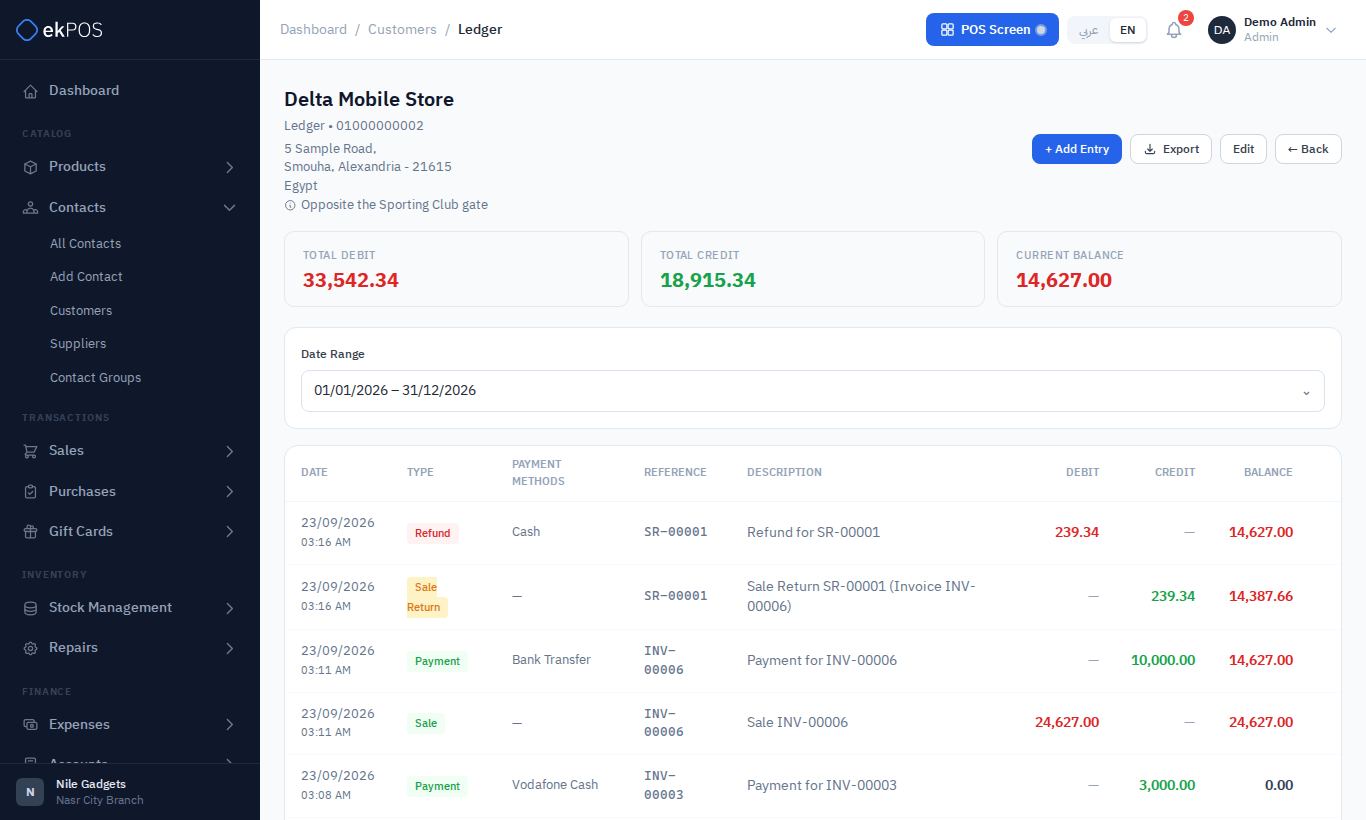
What the ledger shows
The top cards show Total Debit, Total Credit and Current Balance. Below, every entry with its date, type, payment method, reference, description, debit, credit and running balance.
- Customer: a sale is a debit (they owe you more); a payment or a return is a credit, and a refund you pay them is a debit. A positive balance is money owed to you.
- Supplier: a purchase is a credit (you owe them more); a payment or a purchase return is a debit, and a refund they pay you is a credit.
Choose a period — All Time, This Month, Last Month, This Quarter, Last Quarter, This Year, Last Year or a Custom Range — to limit the list. The balance always covers all time.
What is written to the ledger automatically
Sales, purchases, returns and their payments keep the ledger up to date by themselves, wherever they are made — Add Sale, the POS, a repair invoice, a WooCommerce order or an import.
| Event | What the ledger shows |
|---|---|
| Contact created with an opening balance | The opening balance, once |
| Sale | The sale, once it is Final. Drafts, quotations and proforma invoices are not charged. |
| Payment on a sale — at the time or added later | Each payment on its own line, dated the day it was made, with its payment method |
| Sales return | The returned amount, and each refund paid to the customer |
| Purchase | The purchase, once it is Ordered, Partially Received or Received. Drafts, purchase orders and pending purchases are not. |
| Payment on a purchase | Each payment on its own line |
| Purchase return | The returned amount, and any refund the supplier pays you |
| A sale, purchase or return is edited | Its lines are rewritten to match, including a change of customer or supplier |
| A sale, purchase or return is deleted | Its lines are removed |
The contact list's Balance column and the Outstanding figures on the Customer and Supplier reports read this ledger. A customer's balance is what their final sales still have due, less returns not yet refunded, plus their opening balance and any entries added by hand.
NoteA payment taken on a proforma invoice shows as a credit — money paid in advance — until the invoice is made final.
Add an entry by hand
- Click + Add Entry.
- Choose the Type:
- Payment In — money received from the contact, such as a supplier's refund. It lowers what they owe you (a credit).
- Payment Out — money paid to the contact, such as a payment on account to a supplier. It raises the balance (a debit).
- Adjustment — a correction with no money moving. Choose its Direction: Increase what they owe us or Decrease what they owe us.
- Enter the Amount, Date, optional Payment Method and a description.
- Save.
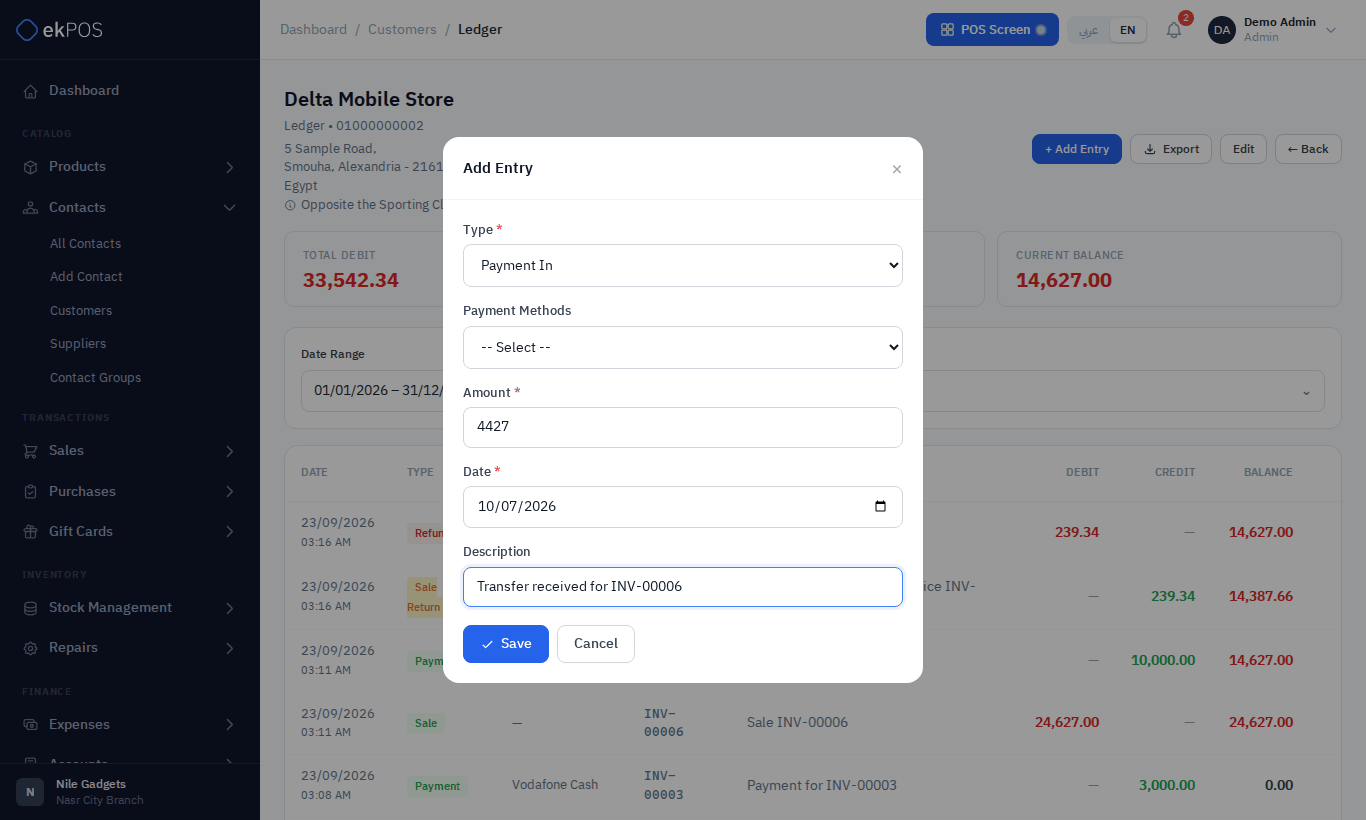
A payment keyed here is also posted to your accounts: cash or bank (by the payment method's mapping) against Accounts Receivable for a customer, or Accounts Payable for a supplier. An adjustment changes the ledger only.
A manual entry does not mark any sale or purchase as paid — record those with Add Payment on the sale or purchase.
To remove an entry you keyed in by mistake, click Delete on its row; its accounting posting is reversed too. Rows that belong to a sale, purchase or return cannot be deleted here — change the document instead.
Export and print
Export gives a CSV of the ledger, or a printable statement you can save as a PDF and send to the customer, for the selected period. The statement carries your logo, business name, address, phone, email and tax number from Document Settings, with the contact's details and the period, and prints right to left in Arabic.