
Purchases and purchase orders
A purchase records goods you buy from a supplier. The same form covers every stage: a draft, a purchase order sent to the supplier, an order on its way, and goods received. The status decides whether stock changes.
Open Purchases → All Purchases, or Purchases → Add Purchase to start one.
Purchase statuses
| Status | Meaning | Stock |
|---|---|---|
| Draft | Being prepared. | No change |
| Purchase Order | Sent to the supplier. | No change |
| Pending | Waiting for confirmation. | No change |
| Ordered | Confirmed by the supplier and on its way. Appears on Backorders so you can receive it. | No change |
| Partially Received | Some of the goods have arrived. | Received quantities added |
| Received | Everything has arrived. | Full quantities added |
| Cancelled | Will not go ahead. | No change |
Only Partially Received and Received add stock, and only to the Location on the purchase.
Create a purchase
- Go to Purchases → Add Purchase.
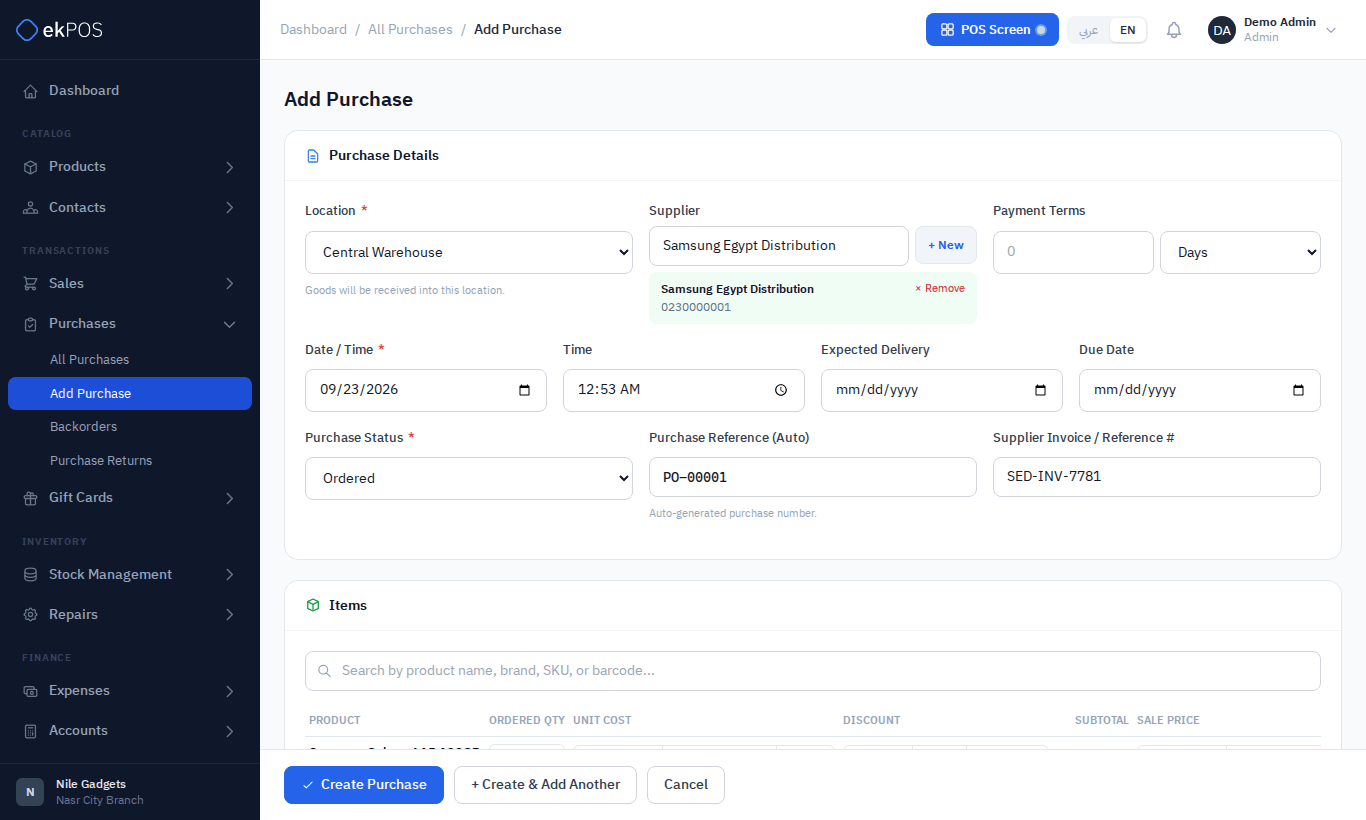
- Choose the Location that will receive the goods.
- Find the Supplier in the top row between Location and Payment Terms, by name, company or phone. To add a new supplier without leaving the form, click + New.
- Check the Date / Time. It can't be later than now. Optionally set Payment Terms, Expected Delivery and Due Date.
- Enter the supplier's invoice number in Supplier Invoice / Reference #. The Purchase Reference (PO-00001…) is filled in for you.
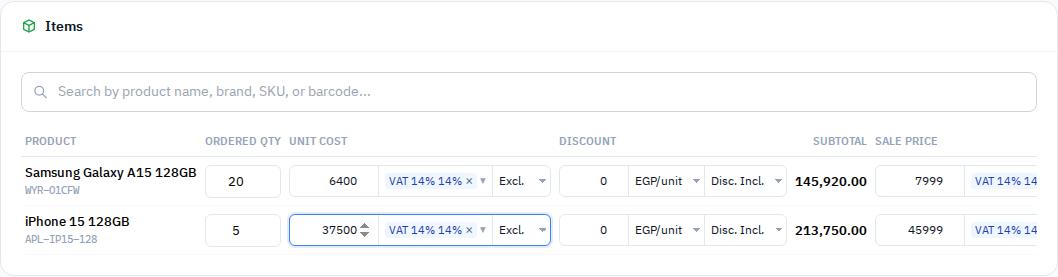
- In Items, search by product name, brand, SKU or barcode and pick the product (or the exact variant). Each result shows the current cost and stock, and — once you have bought from this supplier before — the Last paid price, green if it was cheaper than today's cost and orange if dearer. Scanning the same product again adds 1 to its line.
- For each line, enter:
- Ordered Qty.
- Unit Cost, with its tax and Excl. / Incl.
- An optional Discount, as an amount off each unit (shown as EGP/unit, so it is multiplied by the quantity) or a percentage of the line. New discounts default to Tax Inclusive; choose Tax Exclusive when needed.
- Sale Price — pre-filled with the product's selling price. Change it to update the product's selling price when you save.
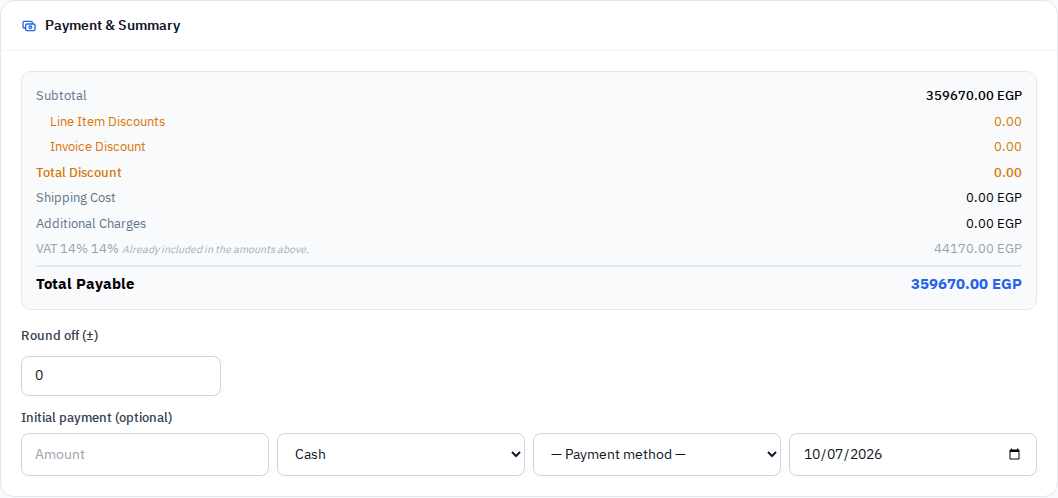
- Fill in any invoice discount, shipping, additional costs and notes (below). The invoice discount also defaults to Tax Inclusive for a new purchase.
- Choose the Purchase Status (see below).
- If you are paying now, enter an Initial payment: amount, type, payment method and date, which can't be later than now.
- Click Create Purchase, or + Create & Add Another.
With Received, every line is received in full, whatever order you choose the status and type the quantities in. With Partially Received, a Received column appears; enter what arrived on each line, and the rest goes on backorder. Any other status receives nothing.
Discounts, shipping and extra costs
| Section | What it does |
|---|---|
| Invoice Discount | A fixed amount or percentage off the whole purchase, tax-exclusive or inclusive. |
| Shipping Cost | Freight charged by the supplier. It can carry its own tax, and Include in tax adds it to the taxable amount. |
| Shipping Status | Follows the purchase status automatically (Ordered → Ordered, Partially Received → Partially Delivered, Received → Delivered). Set Packed, Shipped or Returned by hand if you track them. |
| Additional Costs | Customs, handling, insurance and so on. Click + Add Cost Line; each line has a description, amount, optional tax, and an In cost tick. |
| Invoice-level tax | Taxes applied to the whole invoice rather than to lines, such as withholding tax. |
| Round off (±) | A small adjustment to make the total match the supplier's invoice. |
Shipping and other charges
ekPOS spreads shipping, and any additional cost ticked In cost, across the purchase lines to work out each product's real landed cost. Choose how in Cost Allocation:
- By line value — dearer lines carry more of the charge (the default).
- By quantity — every unit carries the same share.
- By weight — uses the products' weight.
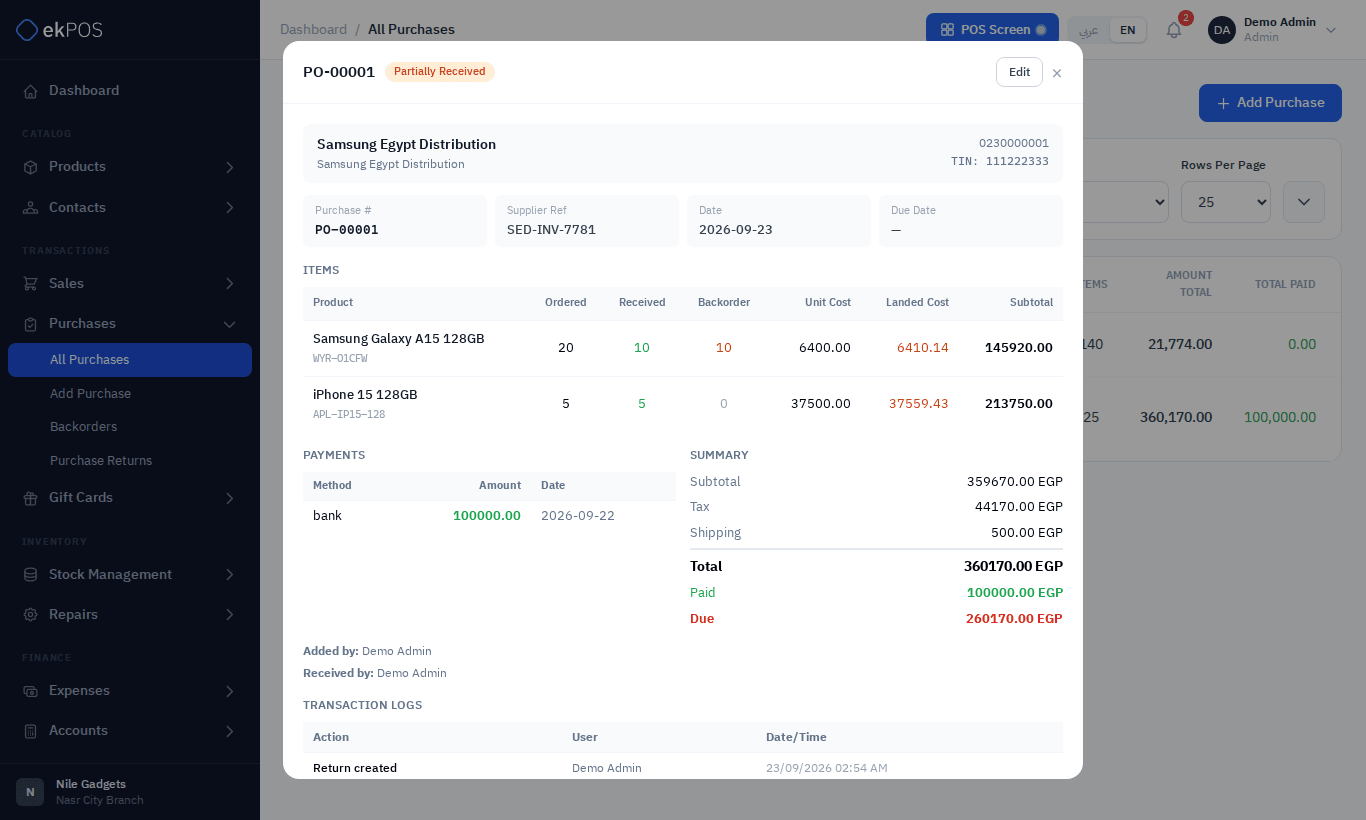
The supplier's own unit cost stays as invoiced. The allocated share and the landed cost are shown next to it when you view the purchase.
What happens when you save
- Stock — for Received and Partially Received, the received quantities are added at the purchase's location. At a warehouse, goods are received without a zone; transfer them into a zone if you use zones.
- Product cost — each received product's purchase price becomes its latest landed cost. Margins, the Profit & Loss report and cost of goods sold use it from then on. See Pricing and tax.
- Selling price — if you changed a line's Sale Price, the product's selling price is updated.
- Supplier prices — each received line is recorded in the Supplier Prices report, and is shown as Last paid next time.
- Amount due — the total less any payment. Pay the rest later; see Supplier payments.
- Accounts — on plans with accounting, the purchase is posted to your chart of accounts once goods arrive (Partially Received or Received), and each payment when it is made. An Ordered purchase is not posted yet: nothing is on the shelf and nothing is owed.
- Supplier ledger — the purchase is added to what you owe the supplier from the same moment, when goods first arrive.
The purchase list
Purchases → All Purchases shows the date, reference and supplier invoice number, supplier, location, purchase status, payment status, item count, total, paid and due.
A circle beside the reference shows goods from the purchase have gone back to the supplier: red when everything received was returned, amber when some of it was. Hover for Fully Returned or Partially Returned; click it to open the purchase's returns.
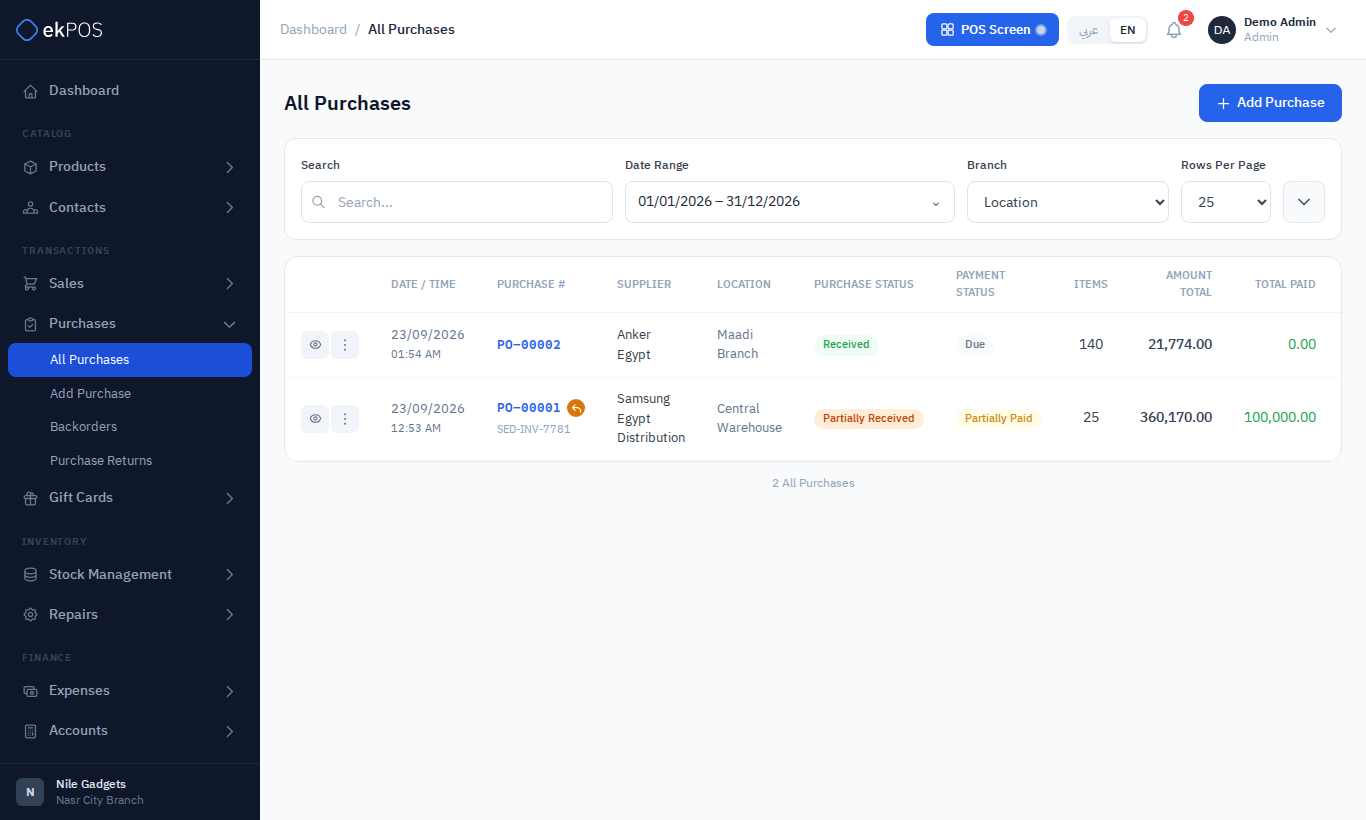
Filter by search (reference, supplier invoice number, or supplier name, company or phone), Purchase Status, Payment Status (Paid, Partial, Due, or Overdue — unpaid past the due date), Location and a date range.
View, print and edit
Click the eye icon to see a purchase in full: the supplier, every line with ordered, received and backordered quantities, unit and landed cost, payments, totals, and a Transaction Log of every change, payment and receipt with who made it.
The ⋮ menu offers:
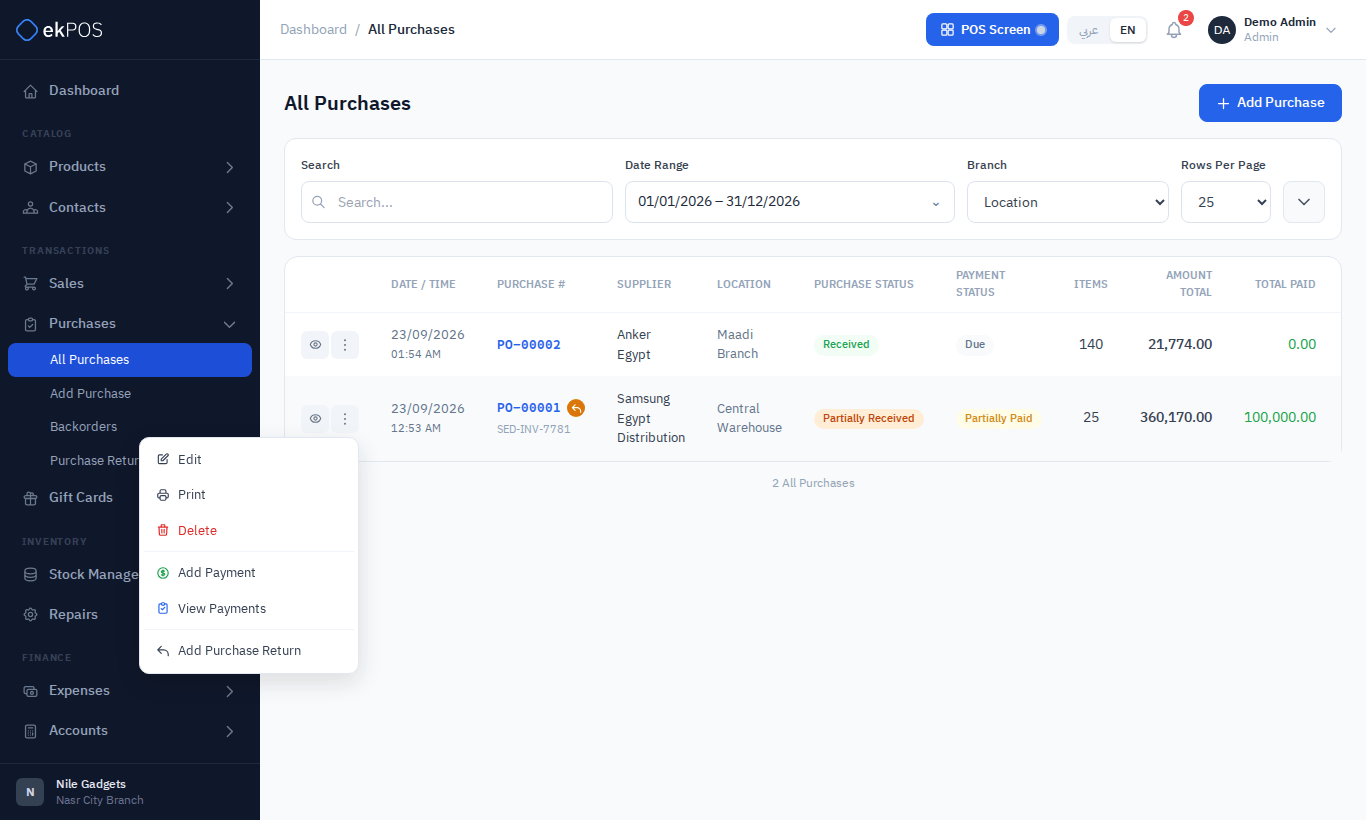
| Action | Notes |
|---|---|
| Edit | Opens the form. Saving an edit reverses the stock the purchase had added and applies it again from the edited figures, so changing a received quantity corrects stock. A purchase that has returns cannot be edited: delete its returns first, or record the difference as a new purchase or return. |
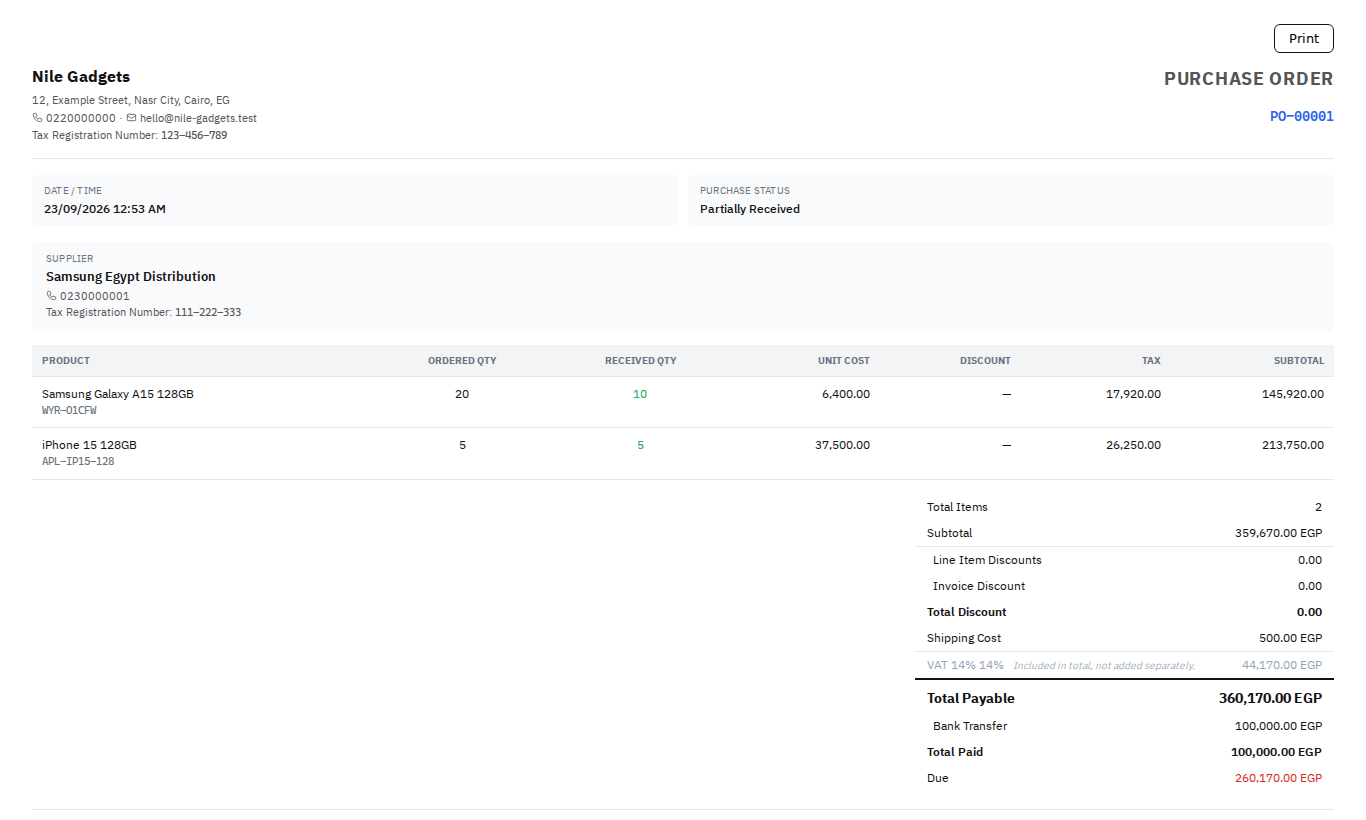
| Prints the purchase order, on paper or as a receipt depending on Document settings. | |
| Add Payment / View Payments | See Supplier payments. |
| Add Purchase Return | Shown for Received and Partially Received purchases. See Purchase returns. |
| Delete | Removes the purchase, takes any received stock back out, removes its payments from your books (the confirmation says how much was paid), and removes its supplier-price history so product costs fall back to the previous purchase. A purchase that has returns cannot be deleted: delete its returns first. |
Validation and errors
- A purchase needs a Location, a date, a status and at least one line. Each line needs an ordered quantity above zero and a unit cost.
- If you type your own Purchase Reference and it is already used, you see Purchase reference "…" is already in use.
- Products that are inactive or deleted do not appear in the product search.
Who can do what
| Permission | Allows |
|---|---|
| Purchases → View | Lists, view, print, backorders, returns list. |
| Purchases → Create | Add Purchase, quick-add supplier. |
| Purchases → Edit | Edit, receive backorders, add payments. |
| Purchases → Delete | Delete purchases and purchase returns. |
| Purchases → Return | Create purchase returns. |