
Stock adjustments
A stock adjustment changes stock without a purchase or sale behind it: breakage, loss, expiry, items used in the shop, items found, or a correction after a count.
Adjustment types
| Type | Direction |
|---|---|
| Lost | Removes |
| Damaged | Removes |
| Expired | Removes |
| Internal Use | Removes |
| Found | Adds |
| Unit of Measure Change | Chosen per line |
| Stock Recount | Chosen per line |
The last two can add on some lines and remove on others. For example, a carton broken into single pieces is one adjustment: one line removes the carton and another adds twelve pieces.
Create an adjustment
- Go to Stock Management → Add Stock Adjustment.
- Choose the Branch (any location) and the Adjustment Type. Check the date and time; the reference (ADJ-00001…) is generated for you.
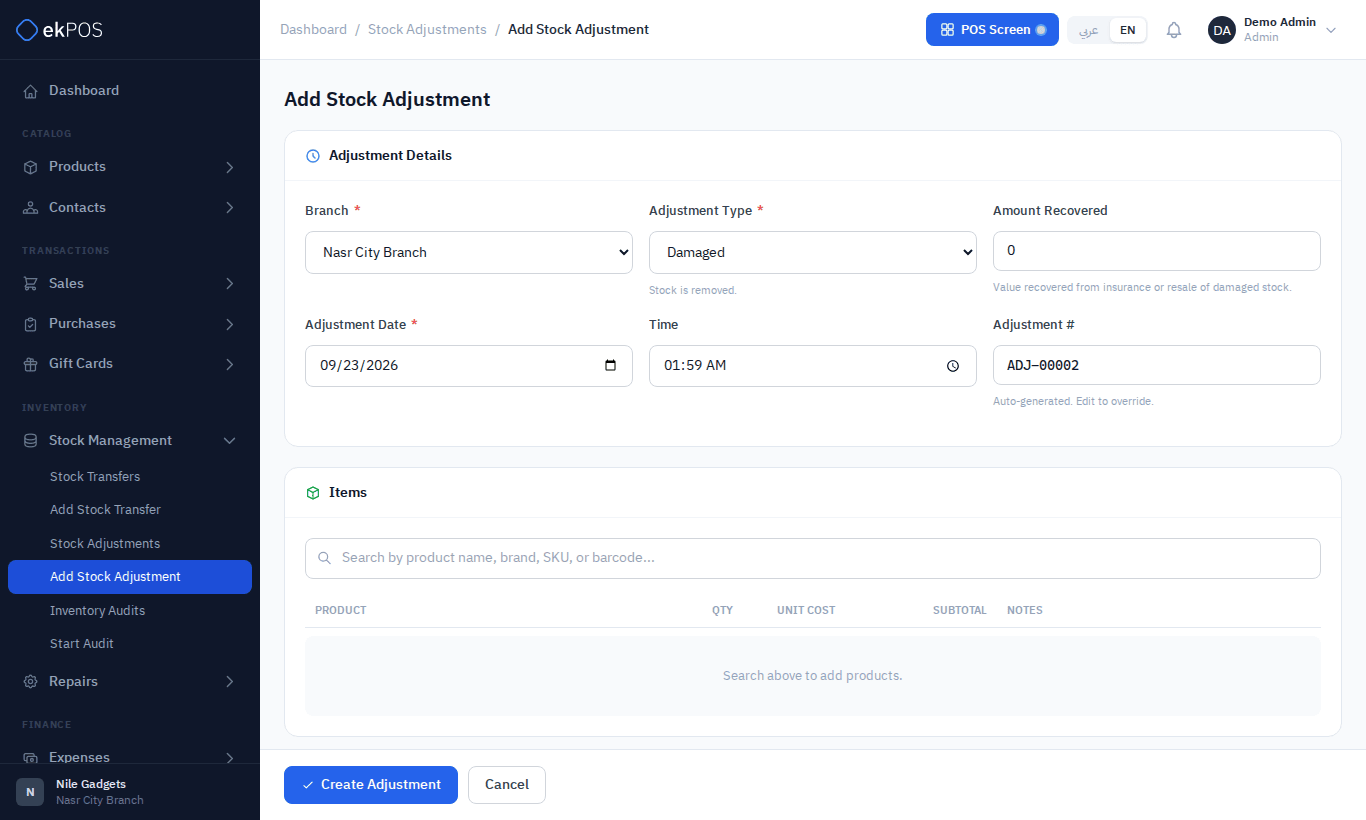
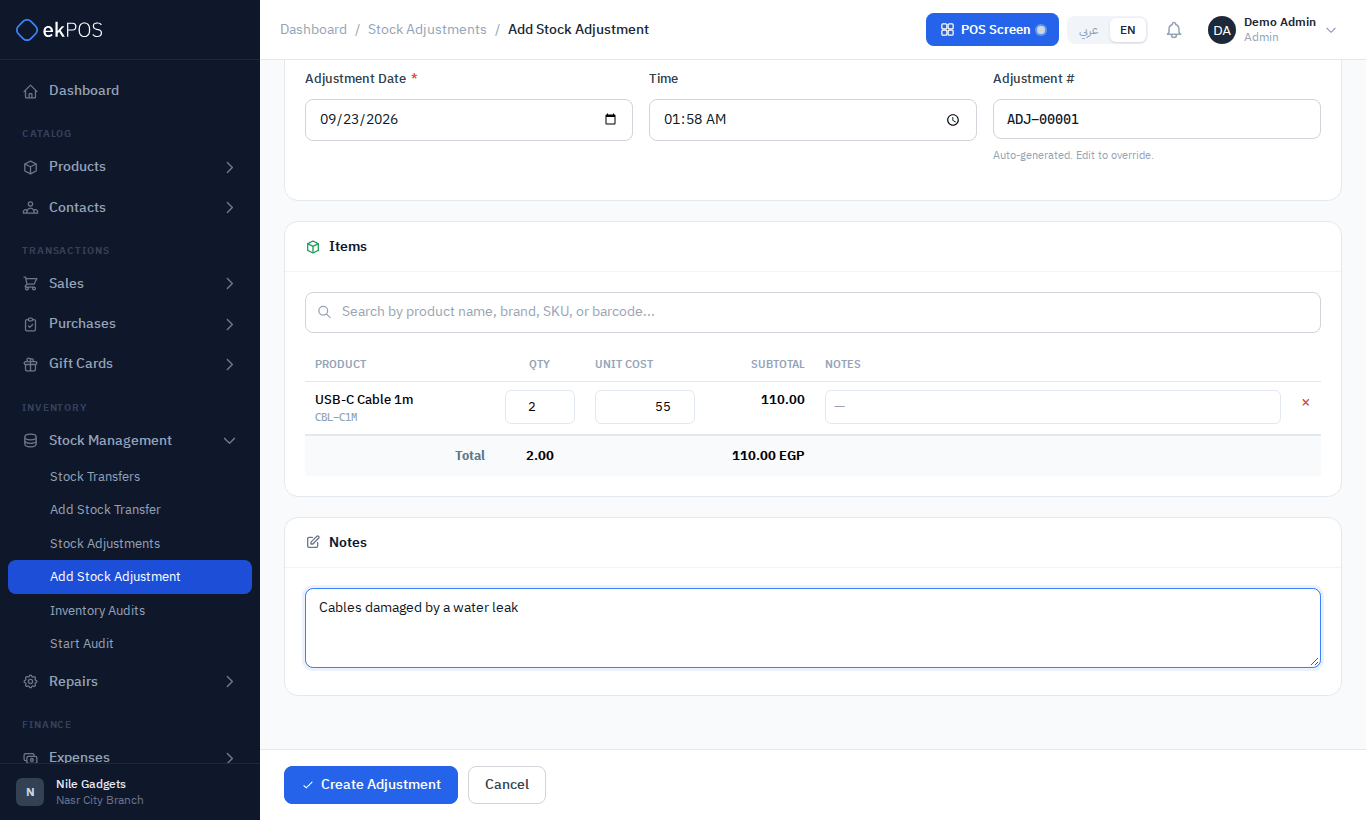
- Search for products and add them. Enter the Qty for each line. For Unit of Measure Change and Stock Recount, choose whether each line adds or removes.
- The Unit Cost is filled with the product's cost, so the adjustment shows the value involved.
- For damaged or lost stock, enter any Amount Recovered — for example from insurance or selling the damaged goods.
- Add notes explaining why, and click Create Adjustment.
The adjustments list
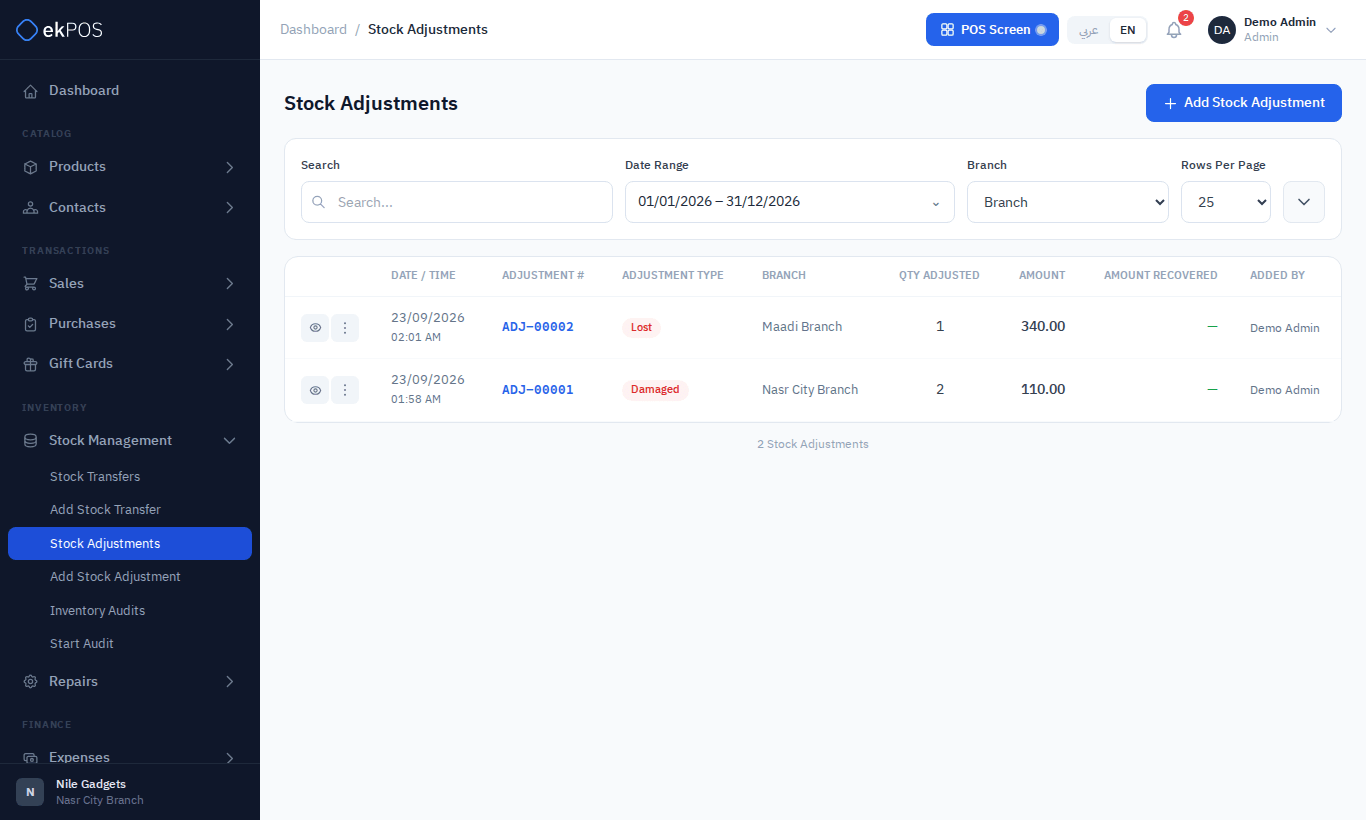
Stock Management → Stock Adjustments shows each adjustment's date, reference, type, location, quantity adjusted, amount and amount recovered. Filter by search, type, location and date. From each row you can view, print, edit or delete it.
Editing an adjustment undoes its stock effect and applies the new figures; deleting it undoes the effect completely.
On plans with accounting, an adjustment is posted to your accounts at the unit cost on its lines: stock written off goes to Inventory Shrinkage, stock found comes back out of it, and an adjustment that does both posts only the difference. Editing it replaces the posting; deleting it removes it. The shrinkage appears in the cost of goods sold on the Profit & Loss report.
Who can do this
Viewing adjustments needs Stock → View; creating, editing and deleting them needs Stock → Adjust.
Related
- Inventory audits — count first, then adjust
- Opening stock