
Import products from a spreadsheet
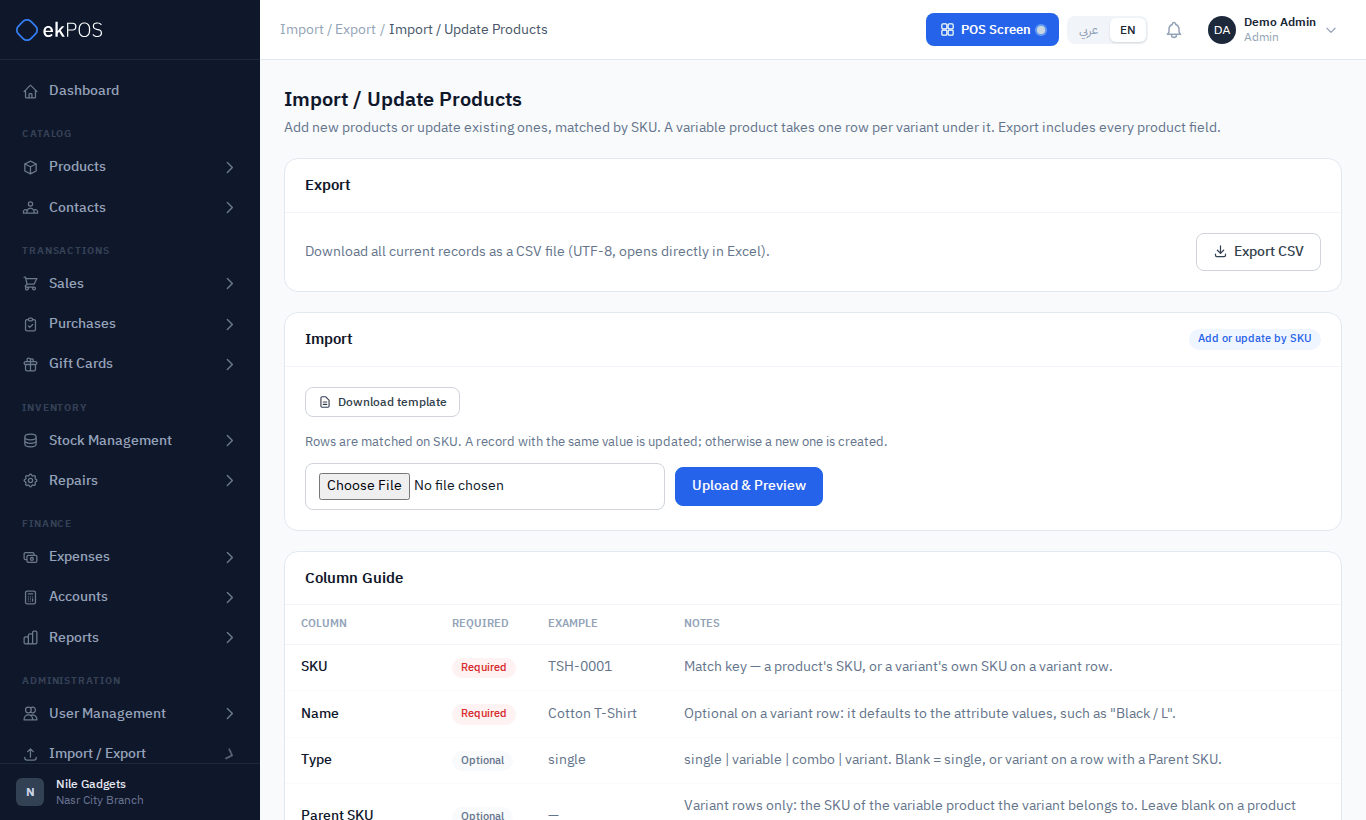
Import / Export → Import/Update Products adds many products at once, or updates existing ones, from a CSV file. You can prepare the file in Excel or Google Sheets.
How matching works
Each row is matched on SKU:
- A SKU that already exists updates that product.
- A new SKU creates a product.
A variant row (one with a Parent SKU) is matched on the variant's own SKU in the same way.
Step by step
-
Click Download template to get a CSV with every column and example rows: a single product, then a variable product with two variants. To update your existing products instead, click Export CSV to download them all.
-
Fill in one row per product, and one row per variant under a variable product (see below). In Excel, save with File → Save As → CSV UTF-8 (Comma delimited). Only
.csv(or.txt) files are accepted, up to 10 MB. Large files are fine: the preview checks 5,000 rows in a few seconds, and the import is sent in batches of 250 rows with a running count, so it never runs into the server's time limit. If a batch fails, the message says how many rows were already saved; importing the file again matches those by SKU instead of duplicating them. -
Back on the page, choose the file and click Upload & Preview.
-
Check the preview. Every row is marked Valid or Invalid with the reason, for example Alert Quantity must be a number. Invalid rows are unticked and will be skipped; untick any valid row you also want to skip.
A row is invalid when a price, Alert Quantity, weight or dimension is negative, when it names a tax that does not exist, when its barcode already belongs to another product or variant, or when its SKU or barcode already appeared on an earlier row of the same file. Only the repeat is refused; the first row is kept. Variant rows have their own checks, listed under Variable products.
-
Click Import (n).
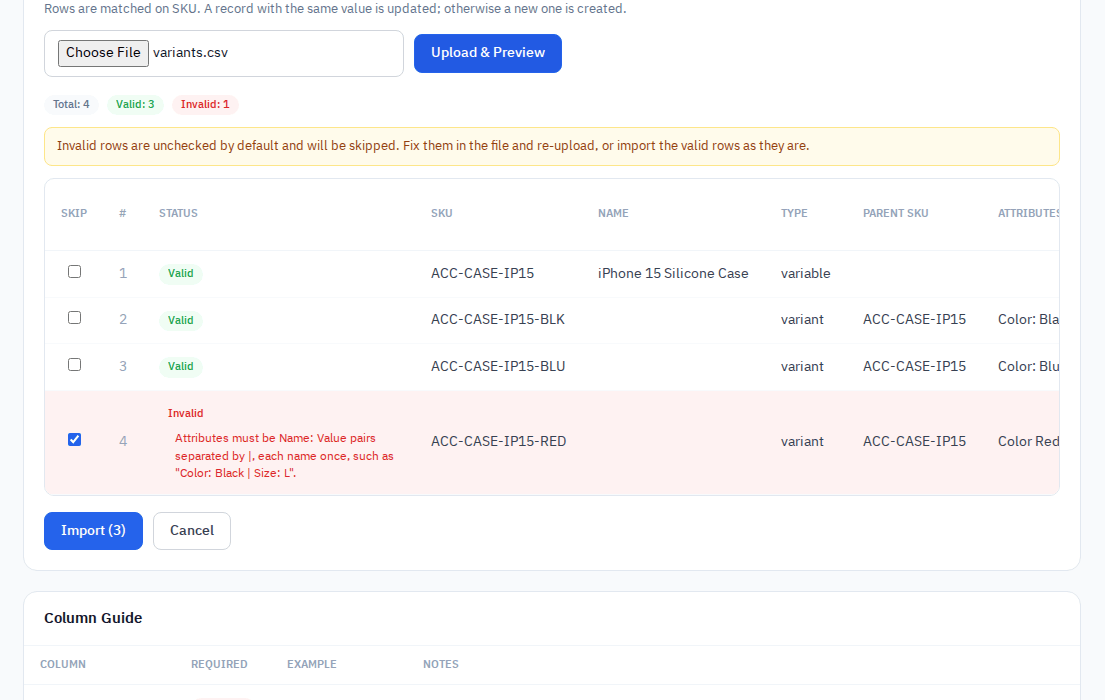
The result shows how many products were Added, Updated and Skipped. Click Import another file to start again.
Nothing is saved until you click Import. Fix invalid rows in your file and upload it again, or import the valid rows now and the rest later.
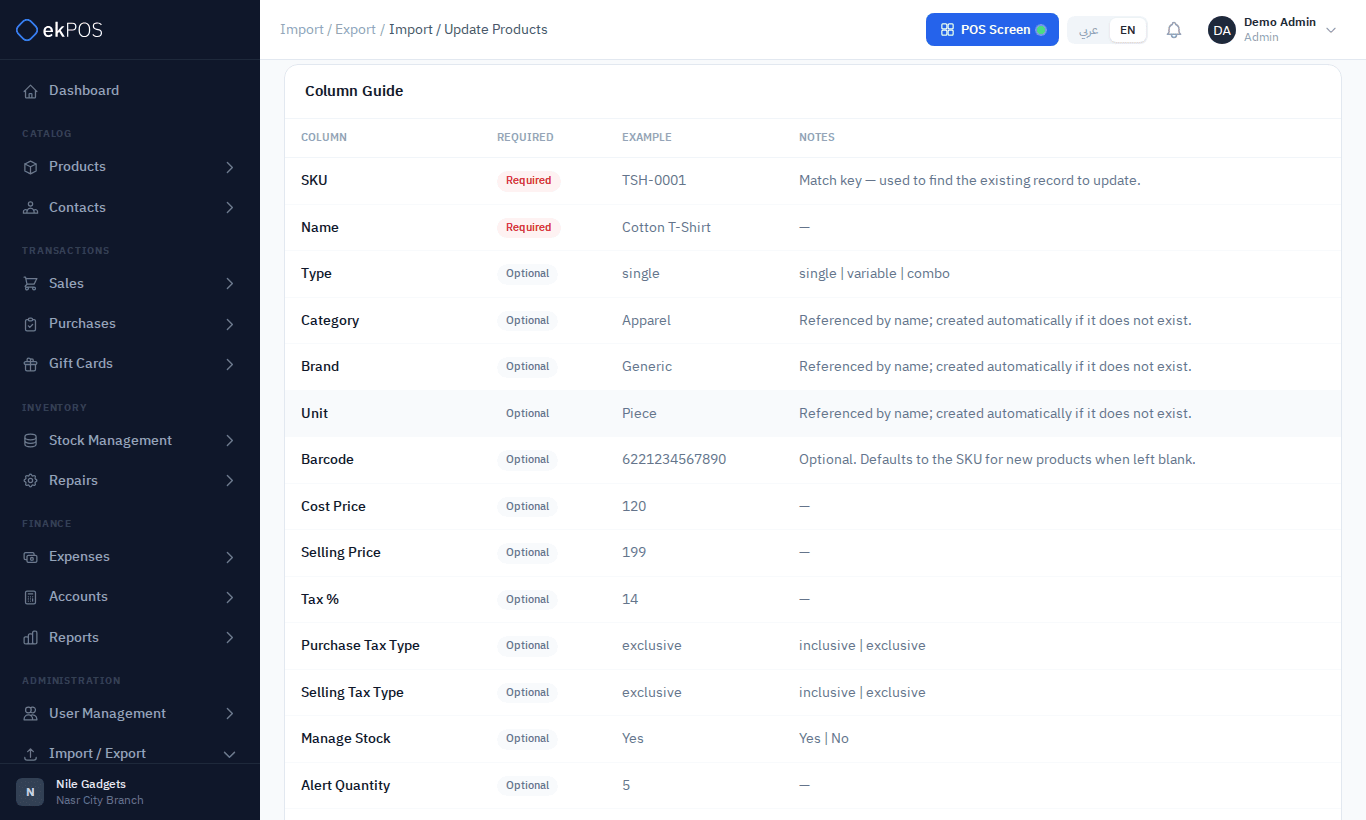
Columns
| Column | Required | Notes |
|---|---|---|
| SKU | Yes | The match key. Stored in capitals. On a variant row, the variant's own SKU. |
| Name | Yes | Optional on a variant row: it defaults to the attribute values, such as Black / L. |
| Type | single, variable or combo, or variant on a variant row. Blank = single, or variant when the row has a Parent SKU. Combo components are not imported; set them up on the product. |
|
| Parent SKU | Variant rows only. See Variable products. | |
| Attributes | Variant rows only. See Variable products. | |
| Category | Matched by name. A subcategory name puts the product in that subcategory. Created if it doesn't exist. | |
| Brand | Matched by name; created if it doesn't exist. | |
| Unit | Matched by name; created if it doesn't exist. | |
| Barcode | Blank on a new product = the SKU; a new variant without one has none. Blank on an update keeps the current barcode. Must not belong to another product or variant. | |
| Cost Price, Selling Price | Numbers. | |
| Purchase Taxes, Selling Taxes | Tax names exactly as on Tax Settings, separated by | — for example VAT 14% | Table Tax. Capitals don't matter. None removes every tax. Blank on an update keeps the current taxes; blank on a new product means none. A rate unticked for products (an invoice-level tax such as withholding) is refused, unless the product already has it. |
|
| Purchase Tax Type, Selling Tax Type | inclusive or exclusive. Blank = exclusive. |
|
| Manage Stock | Yes / No. Blank = Yes. Always No for combos. |
|
| Alert Quantity | The low-stock level. | |
| Has Serial, Not For Selling, Is Service, Active | Yes / No. Active blank = Yes. |
|
| Weight, Weight Unit | A number, and kg or lb (blank on a new product = kg). Files exported before Weight Unit existed head the column Weight (kg); that is still read. |
|
| Length, Width, Height, Dimension Unit | Numbers, and cm or in (blank on a new product = cm). |
|
| Description | ||
| Custom: label | One column for each active product custom field. A number field takes a number, a date field a date written YYYY-MM-DD, and a dropdown or radio field one of its options. A checkbox field takes any of its options separated by commas. A required field must be filled in for a new product. |
Taxes are matched by name because two rates can share a percentage, and a product can carry several. That is why every tax rate's name is unique.
WarningAn update overwrites most columns. A blank cell on an update row clears that field — a blank Category, Brand or Unit is removed, and a blank price becomes 0. To change a few prices, start from Export CSV so every column is filled in, edit the prices, and import the whole file back.
These columns are the exception: Barcode, Purchase Taxes, Selling Taxes, Weight, Weight Unit, Length, Width, Height, Dimension Unit and the custom fields keep the product's value when left blank. A file made before these columns existed therefore changes none of them.
Images and attachments are not part of the file; manage them on the product.
Variable products
A variable product takes one row of its own, with Type variable, and then one row per variant. A variant row has:
- SKU — the variant's own SKU. It must not belong to a product or to another product's variant.
- Parent SKU — the variable product's SKU. The product can be an existing one, or a row in the same file.
- Attributes — what makes the variant different, as
Name: Valuepairs separated by|: for exampleColor: Black | Size: L. Each attribute name may appear once.
A variant row uses only Name, Barcode, Cost Price, Selling Price, Purchase Taxes, Selling Taxes, the two tax types and Active. Category, brand, stock settings and the rest come from the product's own row, and are ignored on a variant row.
| SKU | Name | Type | Parent SKU | Attributes | Selling Price |
|---|---|---|---|---|---|
| POLO | Polo Shirt | variable | |||
| POLO-BLK-L | variant | POLO | Color: Black | Size: L | 249 | |
| POLO-BLK-XL | variant | POLO | Color: Black | Size: XL | 259 |
A variant row is refused when:
- its Parent SKU names no product, or a product that is not variable;
- its Attributes are missing or not written as
Name: Valuepairs; - the product already has a variant with the same attributes under another SKU, or the same variant appears twice in the file.
Importing a variable product never deletes its variants: a variant left out of the file stays as it is. To remove one, edit the product. Export CSV lists each variant under its product, so exporting, editing and importing the file back updates the variants in place.
Opening stock for imported products
Imported products and variants start with no stock. Add it with Import opening stock, a purchase, or the product's Opening Stock action.
Who can do this
Importing needs Data → Import; Export CSV needs Data → Export.